
Dropdown with Images
Set up a Dropdown with Images field in Infinite Options to give shoppers a swatch-style color or image picker for each option value.
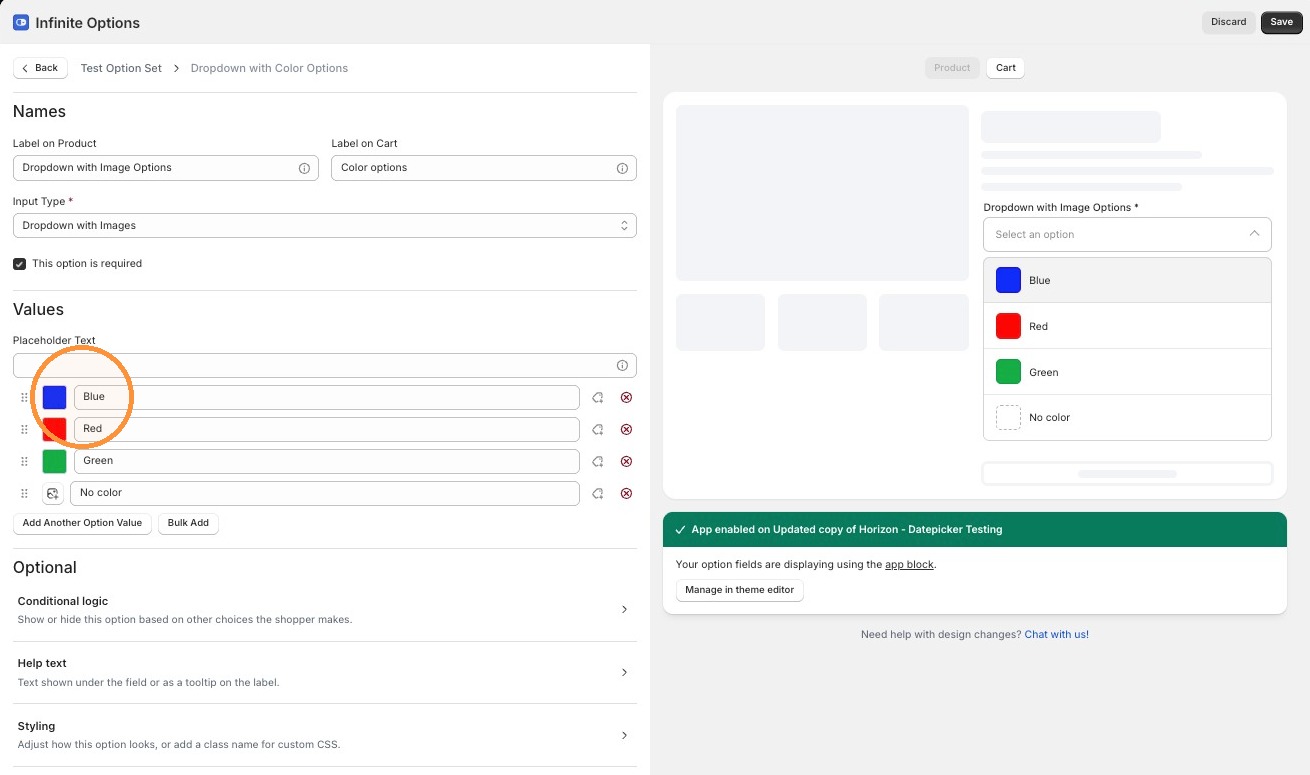
Dropdown with Images shows a swatch-style color or image picker for each value.
Step 1: Add the Field
Section titled “Step 1: Add the Field”Open an existing Option Set or create a new one. Add a new option and select Dropdown with Images as the input type.
Step 2: Add Your Option Values
Section titled “Step 2: Add Your Option Values”Add values using the same color/image picker used by Swatch fields, in the same modal. An image is optional per value, a value with no image renders as plain text in the list. Use Remove image in the modal to clear an image from a value.
Step 3: Style the Field
Section titled “Step 3: Style the Field”Under Styling, you can set a Class name for custom CSS. Thumbnail size is fixed and can’t be changed per field.
Step 4: Save Your Option Set
Section titled “Step 4: Save Your Option Set”Click Save to save your changes
- This field is single-select only, there’s no accordion wrapper or multi-select option.