
How to Change or Translate Required Pop-Up Messages and “Characters Remaining” Text
Add a small theme code snippet to translate or reword Infinite Options required field messages and the Characters remaining counter text.
https://www.youtube-nocookie.com/embed/EPkB8cJ42_g?rel=0
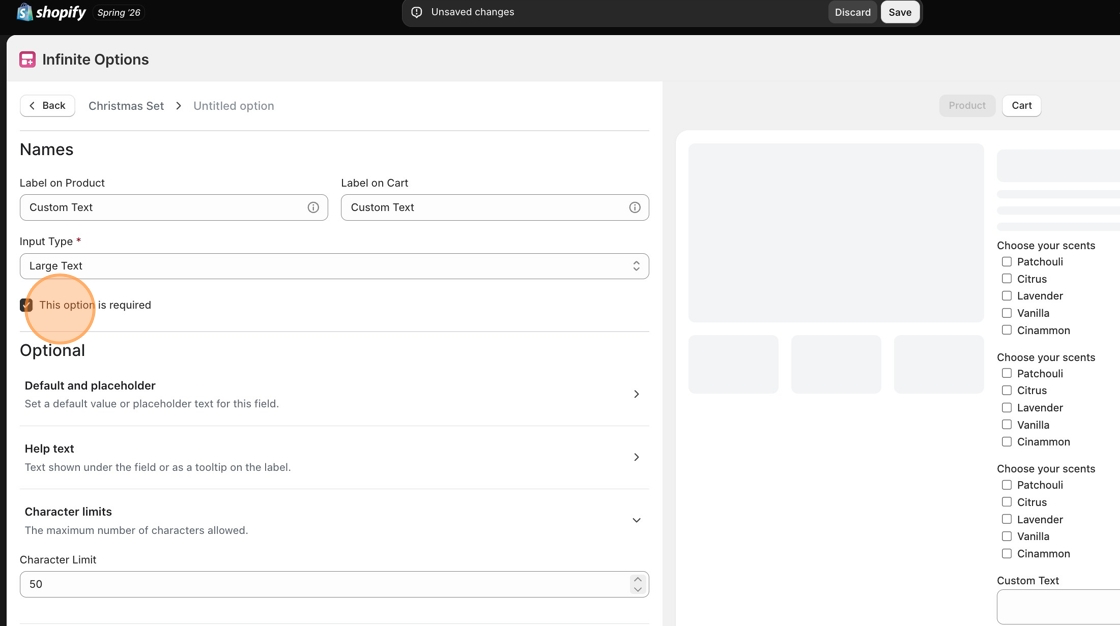
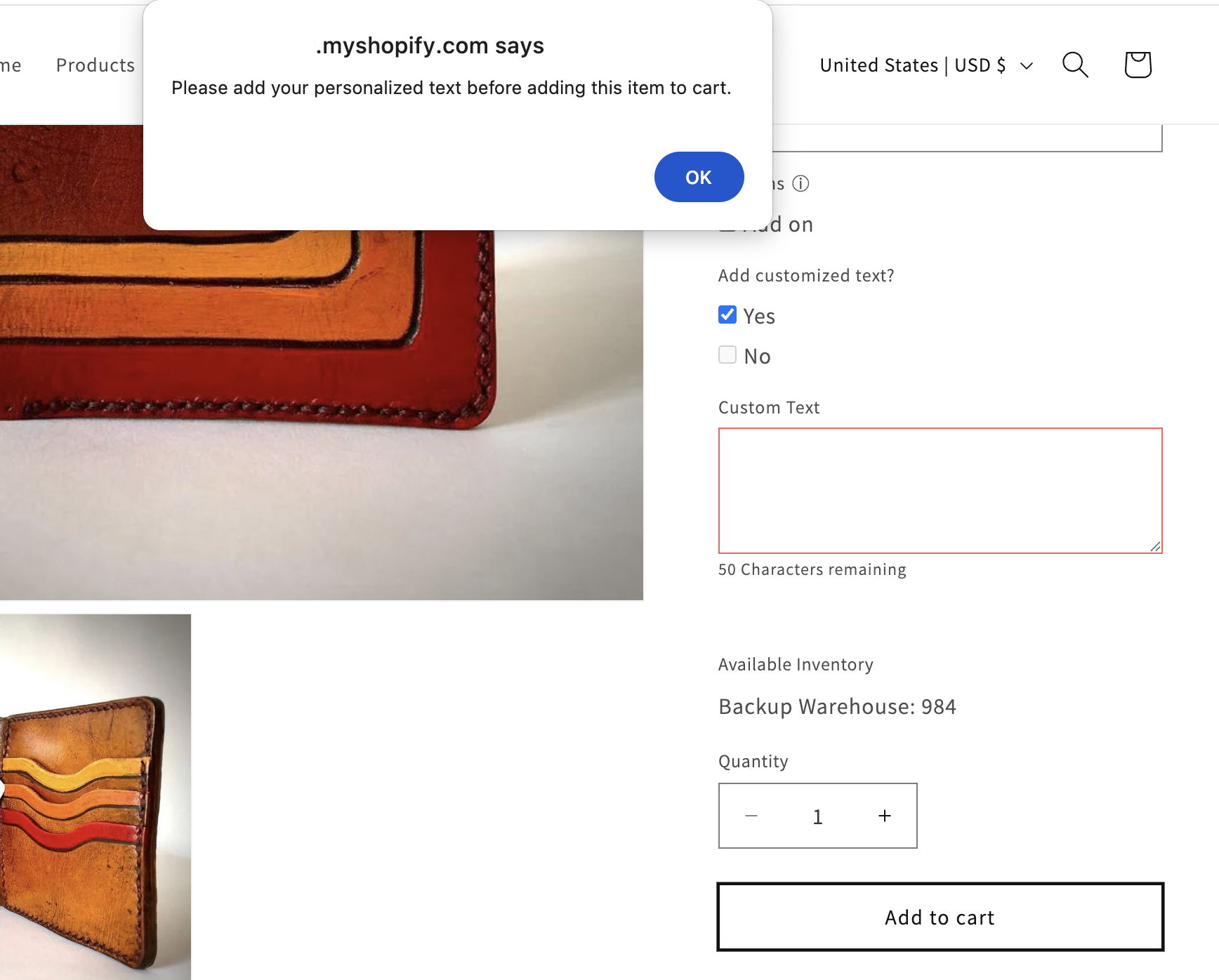
You can customize the required field error messages and the “Characters remaining” text shown by Infinite Options by adding a small code snippet to your Shopify theme.
This allows you to:
- Translate messages
- Match your store’s tone and language
- Clarify required field instructions
This only affects Infinite Options validation messages. It does not change Shopify’s default product form behavior.
Where to Add the Code in Shopify
Section titled “Where to Add the Code in Shopify”- From your Shopify admin, go to Online Store → Themes
- Click Edit code
- Open your product template file
This is usually namedproduct.liquidormain-product.liquid - Scroll to the bottom of the file
- Paste the snippet you selected below
- Click Save
Use only one snippet at a time.
If you’re unsure which file is your product template, see this guide for help locating it.
Choose the Text You Would Like to Change
Section titled “Choose the Text You Would Like to Change”Change “Characters Remaining” Only
Section titled “Change “Characters Remaining” Only”Use this if you only want to update the “Characters remaining” message.
<script>window.Shoppad = window.Shoppad || {};window.Shoppad.apps = window.Shoppad.apps || {};window.Shoppad.apps.infiniteoptions = window.Shoppad.apps.infiniteoptions || {};window.Shoppad.apps.infiniteoptions.strings = window.Shoppad.apps.infiniteoptions.strings || {};
window.Shoppad.apps.infiniteoptions.strings.charactersRemaining = "Characters remaining";</script>
Replace "Characters remaining" with your own text.
Example:
"Caractères restants"Change Text Field Required Message Only
Section titled “Change Text Field Required Message Only”Use this if you only want to change the required error message for text input fields.
<script>window.Shoppad = window.Shoppad || {};window.Shoppad.apps = window.Shoppad.apps || {};window.Shoppad.apps.infiniteoptions = window.Shoppad.apps.infiniteoptions || {};window.Shoppad.apps.infiniteoptions.strings = window.Shoppad.apps.infiniteoptions.strings || {};window.Shoppad.apps.infiniteoptions.strings.errorMessages = window.Shoppad.apps.infiniteoptions.strings.errorMessages || {};
window.Shoppad.apps.infiniteoptions.strings.errorMessages.forTextInputs =  "Please enter your text before adding this item to cart.";</script>
Edit the sentence inside the quotation marks.
Change All Required Messages
Section titled “Change All Required Messages”Use this if you want to customize validation messages for:
- Text inputs
- Number inputs
- Checkboxes
- Minimum selections
- Dynamic checkout buttons
- Dropdown menus
- Upload
<script>  window.Shoppad = window.Shoppad || {};  window.Shoppad.apps = window.Shoppad.apps || {};  window.Shoppad.apps.infiniteoptions = window.Shoppad.apps.infiniteoptions || {};
  window.Shoppad.apps.infiniteoptions.strings = {    charactersRemaining: "Characters remaining",    errorMessages: {      forTextInputs: "Please add your personalized text before adding this item to cart.",      forNumberInputs: "Please enter a number before adding this item to cart.",      forCheckboxes: "Please select your options before adding this item to cart.",      forMinimumValues: "Please select at least %valuesmin options before adding this item to cart.",      forDateInputs: "Please select a date before adding this item to cart.",      forFileInputs: "Please upload a file before adding this item to cart.",      forDropdowns: "Please select an option before adding this item to cart.",      forDynamicCheckout: "Please add the item to your cart before using this checkout option."    }  };</script>
You can edit any sentence inside the quotation marks.
%valuesmin will automatically be replaced with the required number.
If Your Changes Don’t Appear
Section titled “If Your Changes Don’t Appear”- Clear your browser cache
- Confirm the snippet is inside your product template file
- Make sure it is placed above
{% schema %}in Shopify 2.0 themes