
Create Color and Image Swatches
Create color and image swatches in Infinite Options for products that vary by color, pattern or material, with steps for adding values and images.
Overview
Section titled “Overview”Swatches let customers choose an option by selecting a color or image instead of reading a text label.
They’re a great choice for products available in different colors, patterns, materials, finishes, flavors, or other visual customizations
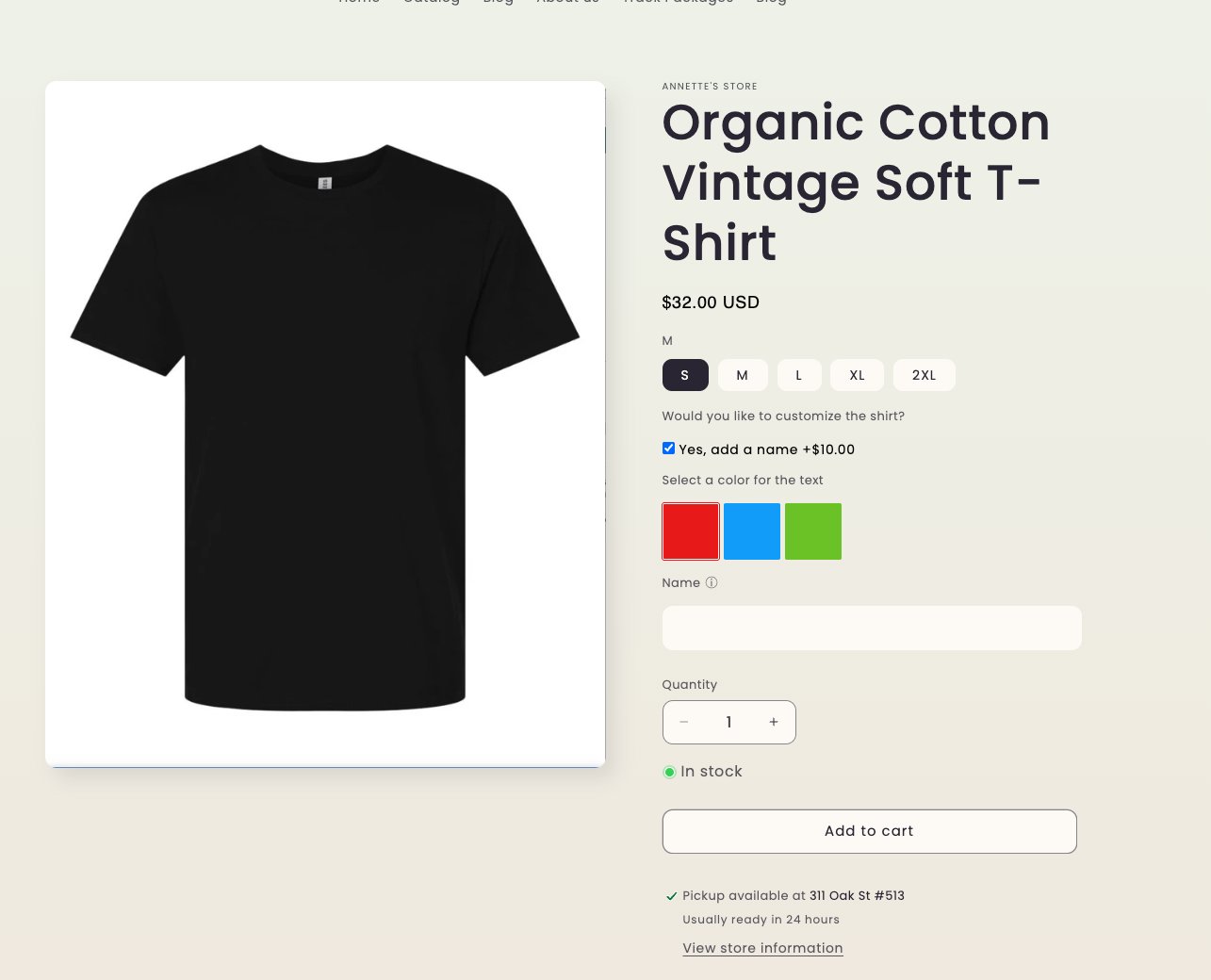
Step 1: Create a Swatch Option
Section titled “Step 1: Create a Swatch Option”Open an existing Option Set or create a new one.
Add a new option and select Swatches as the input type.
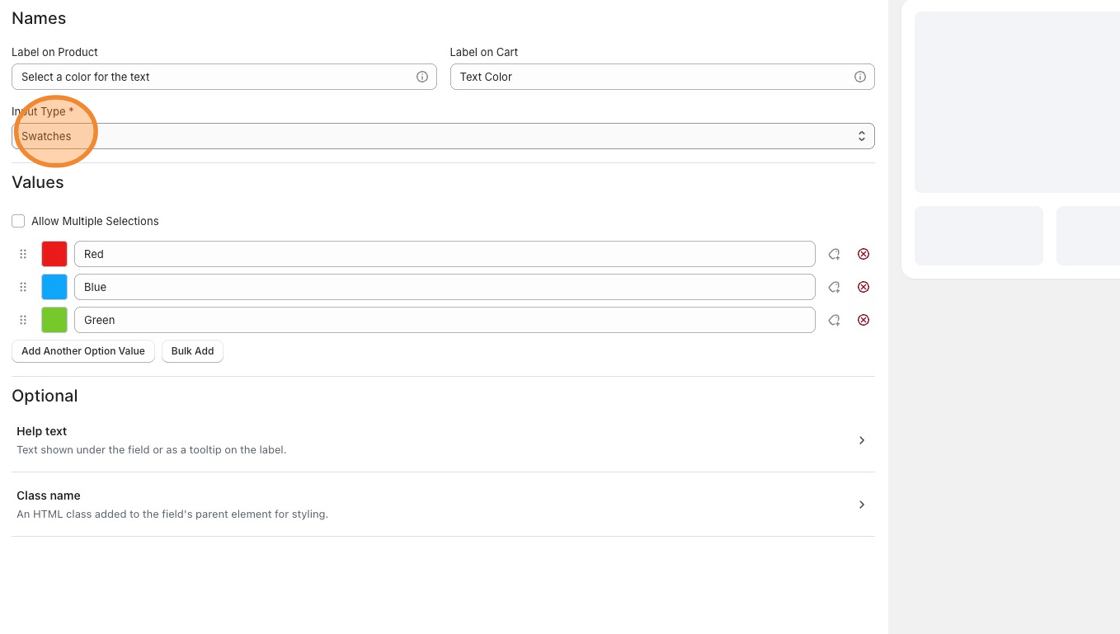
Step 2: Add Your Option Values
Section titled “Step 2: Add Your Option Values”Enter the values you want customers to choose from.
For example:
- Red
- Blue
- Green
Each value can have its own color or image.
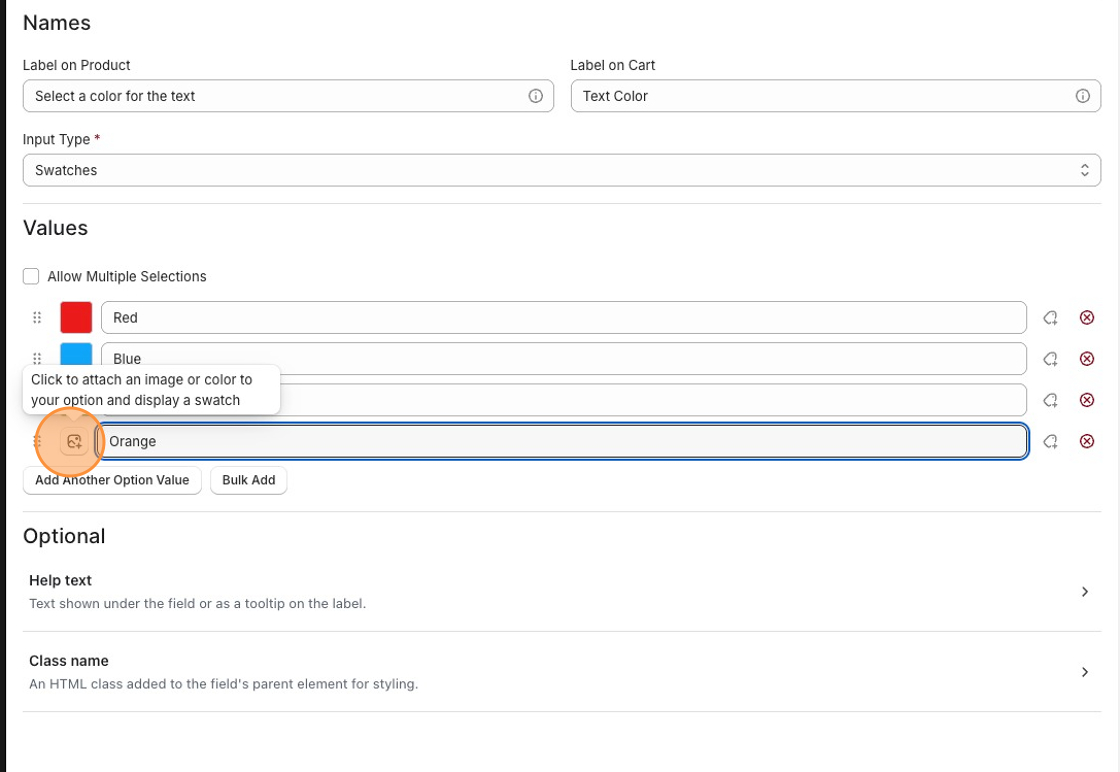
Step 3: Add a Color or Image
Section titled “Step 3: Add a Color or Image”Next to each option value, click the swatch icon.
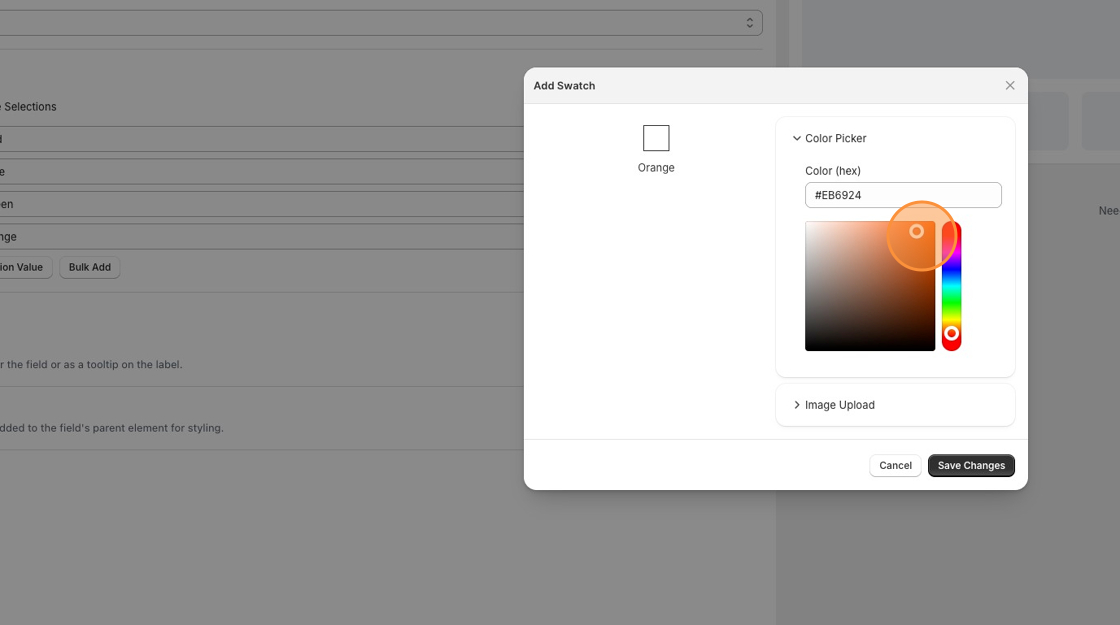
Choose one of the following:
Select a color using the color picker or enter a HEX color value.
Example: #FFFFFF
Click Save to apply the color.
Upload an image to represent the option.
For best results:
- Use square images.
- Keep images under 1 MB.
- GIF images aren’t supported.
Click Save to apply the image.
Style Your Swatches
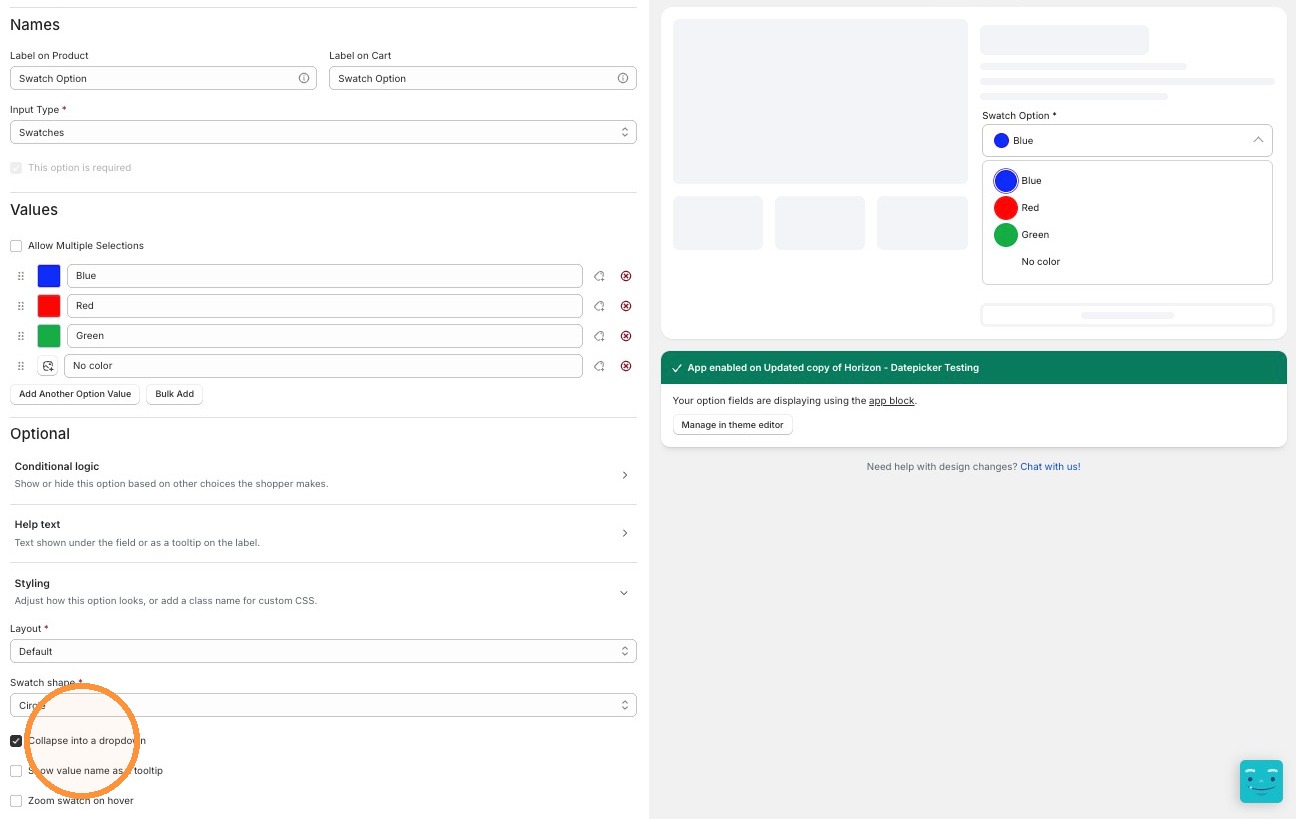
Section titled “Style Your Swatches”Under the Styling section of the option editor, you can set:
- Layout — Inline or Stacked
- Swatch shape — Square, Rounded, or Circle
- Collapse into a dropdown — turns the swatch list into a dropdown once there are many values. The label stays above the control, and the dropdown summary shows the shopper’s current selection.
- Show value name as a tooltip — displays each value’s name on hover
- Zoom swatch on hover — enlarges a swatch when a shopper hovers over it
- Class name — for custom CSS targeting
Step 4: Save Your Option Set
Section titled “Step 4: Save Your Option Set”Click Save in Infinite Options.
Your swatches will now appear on every product assigned to the Option Set.
- Use colors when customers are choosing between simple color options.
- Use images when the differences are visual, such as patterns, fabrics, wood finishes, or product styles.
- Keep image sizes consistent for the best-looking swatches.
Related Guides
Section titled “Related Guides”Looking to do more with swatches?
- Make Swatches Required Before Adding to Cart
- Style Your Swatch Options
- Use Native Bundling with Swatches