
Customize Options using CSS
Learn how to fix Infinite Options styling that does not match your theme by writing your own CSS for fields, labels, and drop-downs.
By default, Infinite Options inherits styles from your theme. Depending on the theme setup, these styles may not carry over in the best way possible.
Infinite Options fields can be styled with CSS code to correct this. This guide will provide introductions on how to target the correct HTML element within each option field.
A basic understanding of HTML and CSS code may be required to customize the options to your liking. If you can’t seem to figure it out, we offer an Expert Install Service where we take care of the installation for you. Check out this article for more information.
Getting Started…
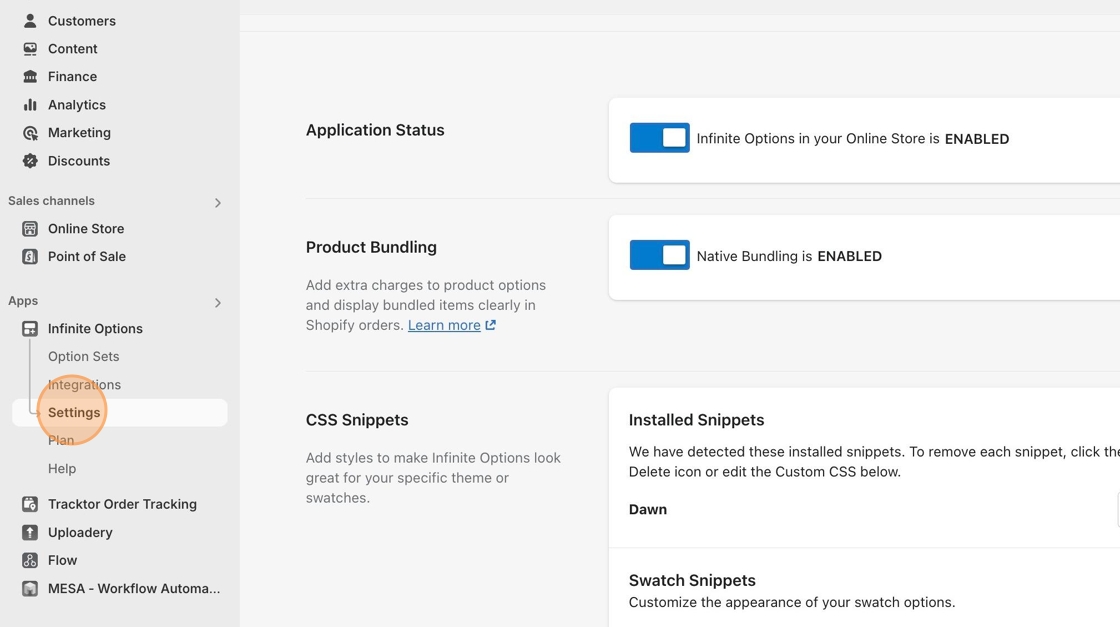
Section titled “Getting Started…”1. Starting with the Infinite Options app open, navigate to the Settings section in the left sidebar.
2. Locate the Custom CSS field.
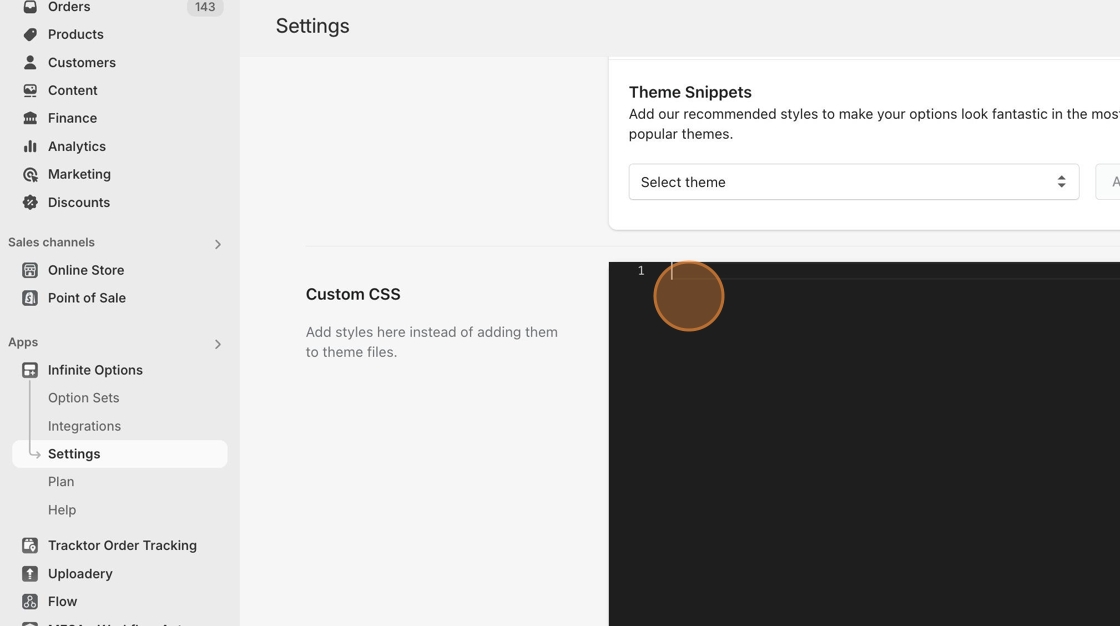
3. Start off by selecting the element and copying the CSS snippet or view the full list below.
- Label
- Text
- Large Text
- Number
- Radio Buttons
- Checkboxes
- Radio Buttons & Checkboxes Values
- Drop Down
- Spacing between Options
- Display text without an input field
- Placeholder Text (Text, Large Text, Number)
- Tooltip
- Tooltip (below field)
#infiniteoptions-container div > label {
}#infiniteoptions-container input[type="text"] {
}Large Text
Section titled “Large Text”#infiniteoptions-container textarea {
}Number
Section titled “Number”#infiniteoptions-container input[type="number"] {
}Radio Buttons
Section titled “Radio Buttons”#infiniteoptions-container input[type="radio"] {
}Checkboxes
Section titled “Checkboxes”#infiniteoptions-container input[type="checkbox"] {
}
Radio Buttons & Checkboxes Values
Section titled “Radio Buttons & Checkboxes Values”#infiniteoptions-container span label {
}Drop-Down Menu
Section titled “Drop-Down Menu”#infiniteoptions-container select {
}
Spacing between Options
Section titled “Spacing between Options”#infiniteoptions-container > div {
}Display text without an input field
Section titled “Display text without an input field”Infinite Options doesn’t include a dedicated text-only element, but you can create headings, notices, or disclaimers by using a Text Input field and hiding the input with CSS.
- Add a Text Input where you’d like the message to appear.
- Set the Class Name to
text-only. - Add the following CSS:
#infiniteoptions-container .hidden-field input[type="text"]{ display: none !important;}The input box will be hidden while the option label remains visible, allowing you to display messages such as:
- Personalized items are non-refundable.
- Please review your personalization before ordering.
- All measurements are approximate.
Placeholder Text (Text, Large Text, Number)
Section titled “Placeholder Text (Text, Large Text, Number)”#infiniteoptions-container input[type="text"]::placeholder {
}#infiniteoptions-container textarea::placeholder {
}#infiniteoptions-container input[type="number"]::placeholder {
}Tooltip
Section titled “Tooltip”#infiniteoptions-container .spb-tooltiptext {
}Tooltip (below field)
Section titled “Tooltip (below field)”#infiniteoptions-container .spb-helptext {
}4. Insert the CSS snippet into the Custom CSS field.
5. Within the curly brackets, you will need to apply CSS properties (each on a new line) that will style your elements.
Not familiar with CSS properties? Here are some common examples.
- Set text font to Helvetica,“Helvetica Neue”,Arial,“Lucida Grande”,sans-serif.
font-family: Helvetica,"Helvetica Neue",Arial,"Lucida Grande",sans-serif;- Set font size to 12px. (smaller font)
font-size: 12px;- Set font size to 24px. (larger font)
font-size: 24px;- Set text color to black. (color hex value: #000)
color: #000;- Set text to bold style.
font-weight: bold;- Set width to 100% within its container.
width: 100%;- Set height to 200px.
height: 200px;- Add 10px of spacing below an element.
padding-bottom: 10px;- Decrease 10px of spacing above an element.
margin-top: -10px;- Apply gray border with a 1px thick solid line. (color hex value: #808080)
border: 1px solid #808080;For a full list of popular CSS properties, click here: https://cssreference.io/.
As an example, if you wanted to apply some of these CSS properties to the text field and tooltip (below field), here is how it would look.
#infiniteoptions-container input[type="text"] {  font-family: Helvetica,"Helvetica Neue",Arial,"Lucida Grande",sans-serif;  font-size: 12px;  color: #000;  width: 100%;  padding-bottom: 10px;}
#infiniteoptions-container .spb-helptext {  margin-top: -10px;}
6. Save your changes.
You can view your product pages to check out the styles you have applied. Good work! 🎊🚀