
Add a File Upload Field
Add a basic File Upload field to an Infinite Options set so shoppers can attach a logo or photo, and learn its one file and 4MB size limits.
The File Upload option lets shoppers attach a file to their order right from the product page. Use it when you need a logo, a photo, a reference image, or a simple document to go along with a custom product.
This is a basic upload field, built for straightforward cases. It accepts one file at a time, caps file size at 4MB, and keeps uploaded files for 30 days. If you need more than that, Uploadery is our dedicated upload app and handles larger files, more file types, and longer storage.
Adding a file upload field
Section titled “Adding a file upload field”Step 1: Open or create an Option Set
Section titled “Step 1: Open or create an Option Set”From the Infinite Options dashboard, open the Option Set you want to add the field to, or click Create Option Set to start a new one.
Step 2: Add a File Upload option
Section titled “Step 2: Add a File Upload option”Click Add Option, then choose Upload from the input type picker.
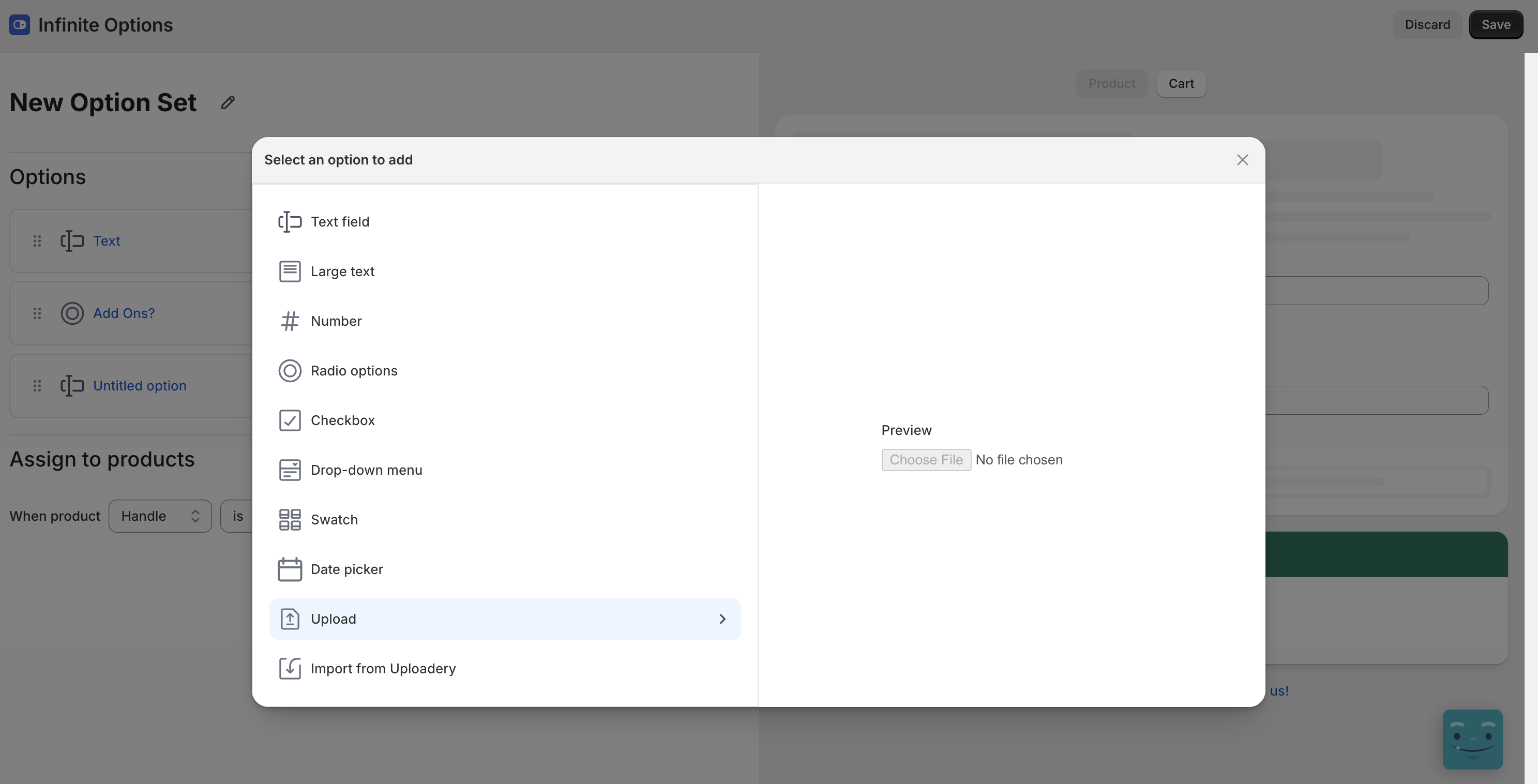
Step 3: Name the field
Section titled “Step 3: Name the field”Set Label on Product to the text shoppers see above the upload button, for example “Upload your logo”. Set Label on Cart to how it should read in the cart, at checkout, and on the order.
Step 4: Save
Section titled “Step 4: Save”Click Save, then open the product on your storefront and upload a test file to confirm everything works.
Accepted file types
Section titled “Accepted file types”Shoppers can upload the following file types. Anything else is rejected.
| Category | File types |
|---|---|
| Images | png, jpg, jpeg, gif, webp, bmp, tif, tiff, heic, avif, ico |
| Vector images | svg, ai, eps |
| Documents | pdf, doc, docx, xls, xlsx, ppt, pptx, odt, ods, rtf |
| Text and data | txt, csv, tsv, md, json, xml |
File size limit
Section titled “File size limit”Each file must be under 4MB. If a shopper picks a larger file, the upload is blocked and they see this message: “That file is too large. Please choose a file under 4MB.”
If your shoppers regularly send large artwork or print-ready files, they’ll run into this quickly. Uploadery supports files up to 50MB on its free plan and higher on paid plans.
How long files are kept
Section titled “How long files are kept”Uploaded files stay available for 30 days, then they’re automatically removed from our servers. Download anything you need to keep before the 30 days are up, and save it wherever you store your order records.
Styling
Section titled “Styling”We don’t recommend applying custom CSS to the file upload field. The upload control has moving parts that custom styling tends to break, and a broken upload button means lost orders. Leaving it with the default styling is the best configuration at this time.
If the look of the upload field matters to your storefront, Uploadery is built to be styled and has a styling guide to go with it.
When to use Uploadery instead
Section titled “When to use Uploadery instead”The File Upload option covers basic needs. Install Uploadery if you need any of the following:
- Files larger than 4MB
- File types outside the list above, such as video, audio, or design files like psd and cdr
- Control over which file types you accept
- Files kept longer than 30 days
- Custom styling on the upload field
Already using Uploadery? You can bring its upload fields into your Option Sets. See Adding an Upload Field - Uploadery.
Something not working?
Section titled “Something not working?”
The shopper sees “That file is too large.”
Section titled “The shopper sees “That file is too large.””- The file is over 4MB. Ask them to compress it or send a smaller version, or install Uploadery if this comes up often.
The file won’t upload and it’s under 4MB.
Section titled “The file won’t upload and it’s under 4MB.”- Check the file extension against the accepted list above. Files outside that list are rejected.
I can’t find a file from an older order.
Section titled “I can’t find a file from an older order.”- Files are removed after 30 days. If the order is older than that, the file is gone and can’t be recovered.
The upload button looks broken or won’t respond.
Section titled “The upload button looks broken or won’t respond.”- If you’ve added custom CSS targeting the upload field, remove it and re-test. Custom styling isn’t supported on this field.