
Add on product is not working as expected
Troubleshoot Infinite Options add-on pricing that charges wrongly or is missing, starting with how it should look in the cart and at checkout.
Before troubleshooting, it helps to know what Add-on Pricing should do and how it displays in the cart and at checkout.
What you should expect to see
Section titled “What you should expect to see”When Add-on Pricing is set up correctly, the add-on’s cost is included with the main product behind the scenes. You won’t see it as a separate line item in the cart — that’s how it’s designed to work. The updated total will appear in the cart, at checkout, and in the order details in your Shopify admin.
If the total isn’t updating when the option is selected, work through the steps below.
Note: If you’re coming from the older Product Bundles method, you may be used to seeing the add-on as a separate cart line. Add-on pricing works differently. See Moving from Product Bundling to add-on pricing.
Step 1: Check that Infinite Options is installed on your active theme
Section titled “Step 1: Check that Infinite Options is installed on your active theme”This is the most common cause. When you switch themes, the Infinite Options app block doesn’t carry over automatically. It needs to be added to the new theme separately.
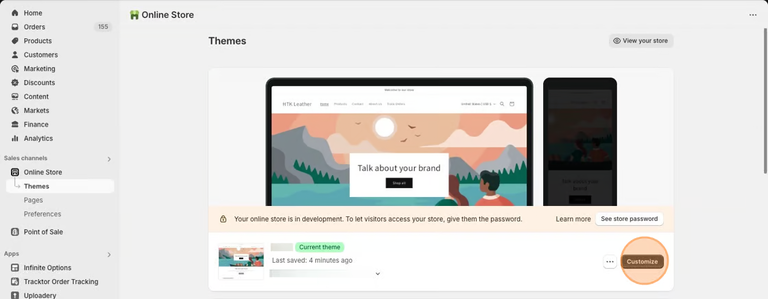
In your Shopify admin, go to Online Store > Themes and click Customize on your active theme.
At the top of the theme editor, open the page selector dropdown, select Products, and choose your product template.
In the left sidebar, look for the Infinite Options Fields block. If it’s not there, click Add block and select Infinite Options Fields from the Apps tab.
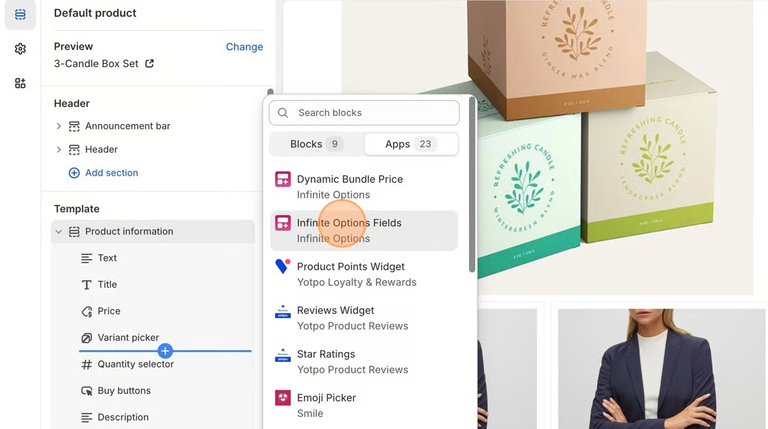
Make sure the block is positioned above the Add to Cart button. Click Save.
If you don’t see an Add block option at all, your theme may be a Shopify 1.0 theme. See the manual installation guide for next steps.
Step 2: Confirm Native Bundling is enabled
Section titled “Step 2: Confirm Native Bundling is enabled”In the Infinite Options app, go to Settings > Product Bundling.
Confirm the Native Bundling toggle is turned on. Add-on pricing is enabled via this toggle.
Step 3: If the price is linked to a product, check it in Shopify
Section titled “Step 3: If the price is linked to a product, check it in Shopify”Skip this step if the price uses Don’t track inventory or SKU.
In your Shopify admin, find the product you created for the add-on.
The add-on product does not need to be assigned to your Online Store sales channel. If the product is set to track inventory but the inventory is set to 0, it will display a “sold out” message. Either set the inventory to a higher number or turn off inventory tracking for that product to resolve the issue
Step 4: Check the option’s price
Section titled “Step 4: Check the option’s price”Open the option set and open the priced option selection.
Confirm it has a price and a price type. If it shows “Needs a price”, enter an amount.
If it uses a product, check that the product card shows the right product.
Then click Save.
Testing your setup
Section titled “Testing your setup”Once you’ve completed the steps above, test on your live storefront. Open a product page directly in your browser, select the option, add to cart, and proceed to checkout to confirm the updated total appears.
Don’t test in the theme editor preview — it doesn’t always reflect app behavior accurately.
The price isn’t showing on the product page
Section titled “The price isn’t showing on the product page”By default, the price update happens in the cart, not on the product page. If you want customers to see the updated total on the product page before they add to cart, you need to add the Dynamic Bundle Price block to your theme.
See Show price changes on the product page for the full setup guide.
Still not working?
Section titled “Still not working?”If you’ve gone through all four steps and the order total still isn’t updating, there may be a conflict from another 3rd-party app.
Contact our support team with the URL of a product page where the issue is happening so we can take a closer look.