
Theme-Specific Styling
See the 39 Shopify free and paid themes with built-in Infinite Options CSS snippets, and how to add the one for your theme in Settings.
Infinite Options includes built-in CSS snippets for 39 Shopify themes. Each snippet adjusts your options’ fonts, spacing, borders, and drop-downs to match your theme. You’ll find them in the app’s Settings.
Supported Themes
Section titled “Supported Themes”Shopify Free Themes
- Atelier
- Colorblock
- Craft
- Crave
- Dawn
- Debut
- Dwell
- Fabric
- Heritage
- Horizon
- Origin
- Pitch
- Publisher
- Refresh
- Ride
- Rise
- Ritual
- Savor
- Sense
- Spotlight
- Studio
- Taste
- Tinker
- Trade
- Vessel
Paid Themes
- Balance
- Be Yours
- Broadcast
- Canyon
- Clarity
- Concept
- Drive
- Flora
- Impact
- Impulse
- Motion
- Prestige
- Symmetry
- Warehouse
Add your theme’s snippet
Section titled “Add your theme’s snippet”-
In Infinite Options, click Settings in the left sidebar.
-
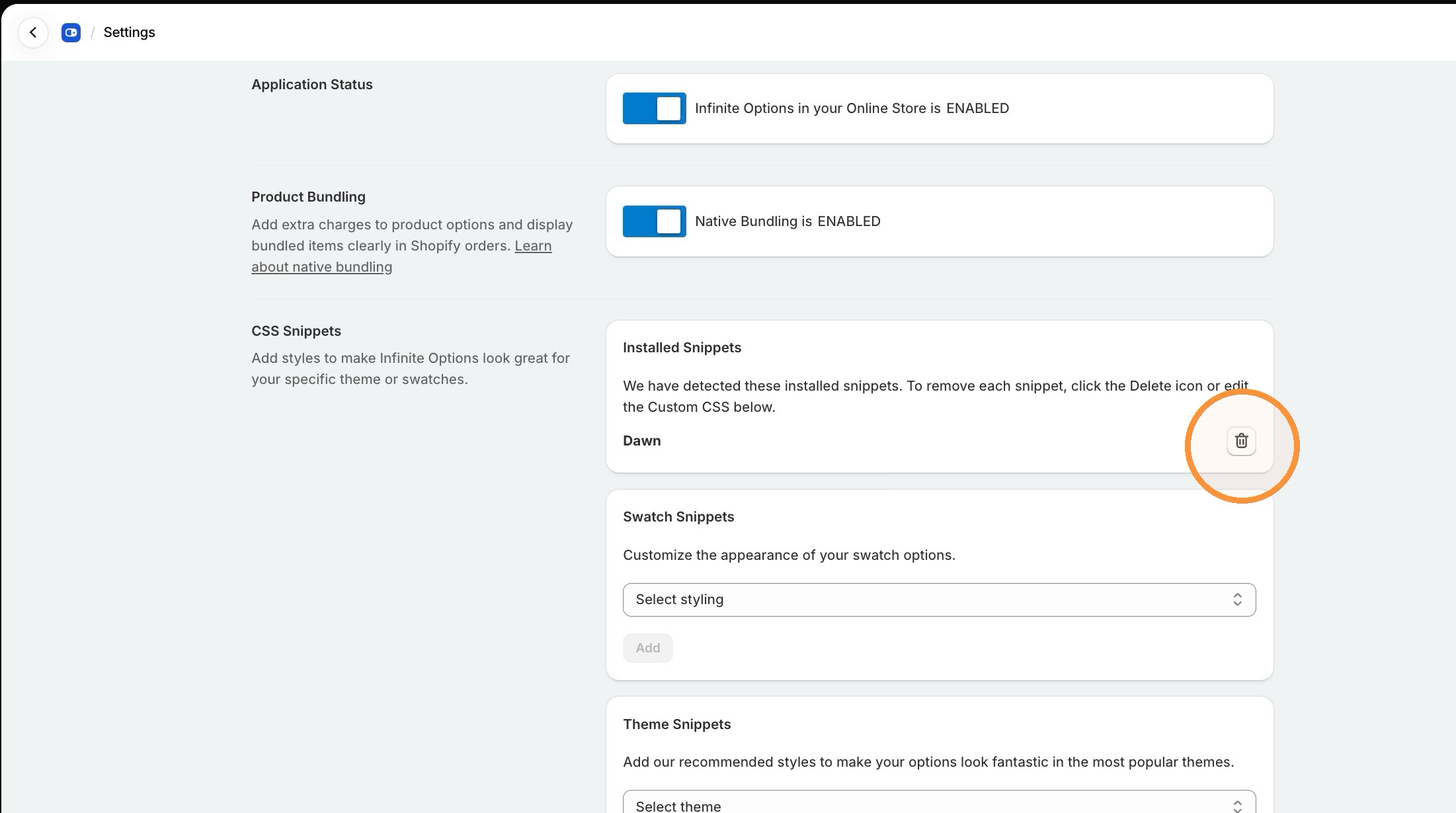
In the CSS Snippets section, check to see if you have any theme snippets added in the Installed Snippets that don’t match your current theme. If so, remove them by clicking the trash can icon next to the theme title.
-
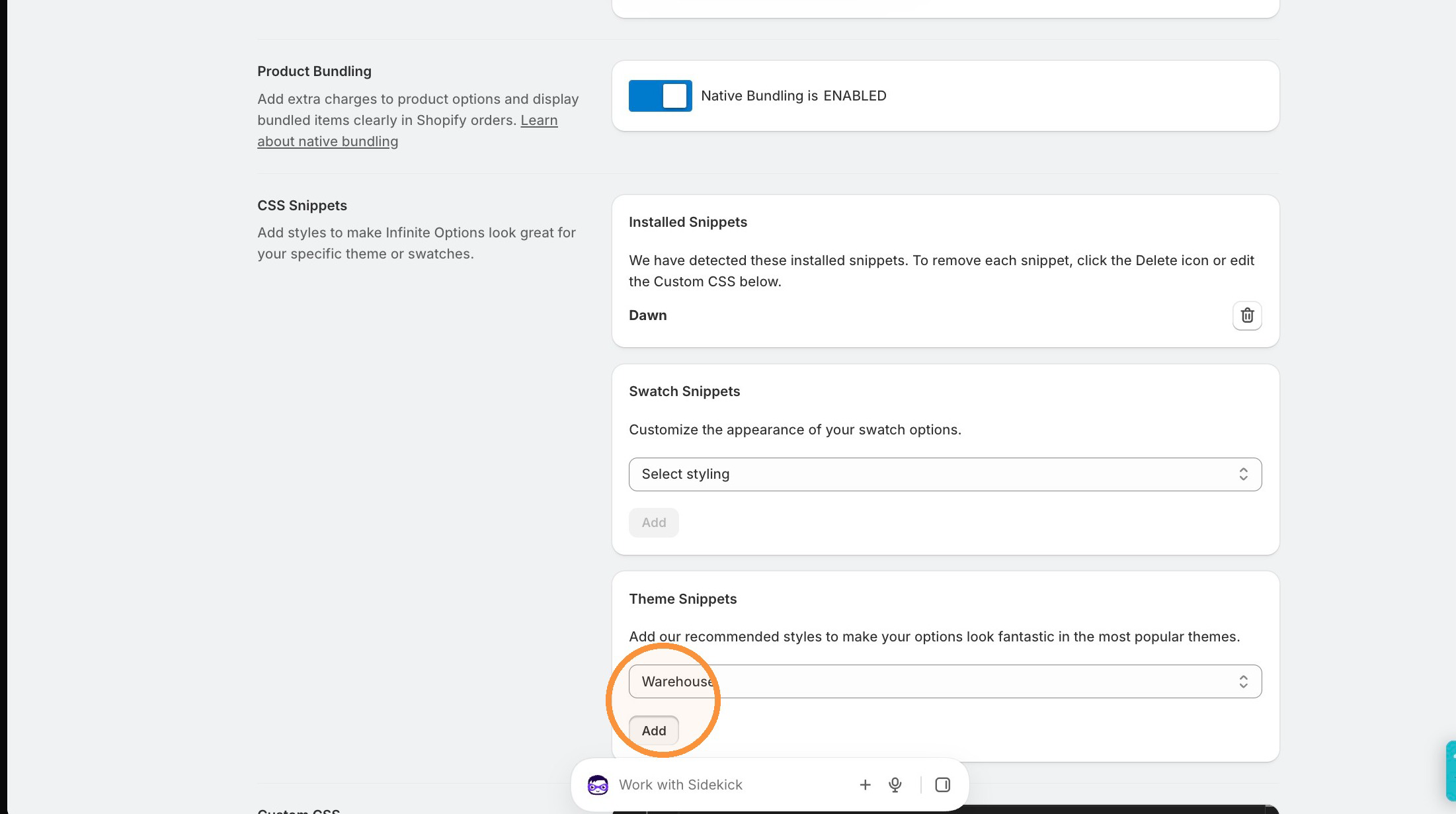
Then, choose your theme from the Theme Snippets dropdown and click Add.
-
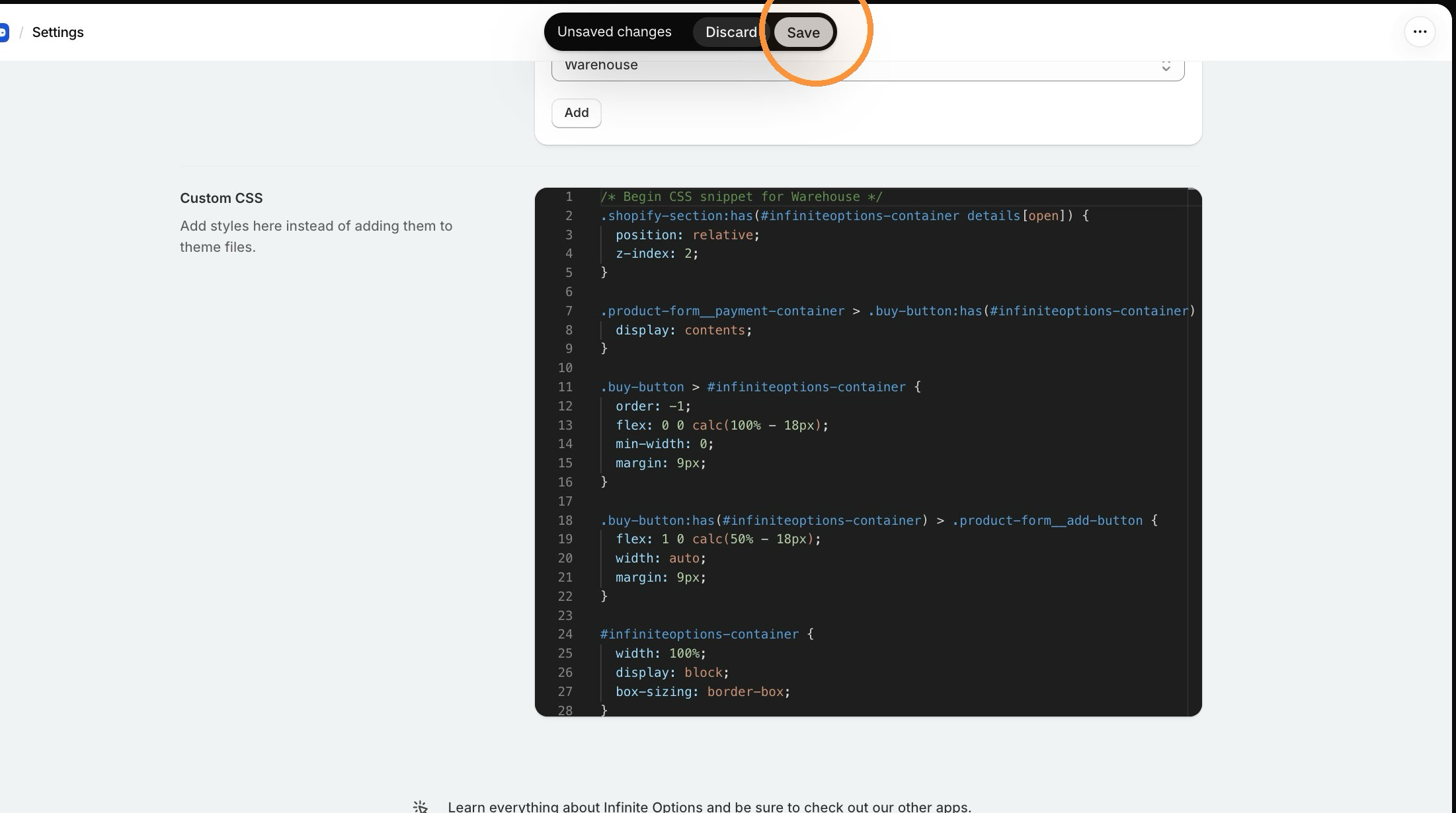
Scroll to the Custom CSS field to confirm it has been added.
-
If the field already has an older Infinite Options snippet or the Default theme snippet (it may start with
/* Infinite Options by ShopPad */), delete that snippet. Leave any custom CSS you’ve added yourself in place. -
Click Save once you confirm your theme snippet has been added.
-
Open one of your product pages to check how your options look.
Changes can take up to 5 minutes to be applied to live pages after saving. We recommend clearing your cache on any product pages, or viewing the product pages in an incognito window to see the updates as soon as possible.
Don’t see your theme listed?
Section titled “Don’t see your theme listed?”The pages in this section cover the most common Shopify themes. If your theme isn’t listed, Infinite Options will apply default styling automatically, so your options should display correctly without any additional setup.
If something looks off — spacing, fonts, positioning, or options appearing in the wrong place on the page — contact our support team, and we can help get it sorted out for your specific theme.