
Show options on a product
Assign an Infinite Options set to products by product, tag, collection or other rules, since a set shows nowhere without a product assignment.
Introduction
Section titled “Introduction”This guide shows you how to assign an Option Set so Infinite Options knows where to display it.
💡 How product assignments work
Section titled “💡 How product assignments work”An Option Set only appears on products that match its assignment rules.
For example:
- Assign by Product to show options on one product.
- Assign by Tag to show options on every product with that tag.
- Assign by Product Type, Vendor, Handle, or other conditions to automatically include matching products.
This makes it easy to manage one Option Set across multiple products.
Step 1: Open your Option Set
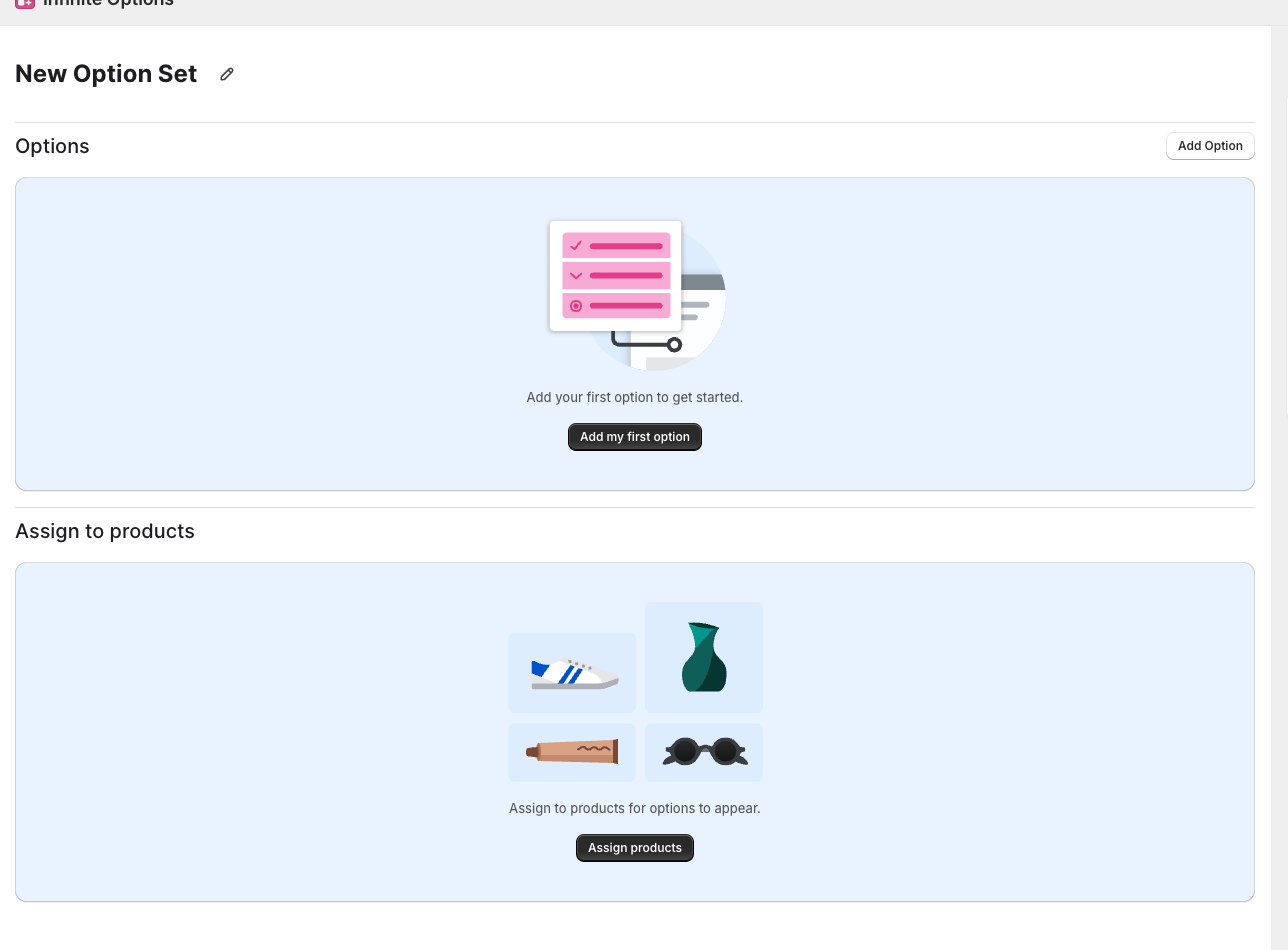
Section titled “Step 1: Open your Option Set”Open the Infinite Options app and either create a new Option Set or edit an existing one.
Step 2: Find “Assign to products”
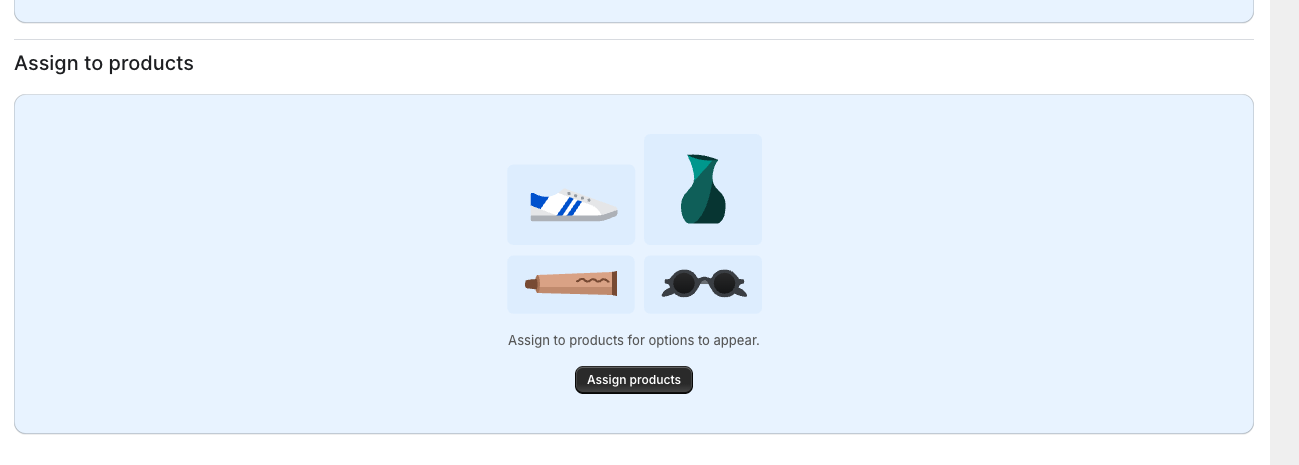
Section titled “Step 2: Find “Assign to products””Scroll to the bottom of the Option Set to the Assign to products section.
Step 3: Choose how you’d like to assign your options
Section titled “Step 3: Choose how you’d like to assign your options”Click Add Rule, then choose the rule type that best fits your store.
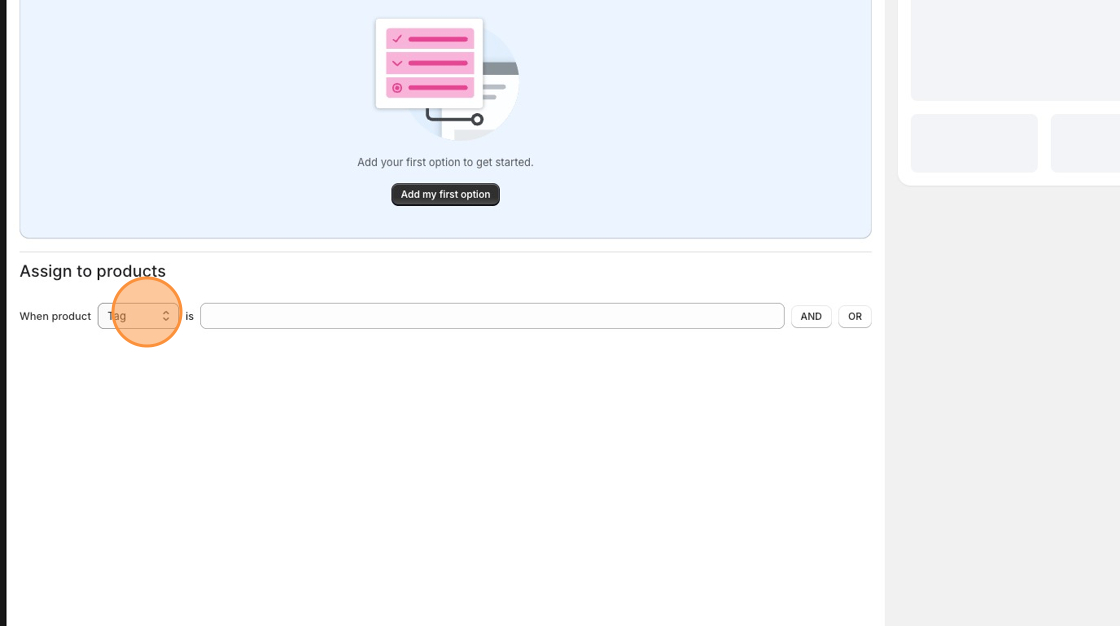
You can assign options by:
- Product
- Collection
- Product Tag
- Product Type
- Vendor
- Product Handle
- Product URL
Step 4: Select your products
Section titled “Step 4: Select your products”Enter the value for your chosen rule.
For example:
- Search for a product
- Enter a tag
- Select a product type
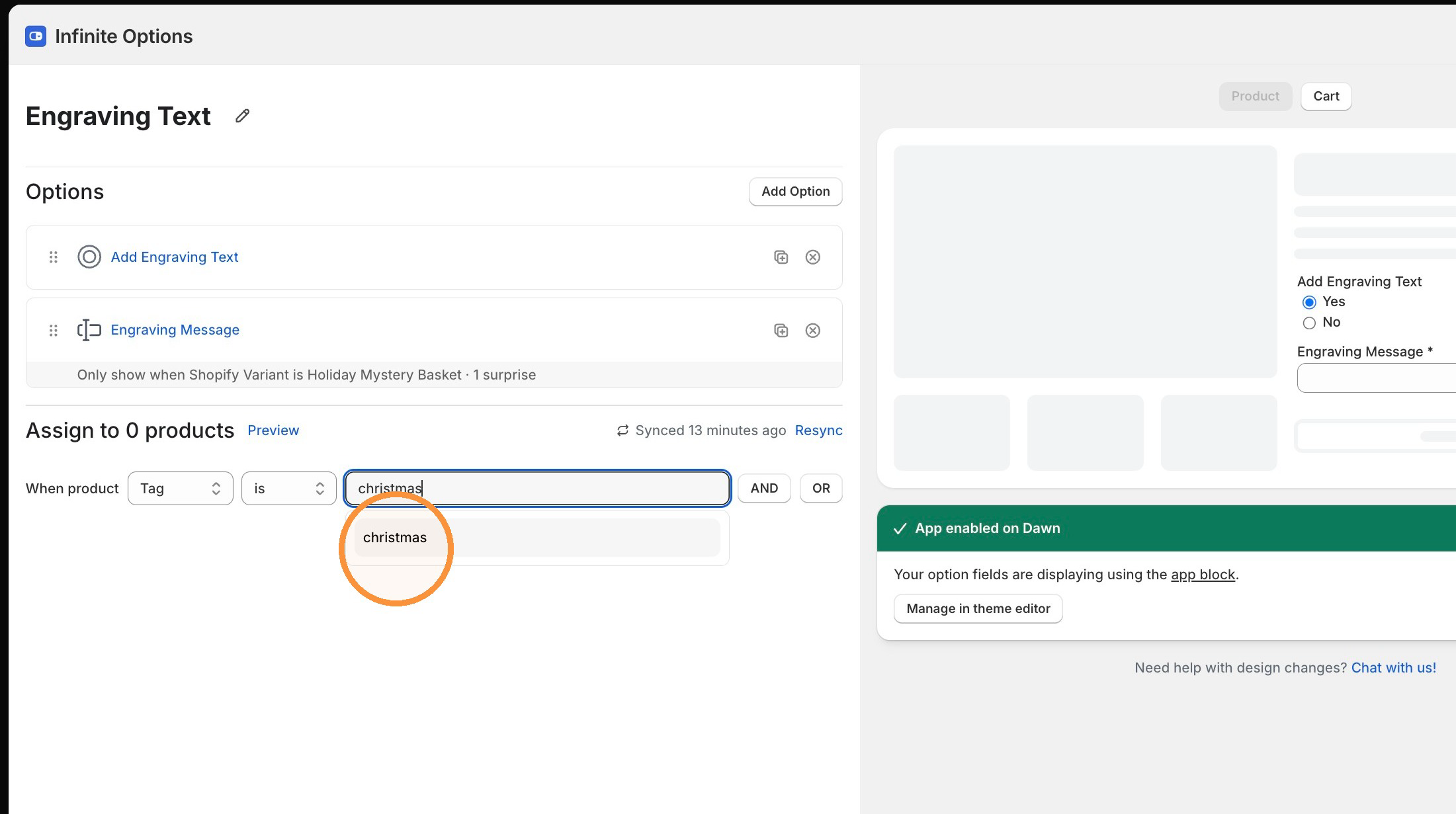
As you type, Infinite Options will suggest matching products, tags, collections, and other values to help you quickly find what you’re looking for.
You can add multiple rules if needed.
Step 5: Choose how multiple rules work together
Section titled “Step 5: Choose how multiple rules work together”If you have more than one rule, you’ll see two options:
Think of OR like a comma in a list. The Option Set will display if a product matches any of the rules.
Example:
- Product A
- Product B
- Product C
Any of those products will show the options.
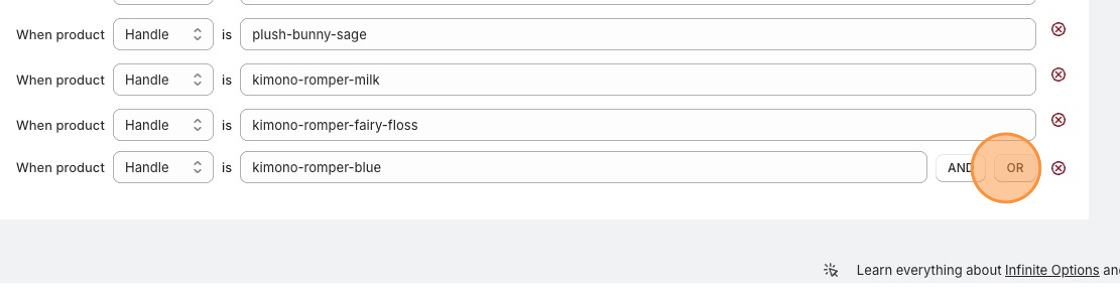
AND means every condition must be true.
Example:
- Product Tag = Coffee
- Vendor = Acme
Only products that are both Coffee and sold by Acme will display the options.
Step 6: Save your changes
Section titled “Step 6: Save your changes”Click Save.
Once saved, the Option Set will appear on every product that matches your assignment rules.
Troubleshooting
Section titled “Troubleshooting”
My options aren’t showing
Section titled “My options aren’t showing”Check that:
- The Option Set has at least one assignment rule.
- The rule matches your product.
- The Option Set is enabled.
- The app block has been added to your theme.
I assigned by Handle and nothing shows
Section titled “I assigned by Handle and nothing shows”If you’re assigning multiple product handles, use OR.
A product can only have one handle, so using AND with multiple handles will never match.
Can I use more than one assignment method?
Section titled “Can I use more than one assignment method?”Yes.
For example, you could assign an Option Set to:
- Products with the tag “Custom”
- OR
- One specific product
The products I assigned my option set to aren’t showing up
Section titled “The products I assigned my option set to aren’t showing up”Assign to products now shows the number of matching products, and a new Resync link lets you manually refresh your catalog if a recent change isn’t reflected yet.
See Why doesn’t my product count update after I change how it’s assigned?