
How to Make Drop-Downs Required
Require shoppers to choose from an Infinite Options drop-down by turning on the required setting and adding a placeholder like Select an option.
To make a drop-down required, you’ll do two things: check the required setting and add a placeholder such as “Select an option.”
Without a placeholder, the first option is automatically selected, so customers won’t be prompted to choose. A placeholder makes them actively select an option before adding the product to their cart.
Step 1: Open Your Drop-Down Field
Section titled “Step 1: Open Your Drop-Down Field”- Open Infinite Options
- Click Option Sets in the left sidebar
- Open your Option Set, then click into your drop-down field
Step 2: Mark the Field as Required
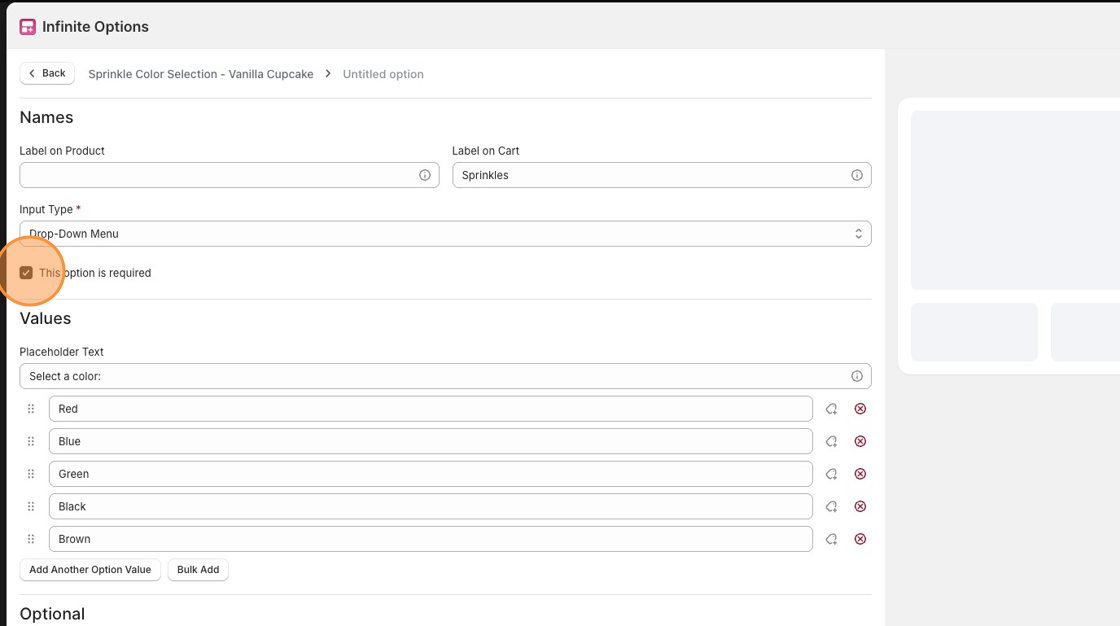
Section titled “Step 2: Mark the Field as Required”Just below the Input Type menu, check the box labeled This option is required.
Step 3: Add a Placeholder
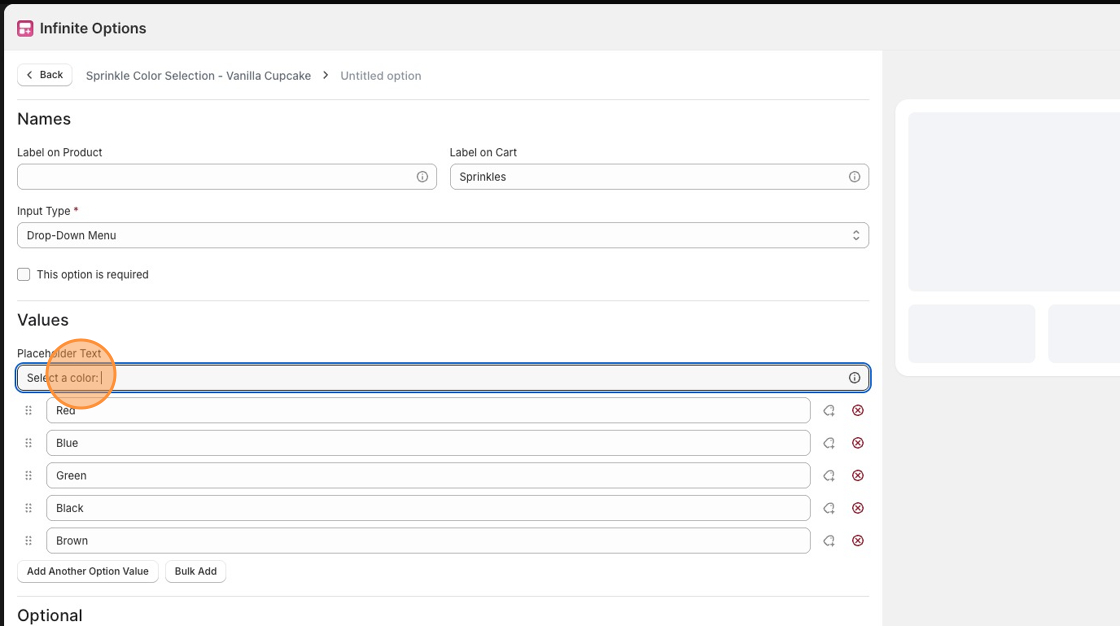
Section titled “Step 3: Add a Placeholder”Scroll to the Values section. In the Placeholder Text field, enter something like:
- Select an option
- Choose one
- Please select
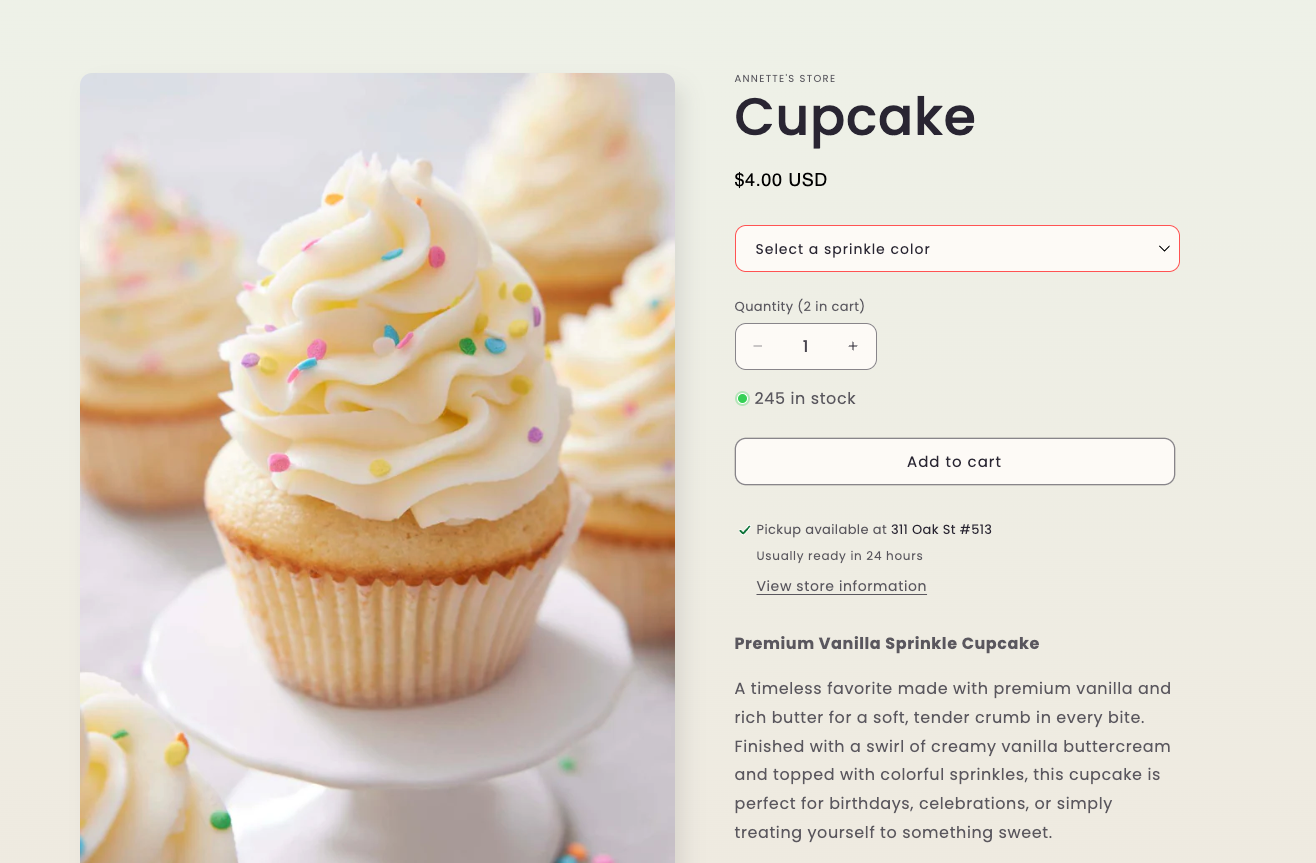
This placeholder appears at the top of the drop-down and prompts customers to make a choice.
Step 4: Save Your Changes
Section titled “Step 4: Save Your Changes”Click Save at the top center of the page.
That’s it. Customers will now need to actively pick an option from the drop-down before they can add the product to their cart.