
Adding a Cost to a Conditional Upload Field
Charge extra for an upload by pairing Uploadery with Infinite Options: a checkbox or dropdown reveals the upload field and adds a priced option.
Uploadery doesn’t have a built-in way to charge extra for a file upload. To add a cost, you’ll rely on our other app, Infinite Options, and combine two features: a conditional trigger option (like a checkbox or dropdown) that reveals the upload field, and a bundled add-on product that carries the cost. This guide walks through setting both up together.
Step 1: Create the trigger option in Infinite Options
Section titled “Step 1: Create the trigger option in Infinite Options”In your Infinite Options dashboard, create a new option with a checkbox, dropdown, or radio button option. This is the option customers will select to request the upload (for example, label it “Add custom image” or “Upload your artwork”, etc.)
Step 2: Add a cost to the option value
Section titled “Step 2: Add a cost to the option value”Click the price tag icon next to the option value you want to charge for (for example, “Yes”). This bundles a product to that value, adding its price whenever the customer selects it.
You’ll need a product already created in your store to represent this add-on cost. We recommend labeling the option value with the price for transparency, for example “Yes +$5”.
Step 3: Assign the Uploadery field to your Infinite Options option set
Section titled “Step 3: Assign the Uploadery field to your Infinite Options option set”In your Uploadery dashboard, open the upload field’s assignment section and choose Infinite Options as the identifier.
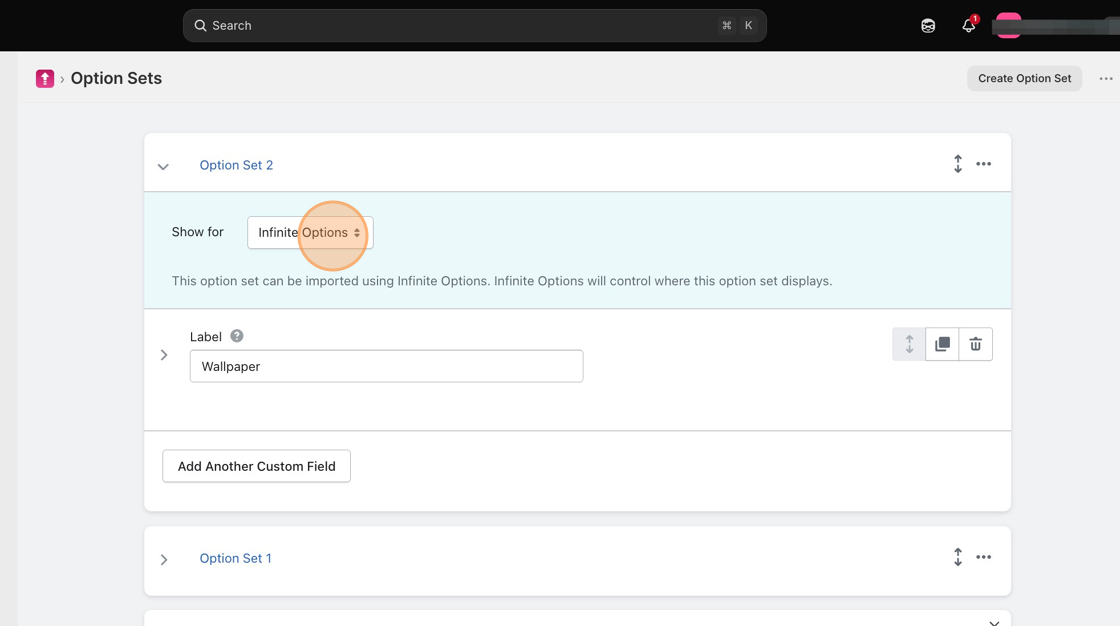
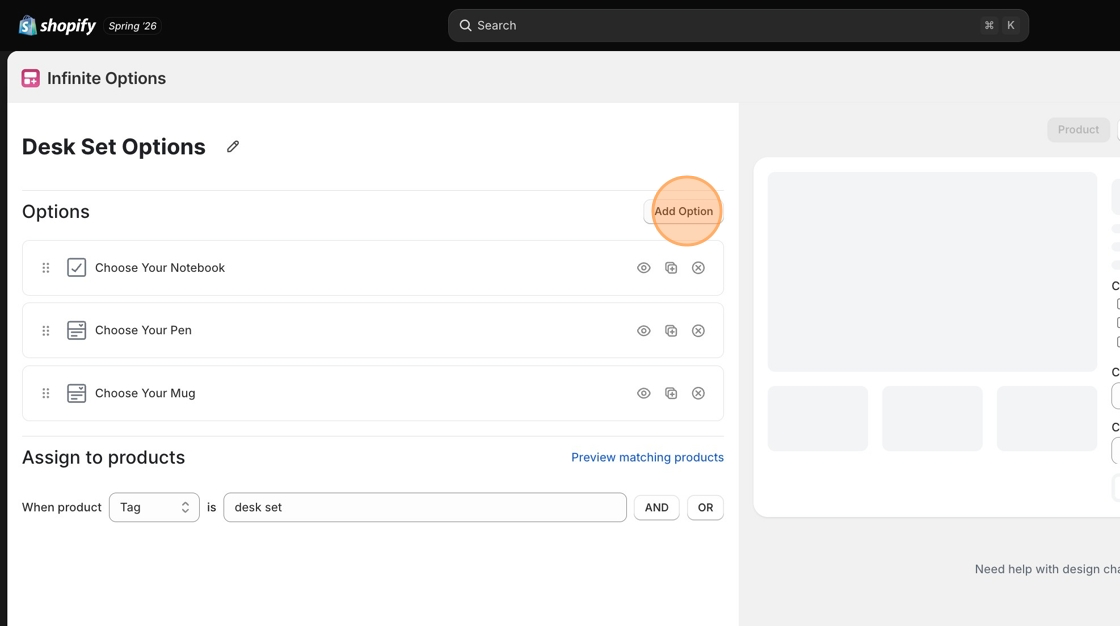
Then, in the Infinite Options dashboard, go to your Option Set and click the Add Option button.
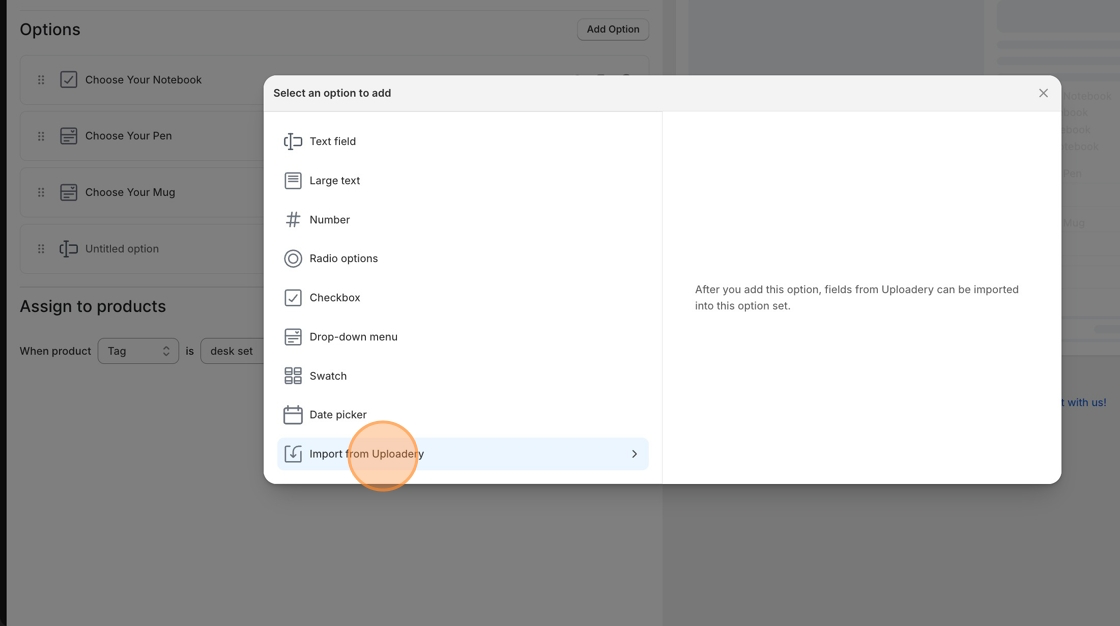
Select Import from Uploadery in the list and select the Uploadery option set you’ve assigned to Infinite Options to bring it into your Infinite Options setup.
Step 4: Create conditional logic to display the upload field based on a Yes selection
Section titled “Step 4: Create conditional logic to display the upload field based on a Yes selection”In the Infinite Options Option Set, click the eye icon on the upload field you just added to the option set to configure your conditional logic condition.
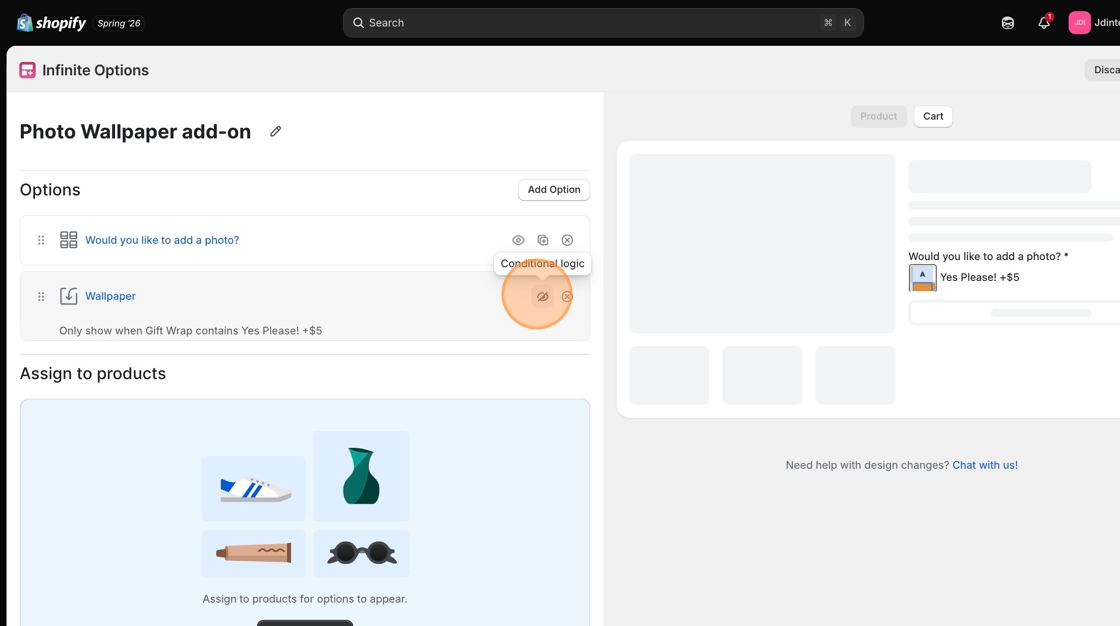
Click the Add condition button and configure the fields as follows:
- Label on Cart: Select the option associated with your add-on selection.
- Operator: Contains
- Value: Select the “Yes” value or whatever value is associated with the add-on product.
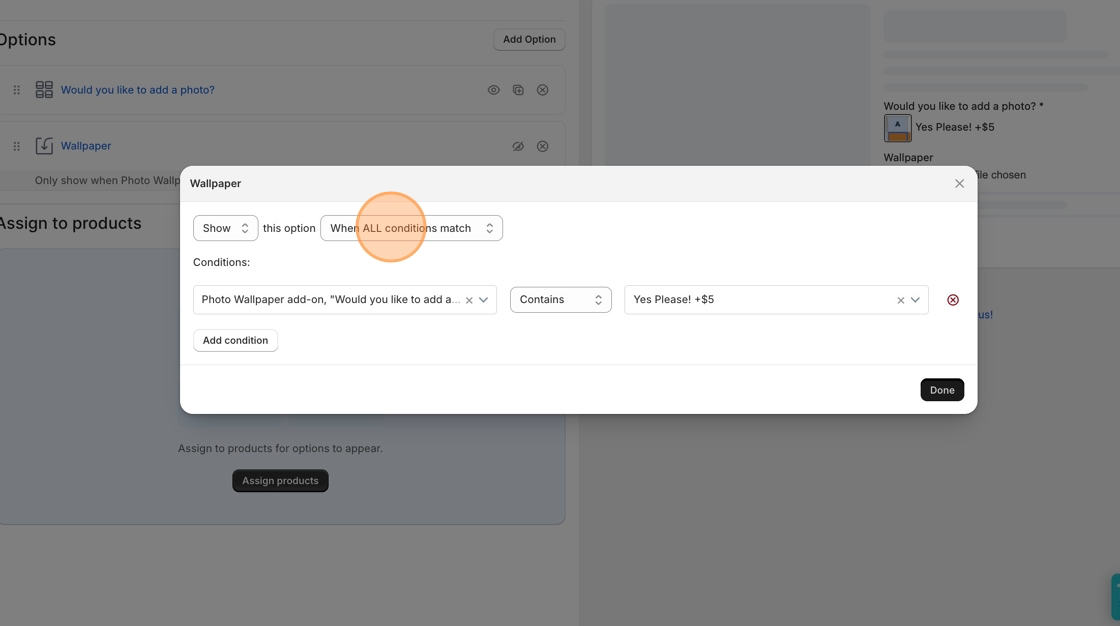
This tells Uploadery to only display the upload field when the customer selects that option.
Click Save.
Step 5: Test on the storefront
Section titled “Step 5: Test on the storefront”Preview mode inside the Infinite Options dashboard won’t reflect the conditional upload field correctly.
Visit the live product page on your storefront to confirm the upload field appears only after the trigger option is selected, and that the add-on cost is applied.
Technical Notes
Section titled “Technical Notes”- Infinite Options can’t change the base price of a product directly. The cost here comes from bundling a separate add-on product to the option value.
- The upload field itself can’t be edited from within Infinite Options once imported. Make changes to it in Uploadery.