Order Printer/Pro templates
Add Uploadery upload details to Order Printer and Order Printer Pro templates, such as the Invoice template, by editing the template code.
Order Printer
Section titled “Order Printer”Follow the steps below to display upload details on the Order Printer app.
1. Starting from the Order Printer app, click the Templates tab.
2. Click on the Invoice template.
3. Locate the Code editor and search for this code snippet below.
<td>{{ line_item.title }}4. Replace that line of code with this code snippet below.
<td>{{ line_item.title }}{% for property in line_item.properties %}{% if property.first contains '_io_' %}{% continue %}{% endif %}{% if property.last == blank %}{% continue %}{% endif %}<br>{{ property.first }}: {{ property.last }}{% endfor %}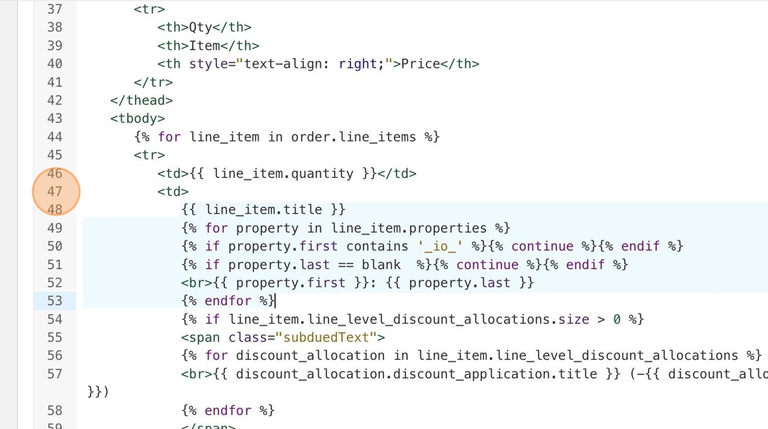
5. Save your changes.
Order Printer Pro
Section titled “Order Printer Pro”If you have Order Printer Pro, you’re in luck!
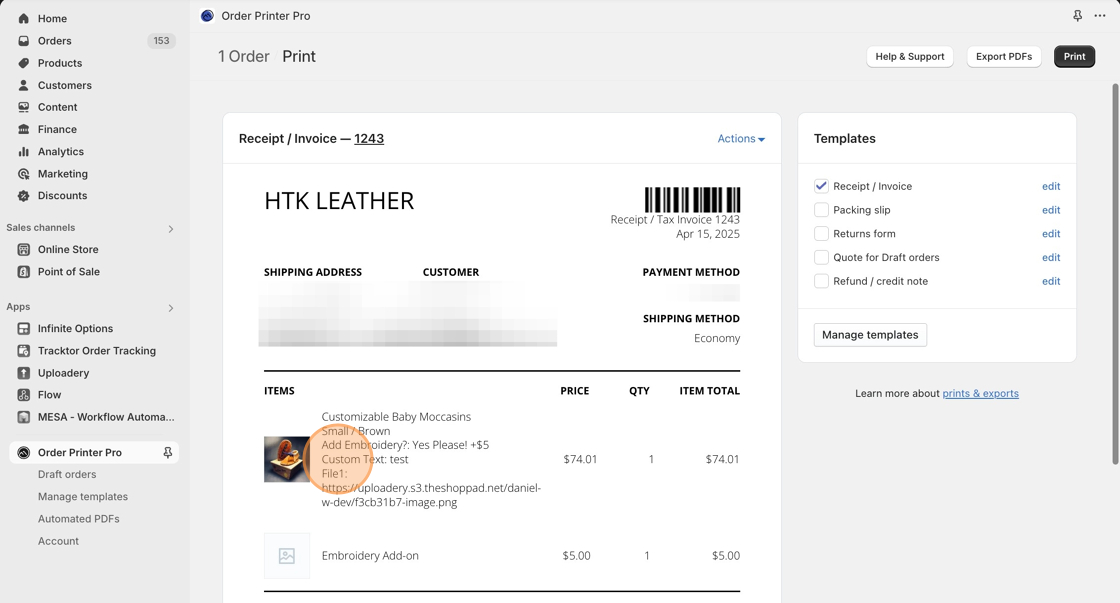
This app supports line item properties (options) on their templates. Simply navigate to the order in the app to view the products with options.
Here is an example of a Receipt / Invoice that includes options from our Infinite Options app: