
Dawn Theme
Reposition Uploadery on the Dawn theme with the Uploadery Fields block in the editor. Requires Dawn version 2.0 or newer, so check your version first.
Turning on the Uploadery app embed is the only thing you need to do to enable Uploadery on a 2.0 theme. Once it’s toggled on, your upload fields automatically display above the Add to Cart button on your product pages, no other setup required.
The app embed places your upload fields in the default position, above the Add to Cart button.
Follow the steps below only if you want your upload fields to appear at an exact spot instead. This involves the Uploadery Fields block to your product template manually.
Follow the step-by-step instructions below on how to manually reposition Uploadery for your Dawn theme.
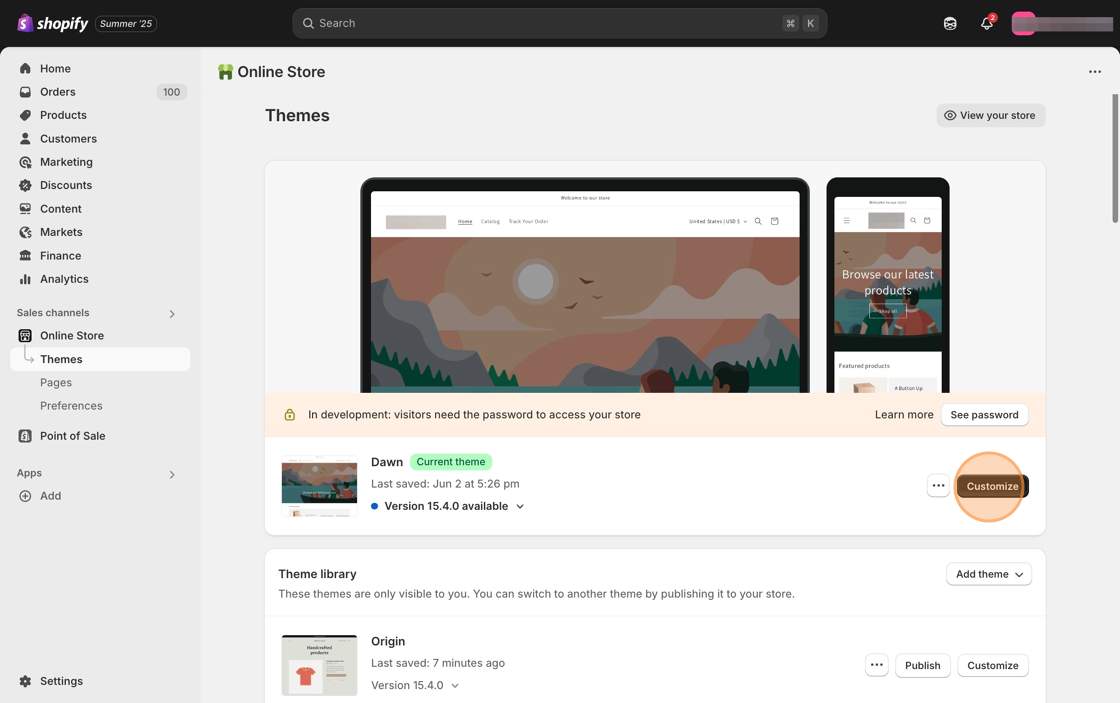
1. Starting from your Shopify dashboard, click on Online Store, and then click on Themes.
2. Click the Customize button on the Dawn theme.
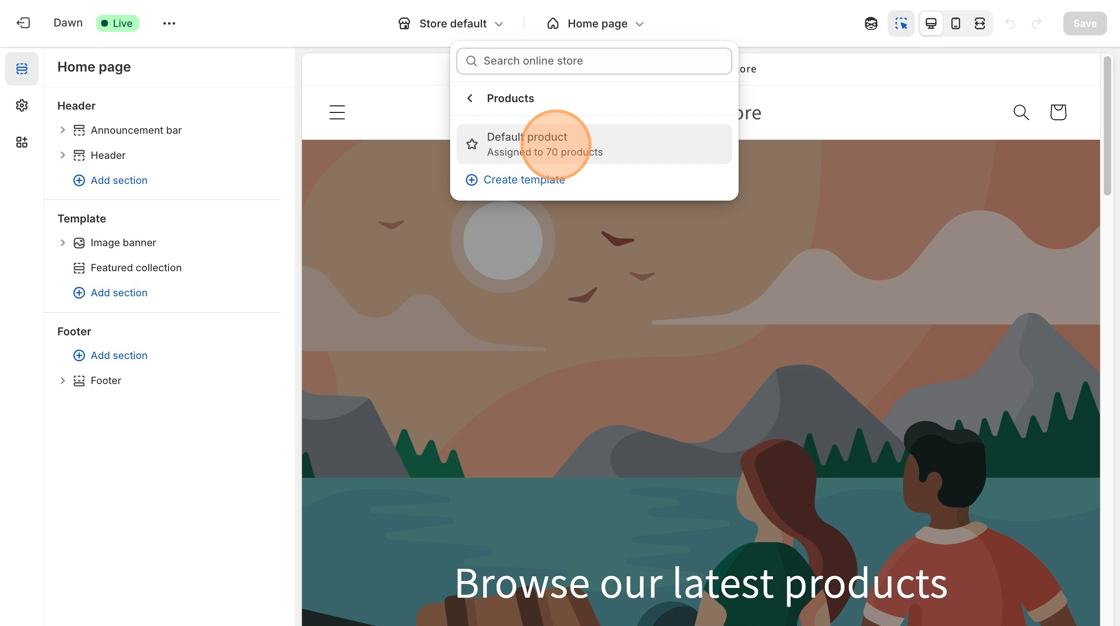
3. Select Products from the dropdown menu in the header and then select a product template. Default product is the standard template for Dawn theme.
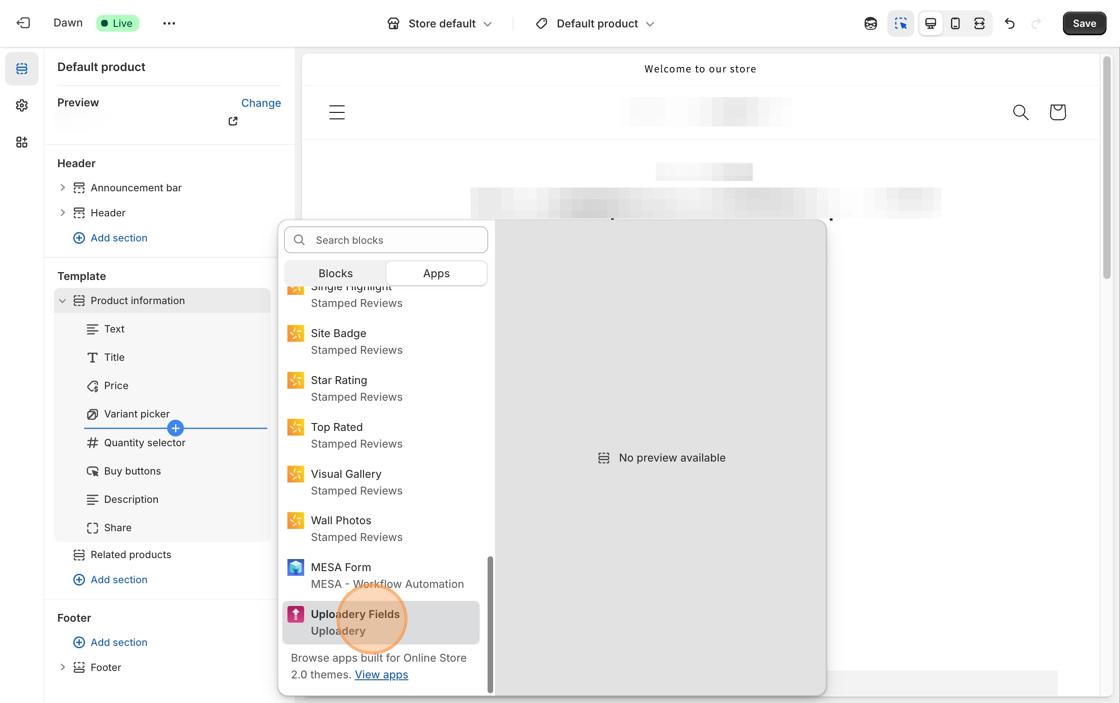
4. In the Product Information section of the left-hand toolbar, click + Add block and select the Uploadery Fields block.
5. Move the Uploadery Fields block above the Quantity selector block, or the Add to Cart button block.
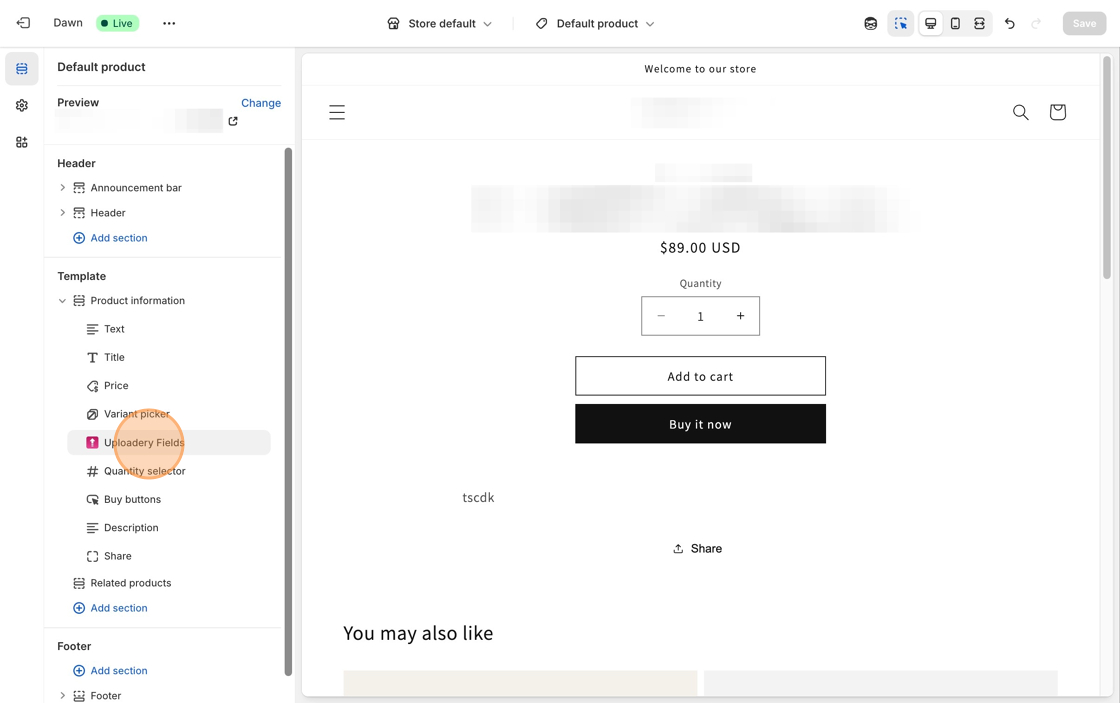
6. Save your changes.
7. You can now start creating upload fields for your products. Follow the instructions in this article to get started.
What’s next?
Section titled “What’s next?”Add a snippet of code so upload fields can display quicker on your product page: Decrease Uploadery’s load time.
Need to adjust the upload link on the cart page?
Section titled “Need to adjust the upload link on the cart page?”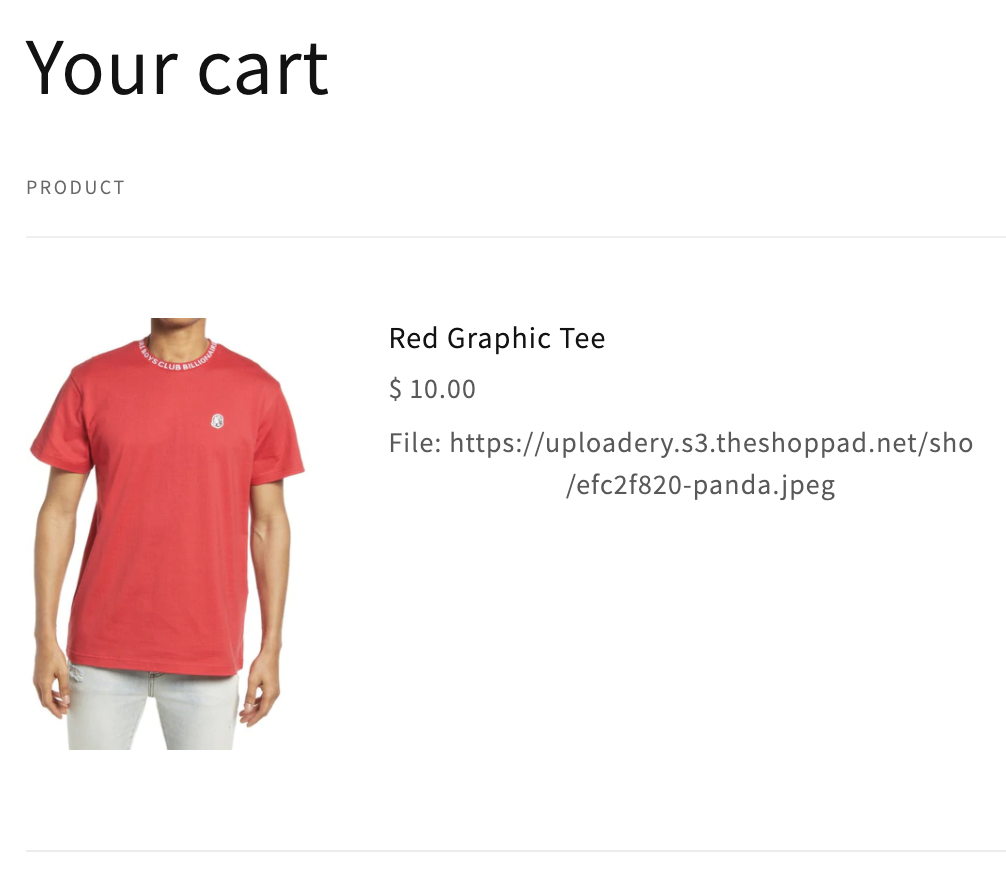
Shorten the link shown on the cart page by adjusting the upload link: Display file upload details in the cart page.
Want to customize the look of your upload fields?
Section titled “Want to customize the look of your upload fields?”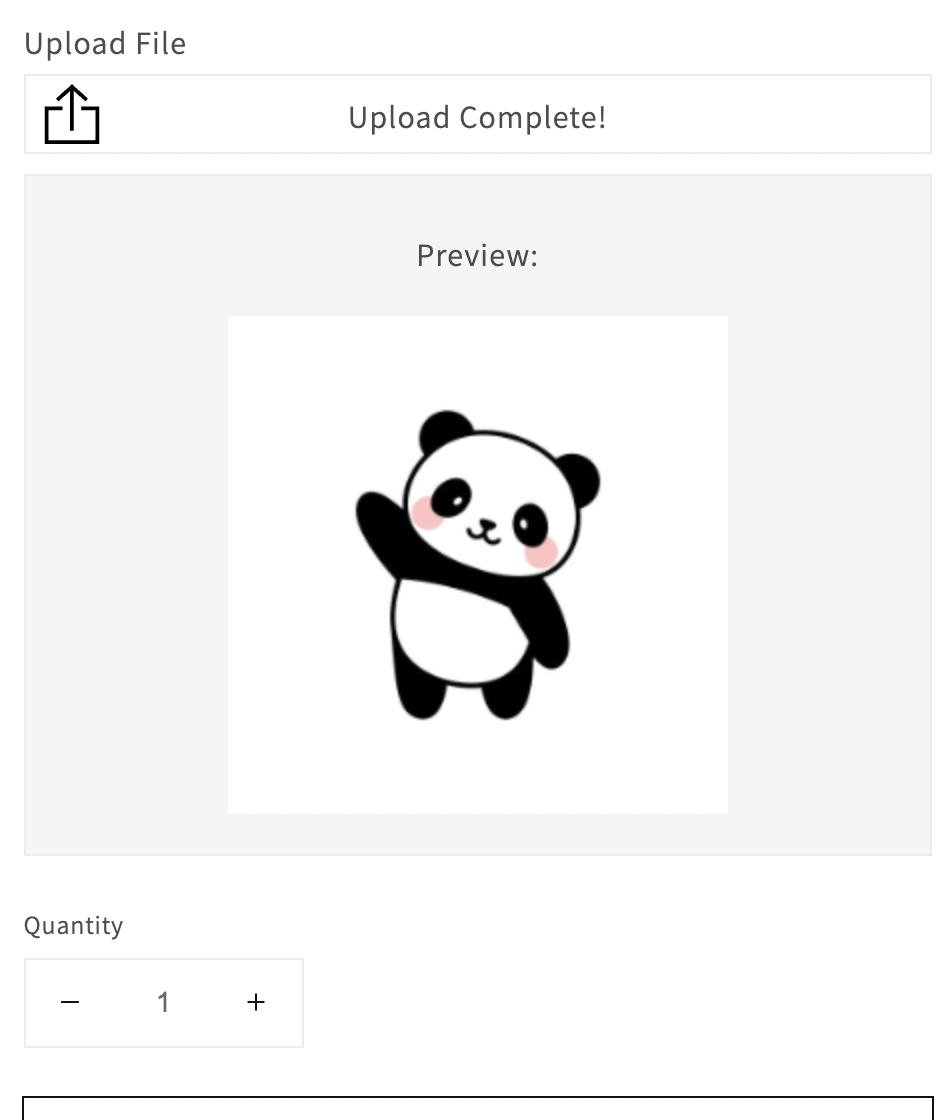
Here are some great resources to get you started: