
Problem: The fulfillment doesn't have a tracking number associated with it
Fix the error that a fulfillment has no tracking number by fulfilling the order in Shopify with a carrier and tracking number for Tracktor.
Manually Fulfilling Orders in Shopify
Section titled “Manually Fulfilling Orders in Shopify”In order for Tracktor to display the correct tracking information, orders need to be fulfilled with a carrier and a tracking number. Follow the steps below to accomplish this.
Fulfill Orders
Section titled “Fulfill Orders”1. Starting from your Shopify admin dashboard, navigate to the Orders page.
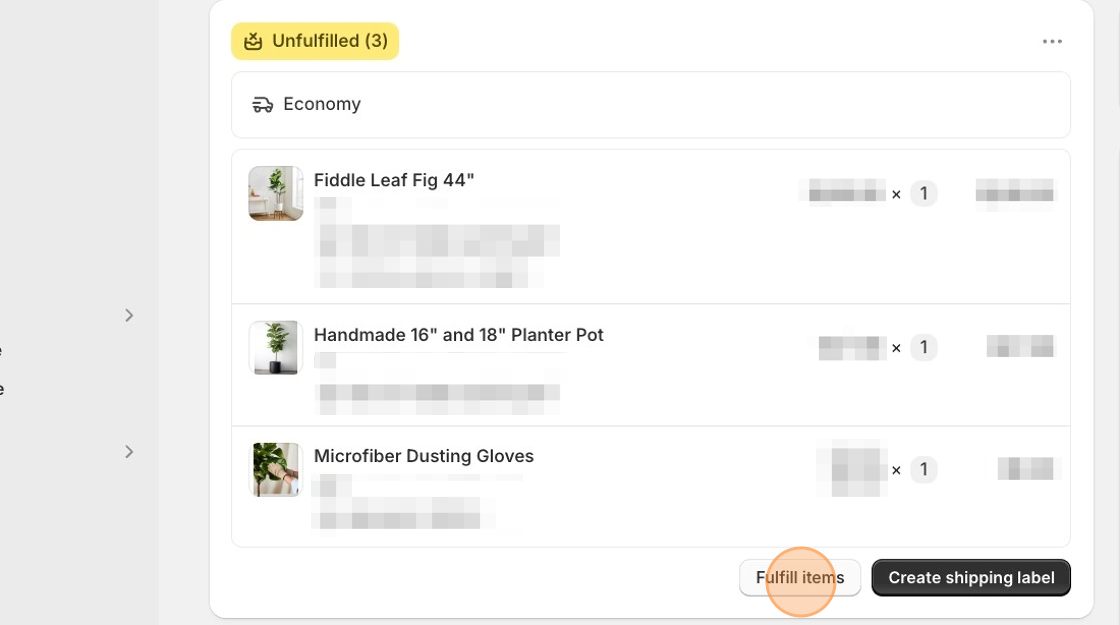
2. Navigate to an order that needs to be fulfilled and click on the Fulfill Items button.
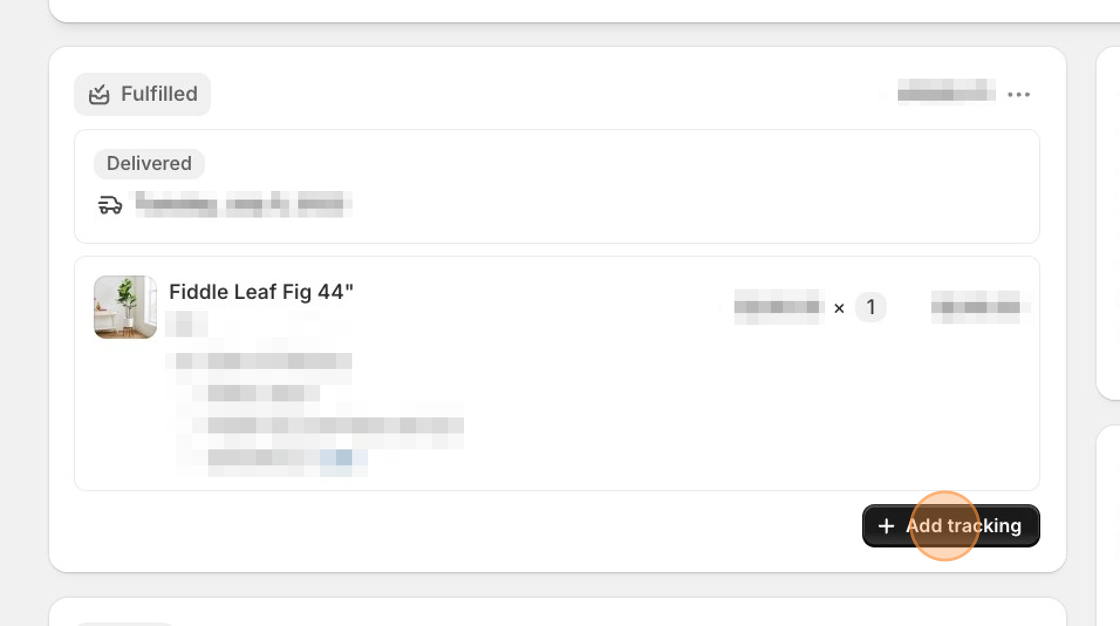
If your order is already fulfilled but no tracking information was entered, you would click on the Add tracking button and enter the package’s Tracking number and Shipping carrier.
4. Click on Save.
The tracking number and carrier information are now added to the order and show above the list of products.
Test the App
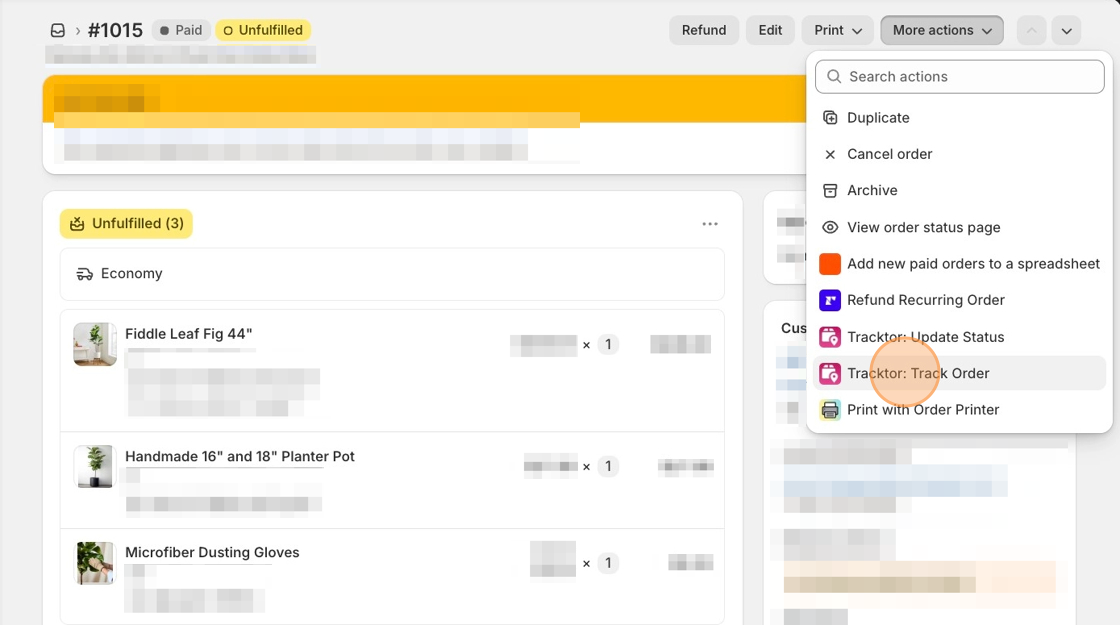
Section titled “Test the App”1. From the order page, click on More Actions ▼.
2. Select Tracktor: Track Order.
3. Tracktor will pre-populate the needed fields automatically.
3. Verify the information displayed on the map is correct.