
Display a banner
Add a promotional banner, such as a thank-you coupon message, to your Tracktor tracking page with a copied HTML snippet and custom CSS.
Follow the steps below to add a banner to your store’s tracking page.
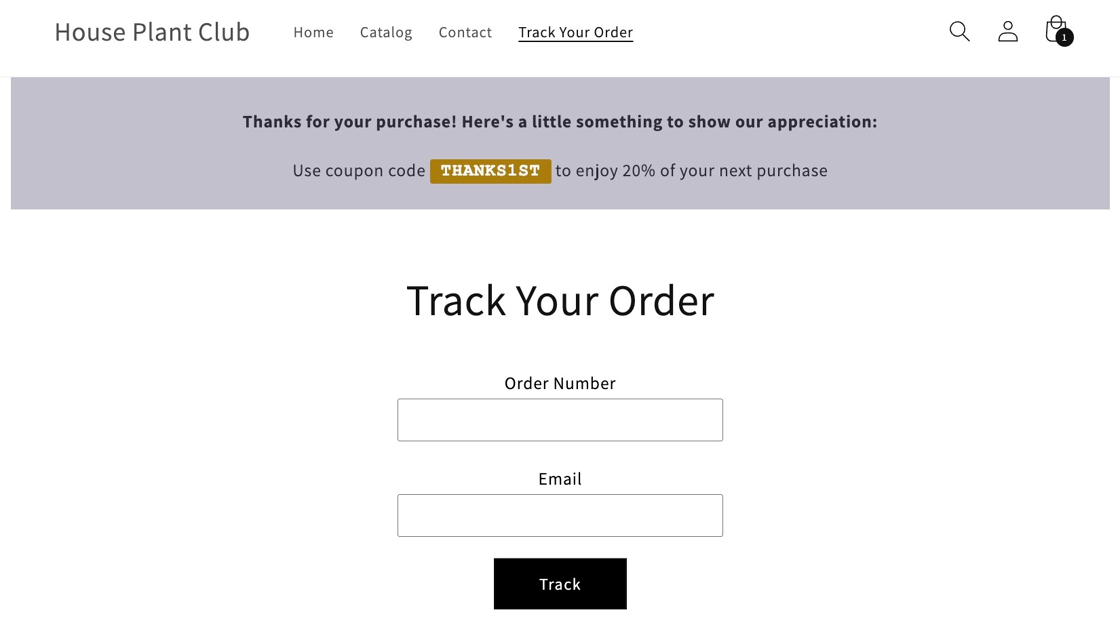
1. Copy the following banner snippet.
<div id ="tracktor-banner"> <p><strong>Thanks for your purchase! Here's a little something to show our appreciation:</strong></p> <p>Use coupon code <span>THANKS1ST</span> to enjoy 20% of your next purchase</p></div>2. Navigate into your Tracktor dashboard and go to the Tracking Page section.
3. Scroll to the bottom and paste the snippet into the Custom HTML & CSS section.
4. Adjust the text within the <p></p>, <strong></strong>, and <span></span> tags to display whatever text you desire.
5. Scroll up and locate the Custom CSS section.
6. Copy and paste the following CSS snippet.
#tracktor-banner {  background-color: #c2c1cc;  text-align: center;  padding: 20px 0;  margin-top: -10px;  margin-left: 10px;  margin-right: 10px;}
#tracktor-banner p {  margin-bottom: 0;  color: #2d2b35;}
#tracktor-banner p span {  font-family: "Courier New", Courier, monospace;  background-color: #ab7d07;  border-radius: 2px;  padding: 2px 10px;  color: #fff;  font-weight: bold;}
Feel free to adjust the CSS to match your theme’s styles.
7. Save your changes.