Setting Up Carrier Mapping
Use Tracktor carrier mapping to override Shopify carriers with any of the 1,000+ carriers Tracktor supports, including ones Shopify lacks.
Overview
Section titled “Overview”Shopify only supports around 55 carriers. Tracktor supports more than 1000! Tracktor’s carrier mapping feature allows you to support carriers that are not supported by Shopify. This happens by overriding Shopify-supported carriers with carriers that Tracktor supports.
Setting up carrier mapping keeps everything in sync — your Tracktor tracking page, your Shopify admin, and your customers’ delivery notification emails.
Setting up carrier mapping
Section titled “Setting up carrier mapping”Head to your Tracktor dashboard and click Tracking Page in the left sidebar. Scroll down until you see the Carrier Mapping section.
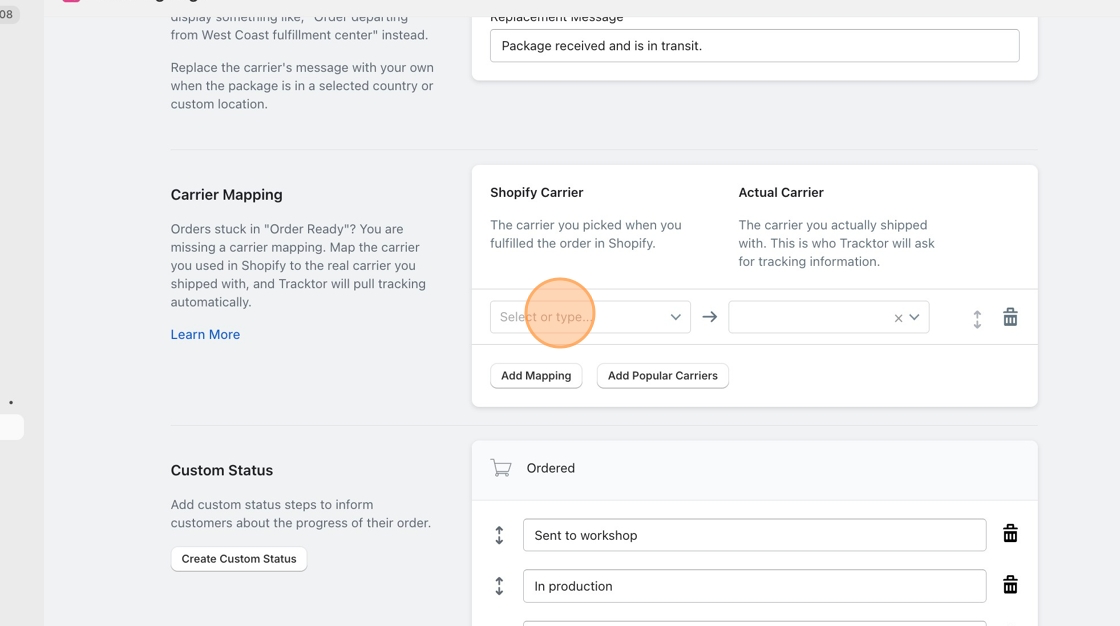
From there, you’ll set up two things:
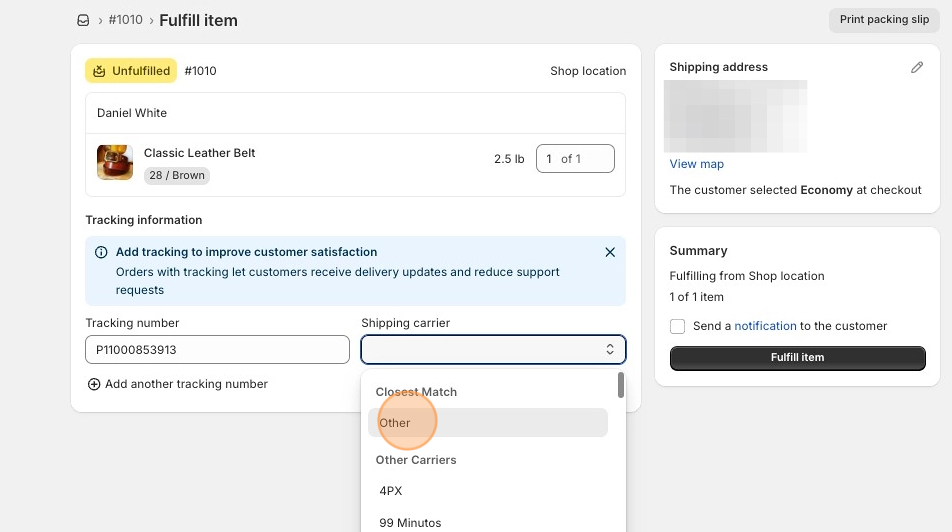
Shopify Carrier is the carrier you picked when you fulfilled the order in Shopify. If your carrier isn’t in Shopify’s list, this will be Other.
Actual Carrier is the carrier you actually shipped with. This is who Tracktor will ask for tracking info.
Once you’ve set both, click Save. Any order fulfilled with that carrier going forward will start showing tracking.
Not sure what carrier name Shopify is using?
Section titled “Not sure what carrier name Shopify is using?”Go to your Shopify admin, open an order, and check the fulfillment details. Whatever carrier name is listed there is what you’ll enter as the Shopify Carrier in the mapping.
If the name looks off, like “USPS Ground Shipment” instead of just “USPS,” that’s okay. You can type it in manually and map it to the correct actual carrier. Tracktor will recognize it from there.
Using dropshipping?
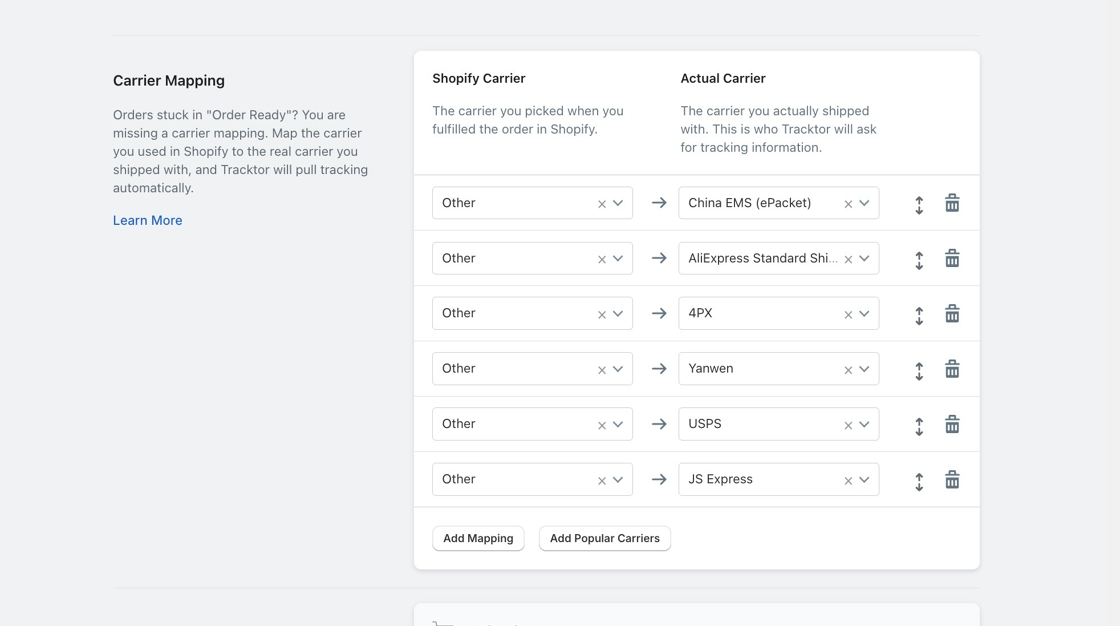
Section titled “Using dropshipping?”The fastest way to get set up is to click Add Popular Carriers in the Carrier Mapping section. This automatically adds the most common carriers used by dropshippers, so you don’t have to build the list yourself.
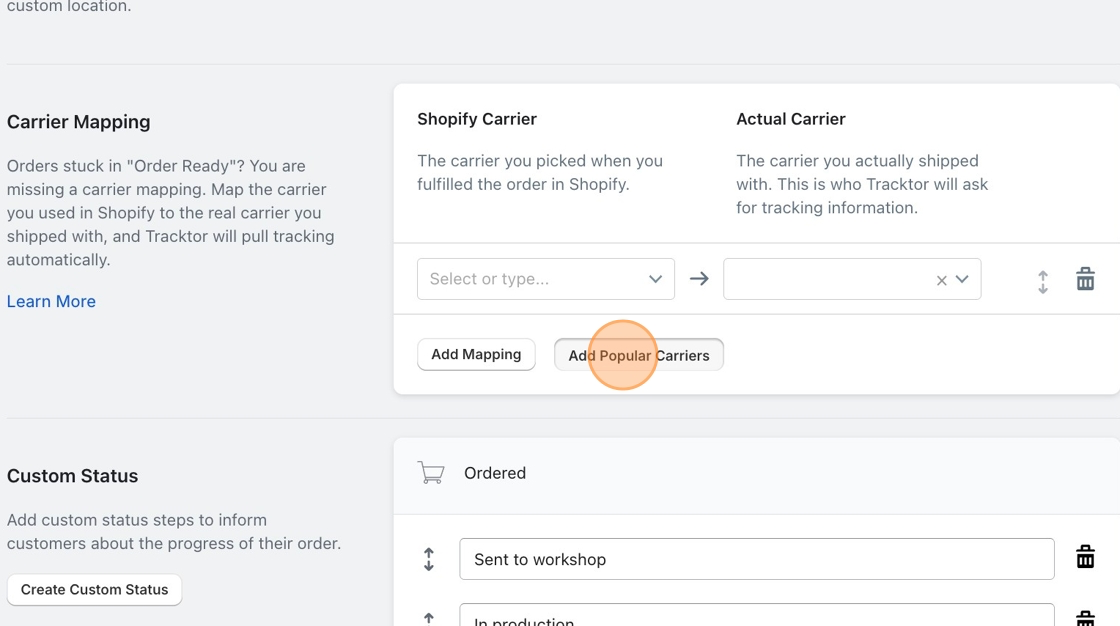
If your carrier still isn’t showing up after that, you can add it manually. Set Shopify Carrier to Other and select your carrier under Actual Carrier.
Testing your mapping
Section titled “Testing your mapping”Once your mapping is saved, open an order in your Shopify admin, click More Actions, and select Tracktor: Track Order. You can also check from the Reports tab in your Tracktor dashboard.
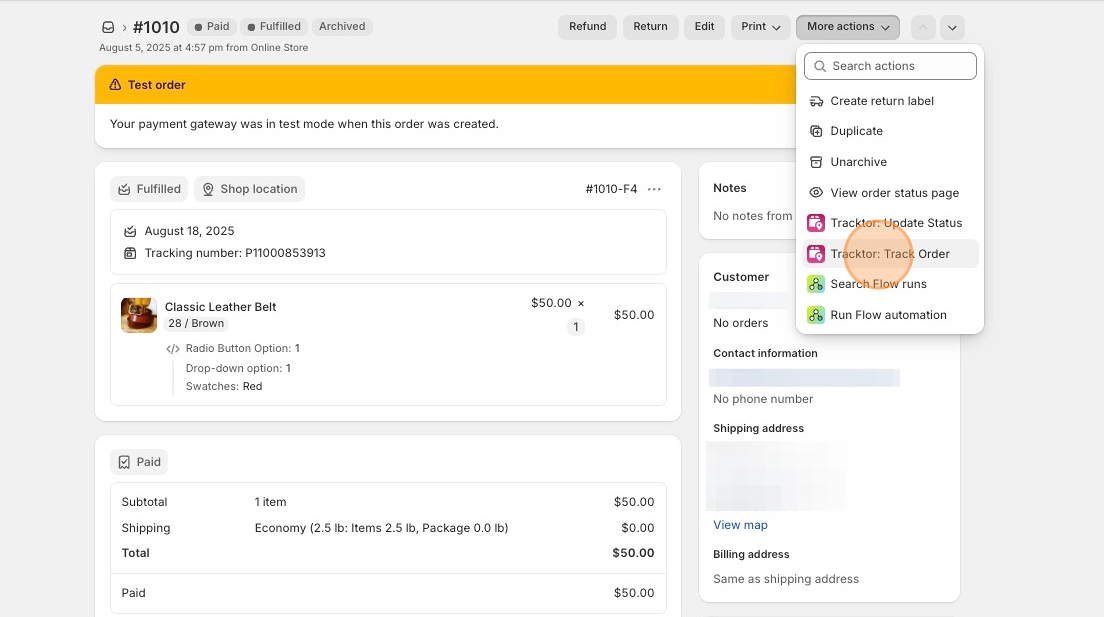
If tracking still isn’t showing up after that, reach out to our support team and we’ll help you figure out what’s going on.
My fulfillment service is using a carrier name Tracktor doesn’t recognize
Section titled “My fulfillment service is using a carrier name Tracktor doesn’t recognize”Sometimes a fulfillment service will fulfill orders using a carrier name that doesn’t match exactly what Shopify or Tracktor expects. This is more common than you’d think and easy to fix with carrier mapping.
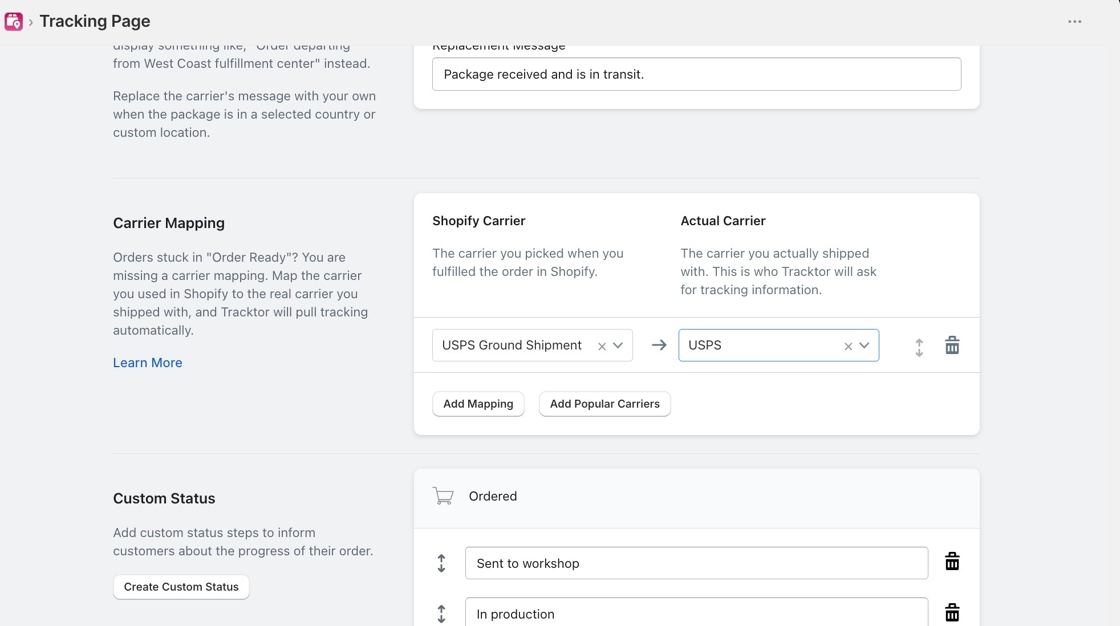
For example, your fulfillment service might label a shipment as “USPS Ground Shipment” when the correct carrier name is just “USPS.” Tracktor won’t find tracking for “USPS Ground Shipment” because it doesn’t recognize that exact name.
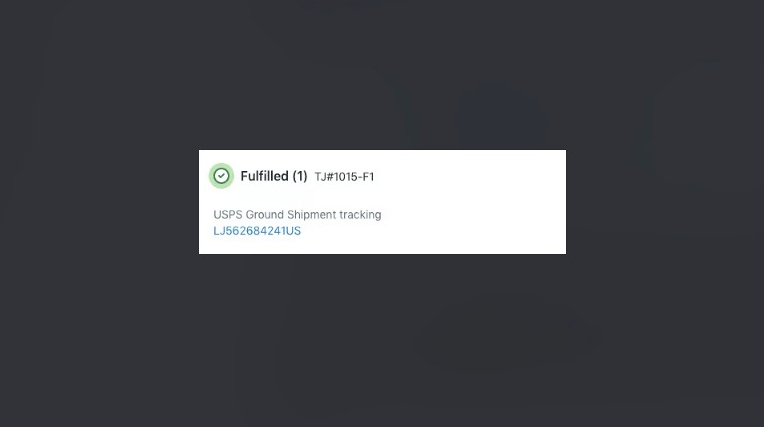
To fix it, set up a mapping with “USPS Ground Shipment” as the Shopify Carrier and “USPS” as the Actual Carrier. Type the unrecognized name into the Shopify Carrier field and select the “Create option” result that appears. From that point on, any order fulfilled with that name will track correctly.
Carrier names with a service level
Tracktor has one carrier for each major shipping company, and it covers all of that company’s services. For example, Amazon, FedEx, UPS and USPS each include every service level they offer.
If Shopify shows a carrier name that includes the service, like “FedEx 2 Day,” “UPS Ground,” “USPS Priority Mail” or “Amazon Logistics,” set that name as the Shopify Carrier and select the main carrier (FedEx, UPS, USPS or Amazon) as the Actual Carrier. All of those shipments will track from there.