
Translate Text on Tracking Page
Translate the text on your Tracktor tracking page by editing the phrases in the Translation Strings section of the Tracking Page settings.
Follow the steps below to translate the text that appears on the Tracktor page.
1. Starting from your Tracktor dashboard, click on “Tracking Page” from the menu list.
2. Scroll down to the Translation Strings section.
3. Edit the text of any phrase as you’d like.
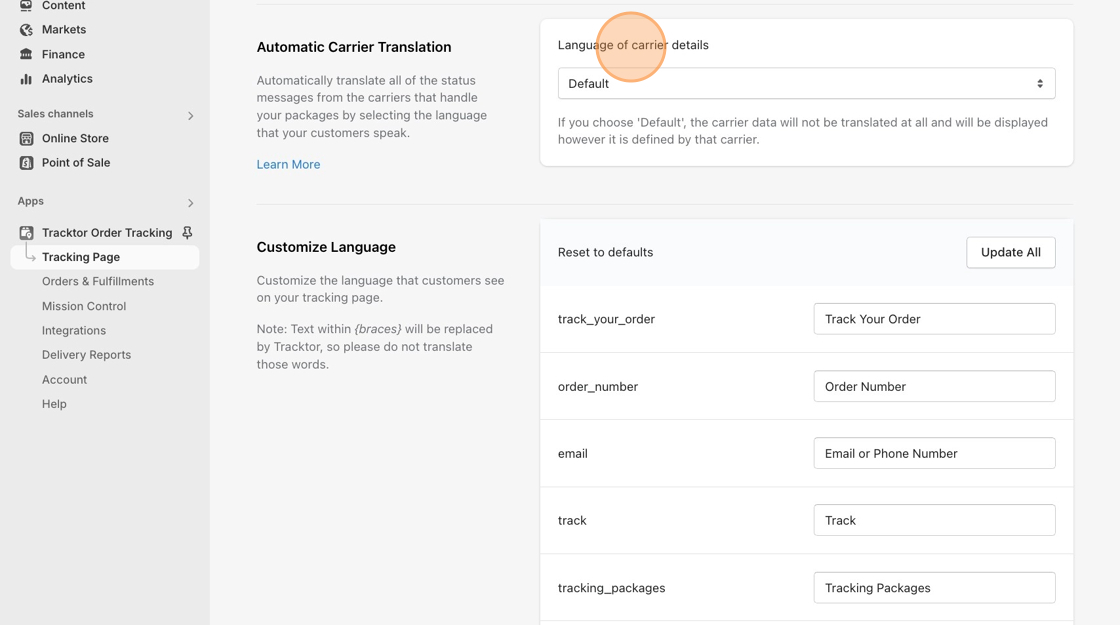
4. Save your changes.
Translate: Language Setting
Section titled “Translate: Language Setting”Currently only available for Starter Plan and above.
You can change the language of the text displayed on your tracking page to one language, under the Language setting. This setting will translate not only the Translation Strings but also the tracking information on the page.
We currently have language support for:
- No Translation
- English
- Spanish
- French
- German
- Italian
- Dutch
- Portuguese
Choosing No Translation will mean the language for the tracking information will be decided by the carrier.