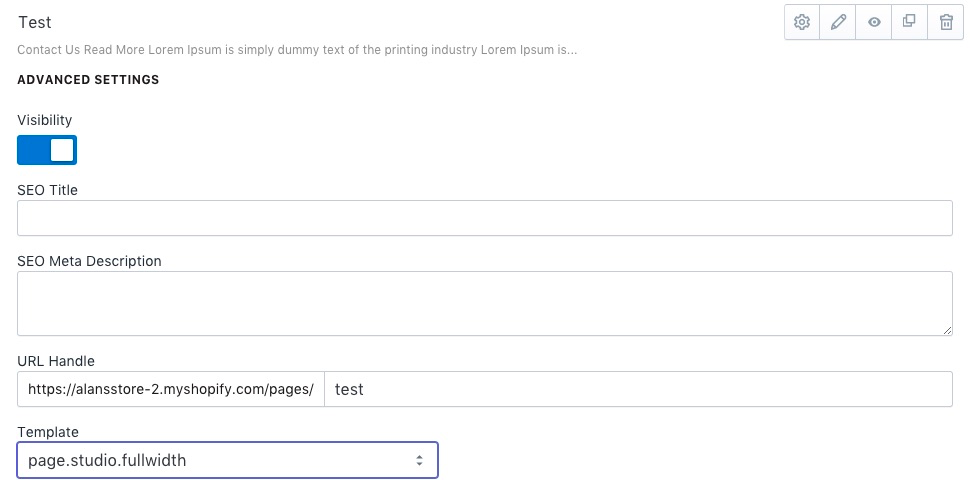
Enable full-width pages
Add a theme template that lets Page Studio pages stretch across the full width of the browser.
Follow the steps below on how to add a page template that allows Page Studio pages to stretch the entire width of the browser.
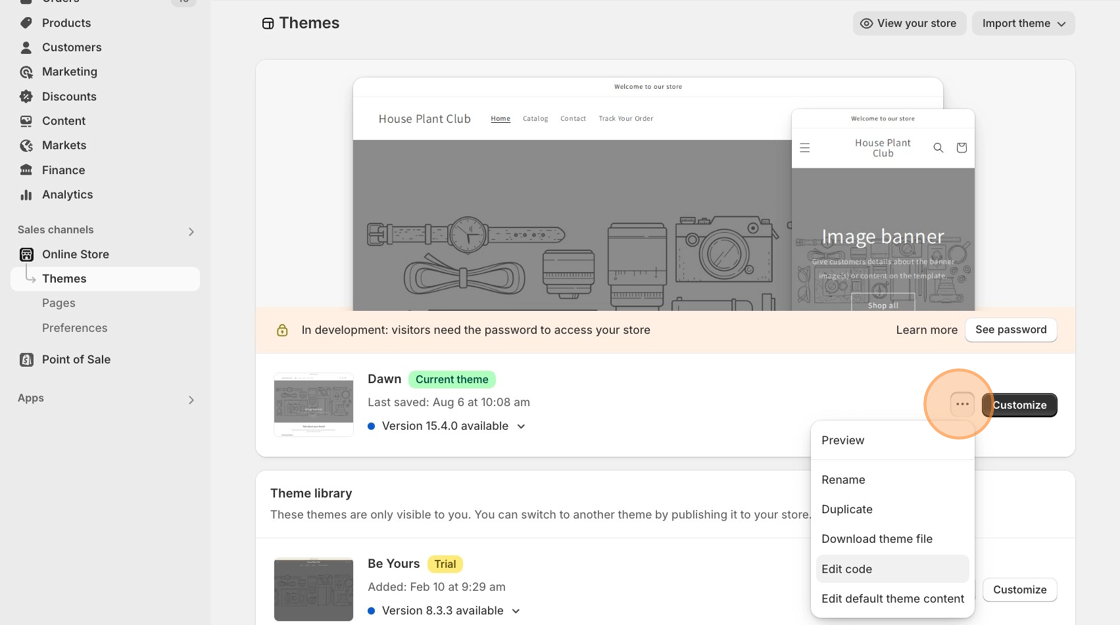
- Starting from your Shopify dashboard, click on Online Store, Themes, then Edit code.
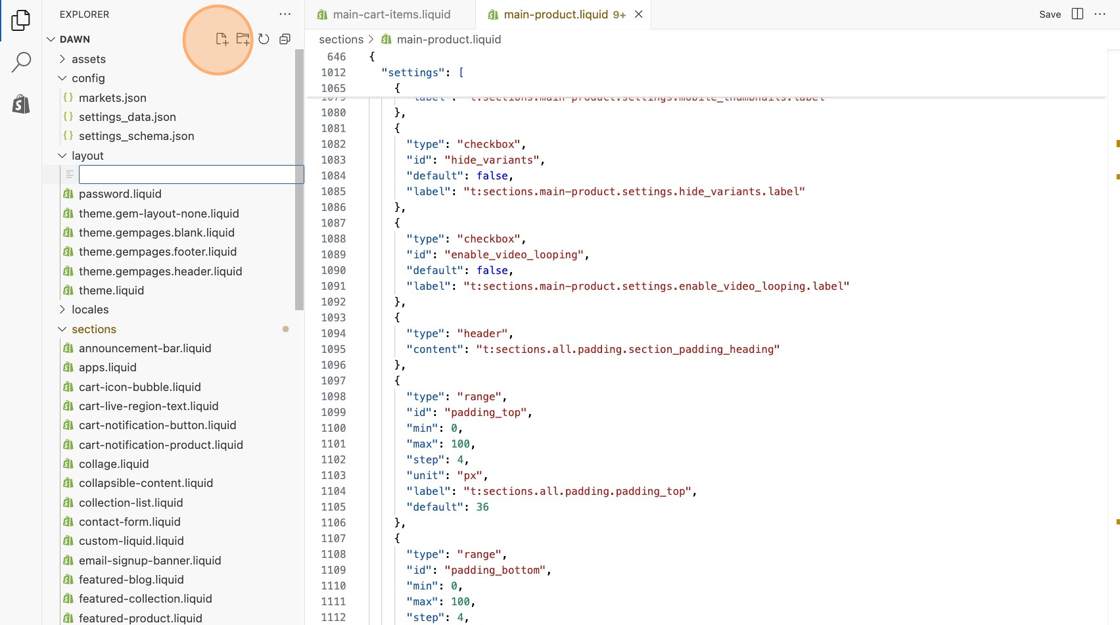
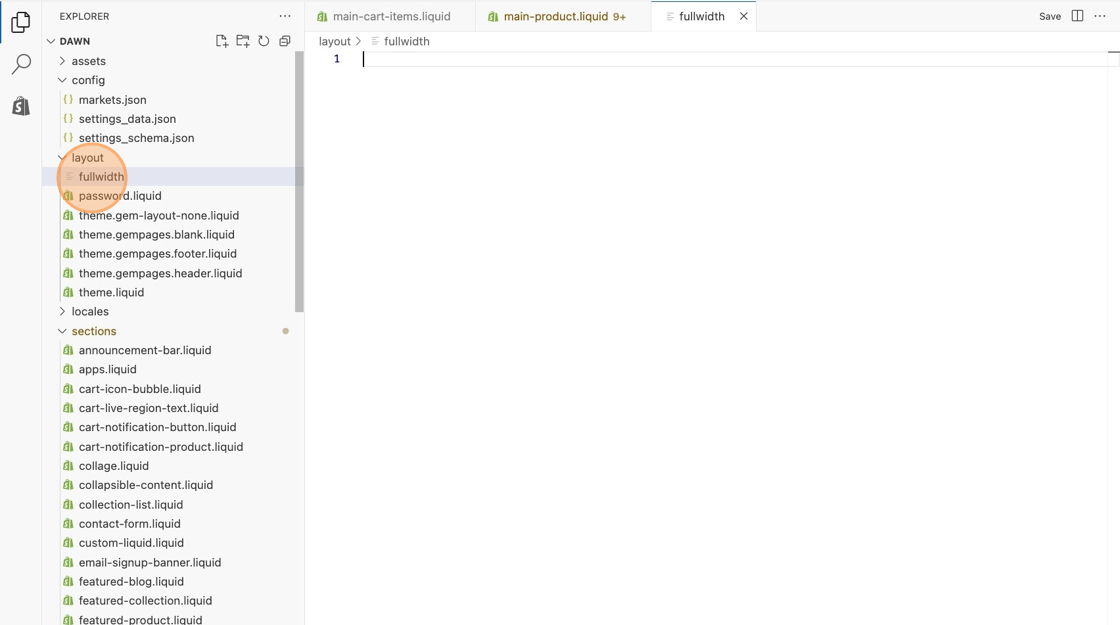
- Locate the Layout folder and click on the folder icon to add a new layout button called fullwidth.
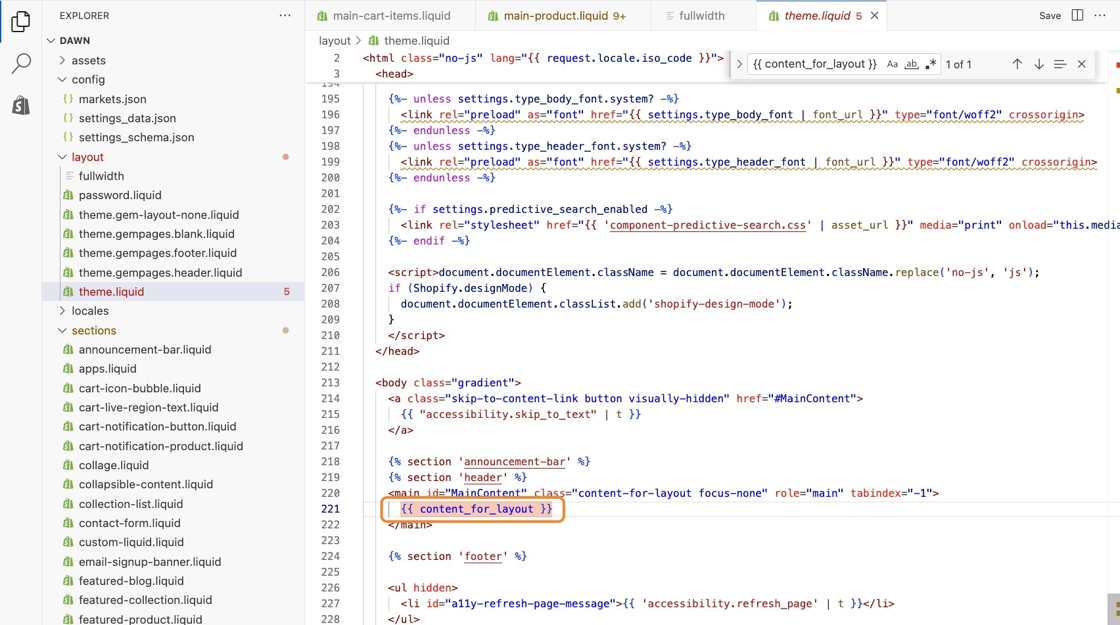
- Locate the following code snippet below in the theme.liquid file.
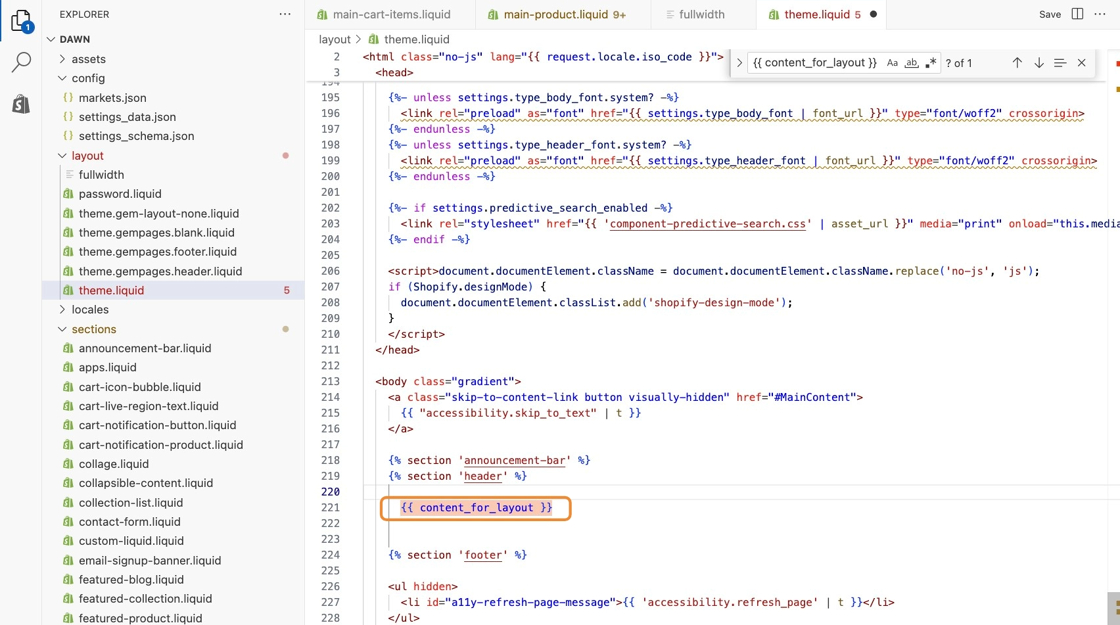
{{ content_for_layout }}- Remove any surrounding code that wraps the snippet (this code usually prevents pages from stretching the full width).
Before
After
- Add the following code snippet below it and save your changes.
<style> body { margin: 0; }</style>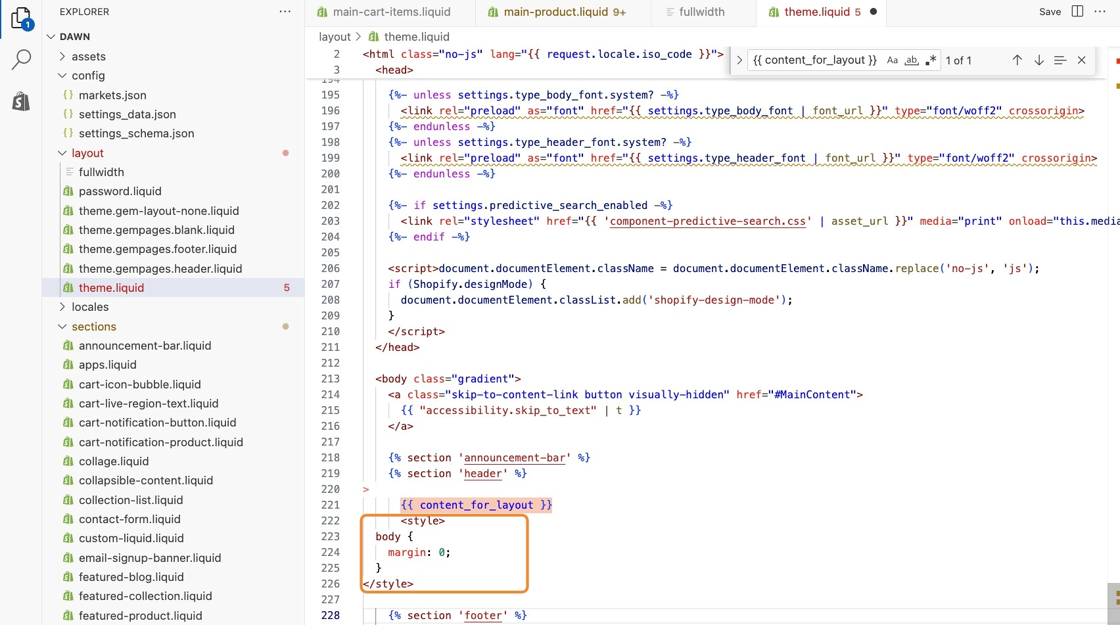
- Now locate the Templates folder, then click on the folder icon to add a new template for a page called studio.fullwidth.
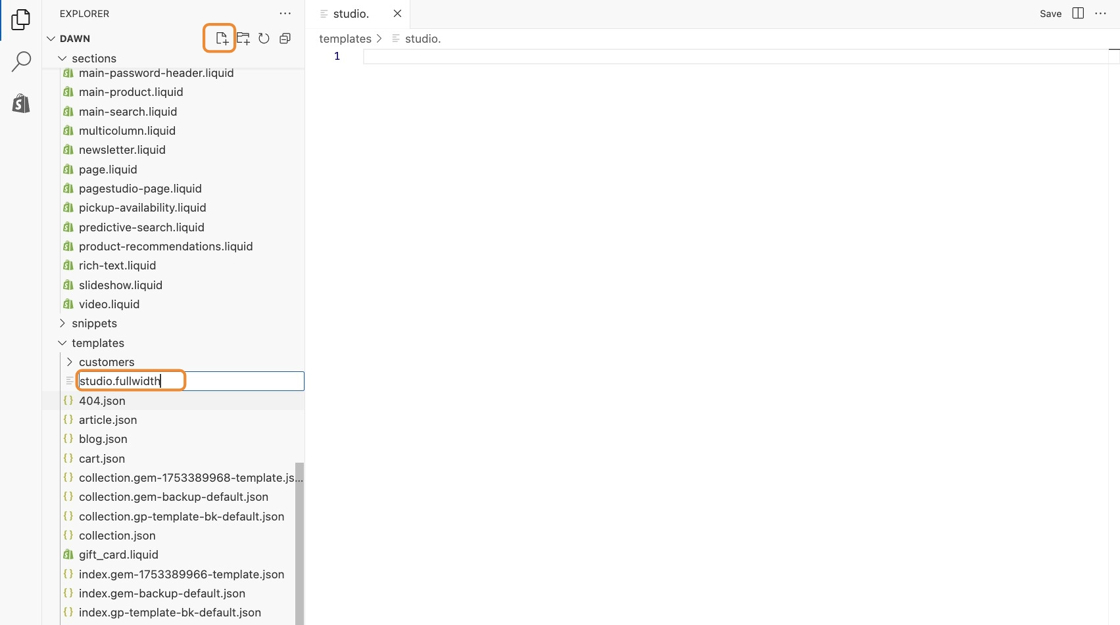
10. Replace all the code within the page.studio.fullwidth.liquid file with the following snippet.
{% layout 'theme.fullwidth' %}<link href="//studios.cdn.theshoppad.net/pagestudio/blocks.css?v={{ page.metafields.global.version | default: 3 }}&shop={{ shop.permanent_domain }}" rel="stylesheet" type="text/css"/><script src="//studios.cdn.theshoppad.net/pagestudio/pagestudio.dist.js?v={{ page.metafields.global.version | default: 3 }}"></script><div class="studioengine">{{ page.content }}</div>11. Save your changes.
You will now be able to select the page.studio.fullwidth template from the Page Studio dashboard, which will allow the page’s content to stretch the entire width of the screen.