Format content with the CSS menu
Use Page Studio's CSS Formatting menu to adjust spacing, size and other styles for content on your page.
The CSS Formatting menu is very useful when it comes to formatting content on your page. Continue reading this article to learn more on how to use this menu. Topics discussed in this article:
Note: This menu draws on concepts related to coding languages (HTML & CSS). A basic understanding of these concepts will make it easier to use this menu. Feel free to try it out on your own. You can reach out to our Customer Success team (contact@theshoppad.com) if you would like assistance.
1. Starting from the Page Editor, click on a content block on your page.
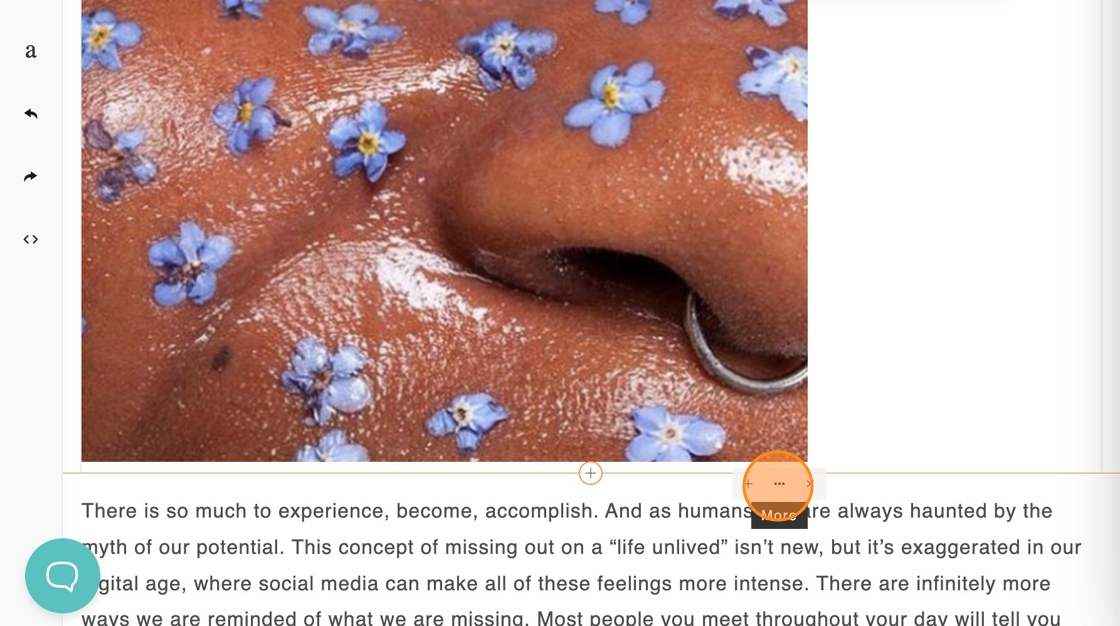
2. Click on the (…) More icon.
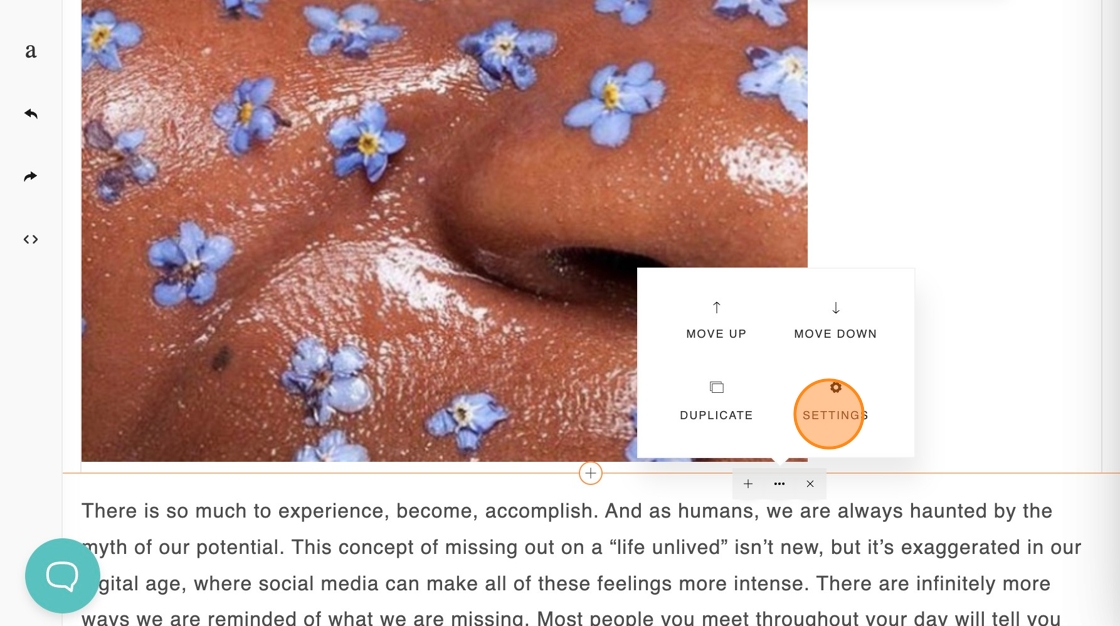
3. Click on the Settings icon.
This section will go over each feature of the menu going from top to bottom.
CSS Button & Panel
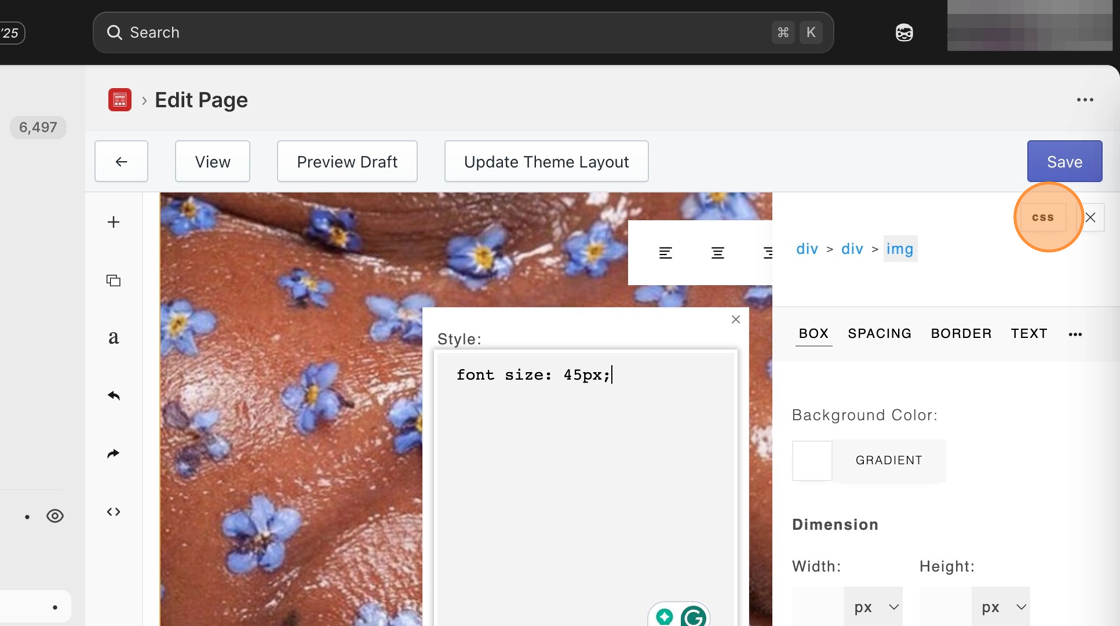
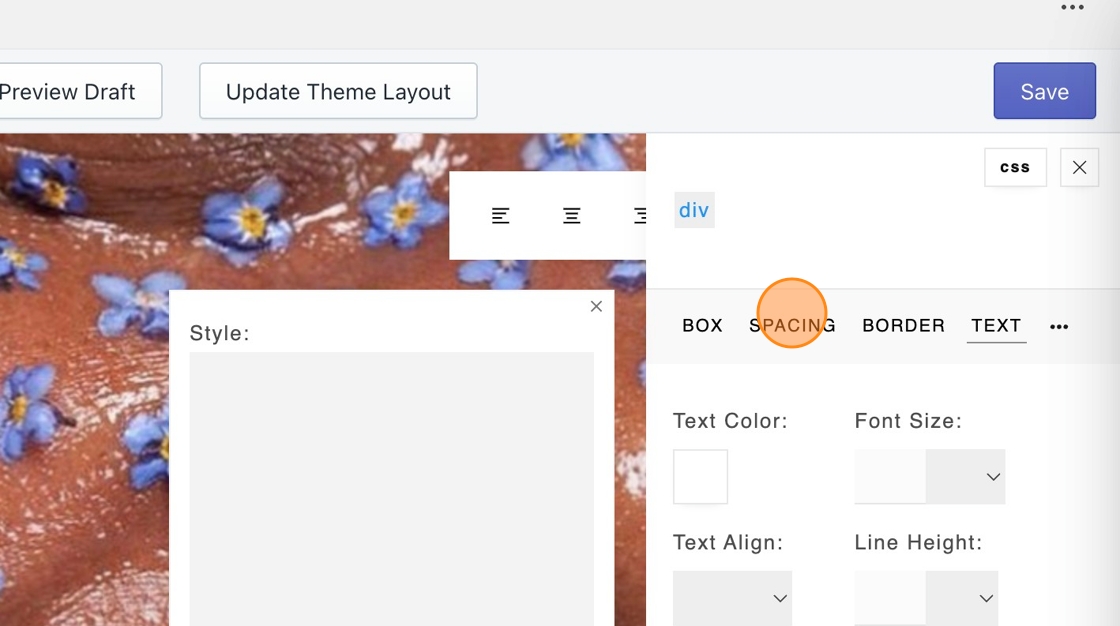
Section titled “CSS Button & Panel”At the top of the menu is a CSS button. Clicking this button displays a CSS pop-up panel. Here you can see what styles have been applied, write in CSS, or add class selectors.
HTML tags
Section titled “HTML tags”Next is a trail of HTML tags that follows the code structure of the content you have clicked on. Keeping it on the rightmost tag will adjust that content specifically. You can click any of the tags listed to the left to adjust them.
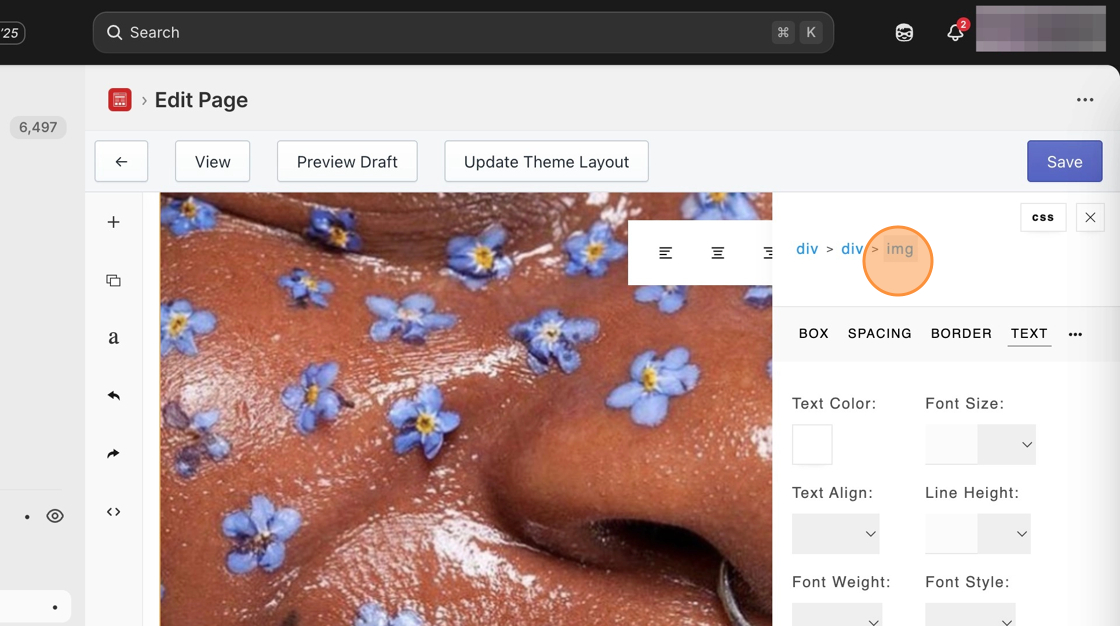
You can also click on other content on the page to adjust it with the formatting menu.
Categories
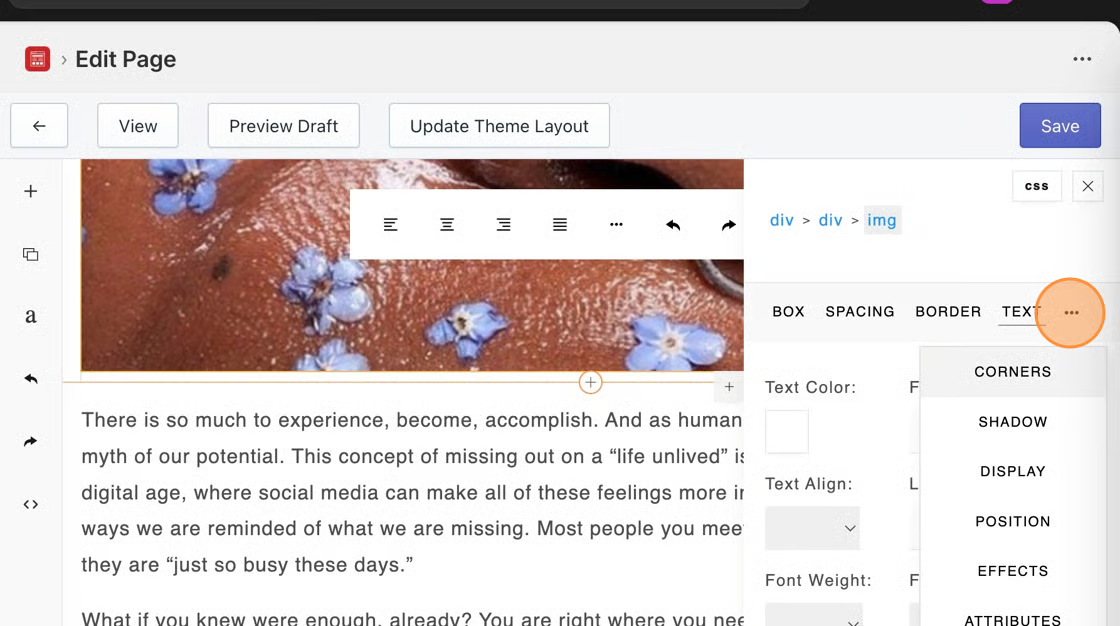
Section titled “Categories”Then a list of categories that you can adjust the styles for. You can click on any of the categories listed. Clicking the ••• icon displays more categories.
Styles
Section titled “Styles”Depending on the category you have selected, styles that can be adjusted display underneath for that category. These styles will vary depending on the category.
To save any changes you have made, click the Save button at the top right corner of the editor.
Examples
Section titled “Examples”Listed here are common examples of adjustments made with this menu.
Add spacing around images
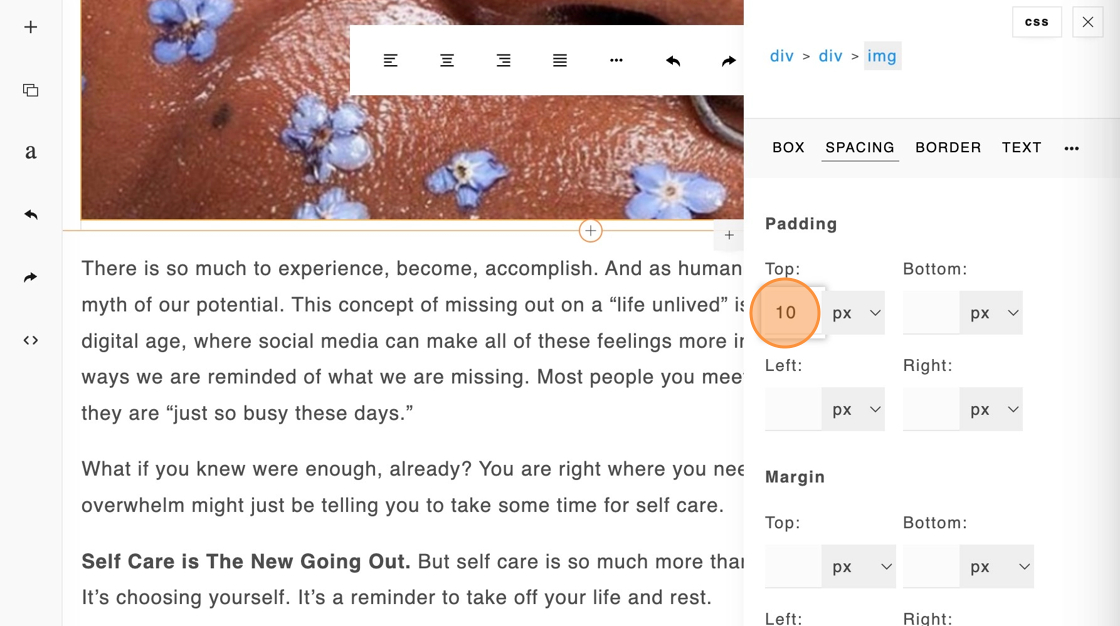
In this example, I have added 10px to the top under padding on this image. This adds a small amount of space at the top.
You can increase the number for a larger space. You can add this to bottom, left, or right to apply spacing to the other sides of the image.
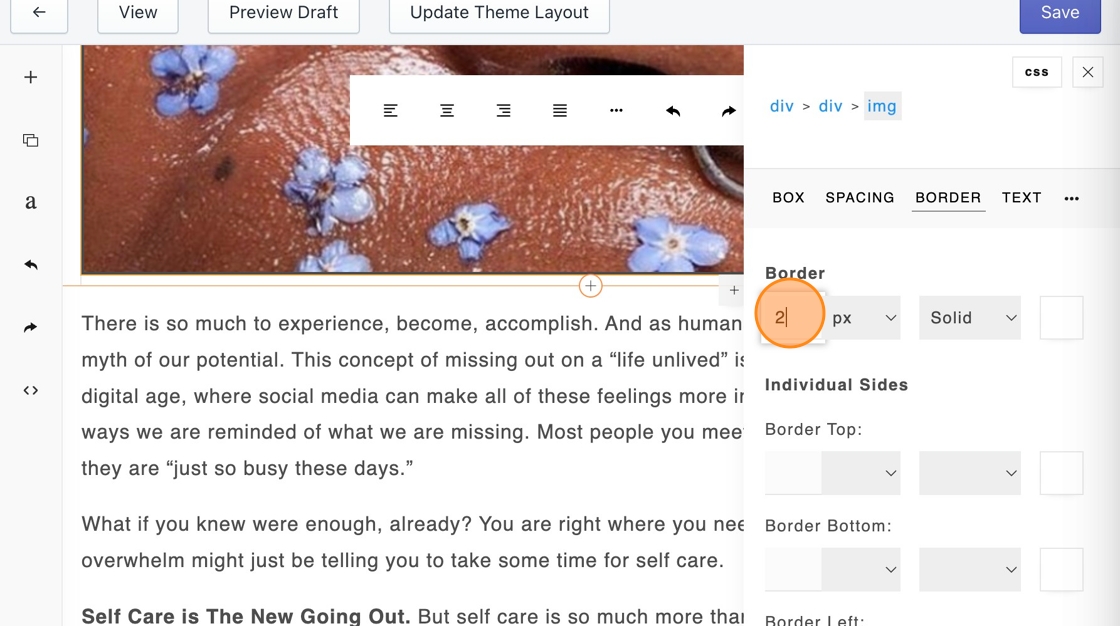
Add border around text
Section titled “Add border around text”A border that is gray and 2px thick has been added to this header title. Increasing the number will make the border thicker.