> For the complete documentation index, see [llms.txt](https://docs.theshoppad.com/tracktor/llms.txt). Markdown versions of documentation pages are available by appending `.md` to page URLs; this page is available as [Markdown](https://docs.theshoppad.com/tracktor/troubleshooting/uninstalling-tracktor/redirect-customers-away-from-tracktor-page-after-uninstalling.md).
# Redirect customers away from Tracktor page after uninstalling
Set up a URL redirect after uninstalling Tracktor so customers who open the old tracking page do not land on a 404 error.
When you uninstall Tracktor from your store, your Tracktor tracking page will no longer display for customers. If a customer navigates to this Tracktor tracking page, they would see a 404 error. To prevent this, we suggest you set up a **URL Redirect**. Follow these instructions below to set this up.
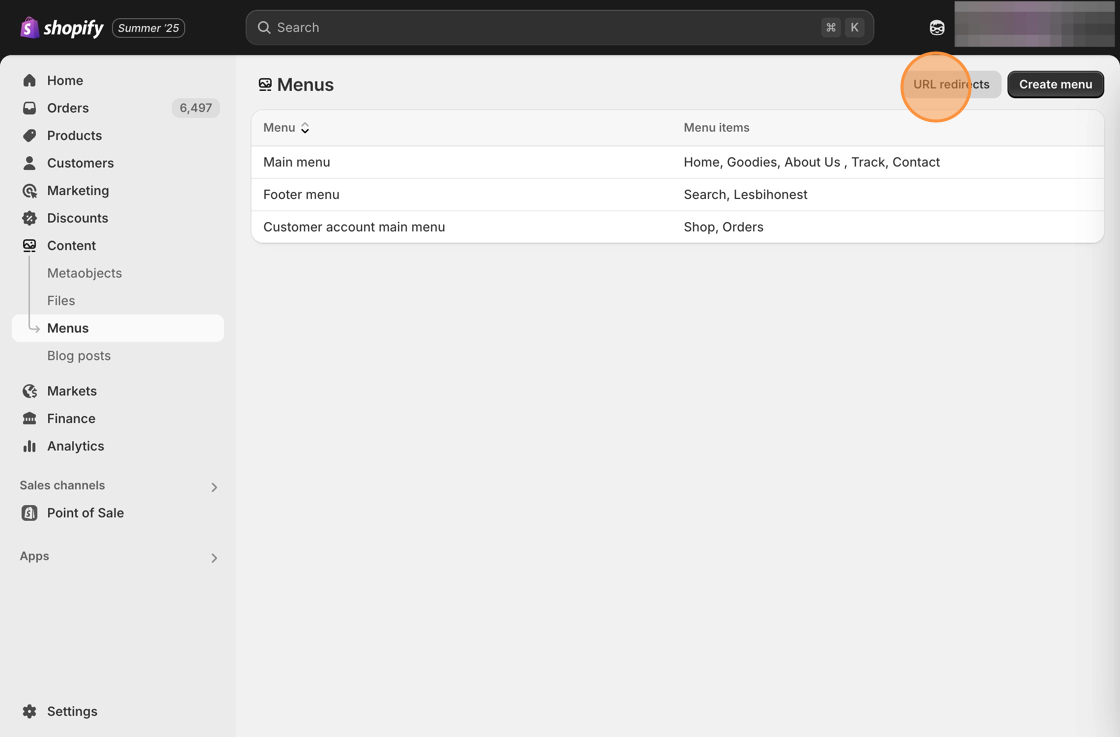
1\. In your Shopify admin, navigate to Content then select Menus. Click URL Redirects.
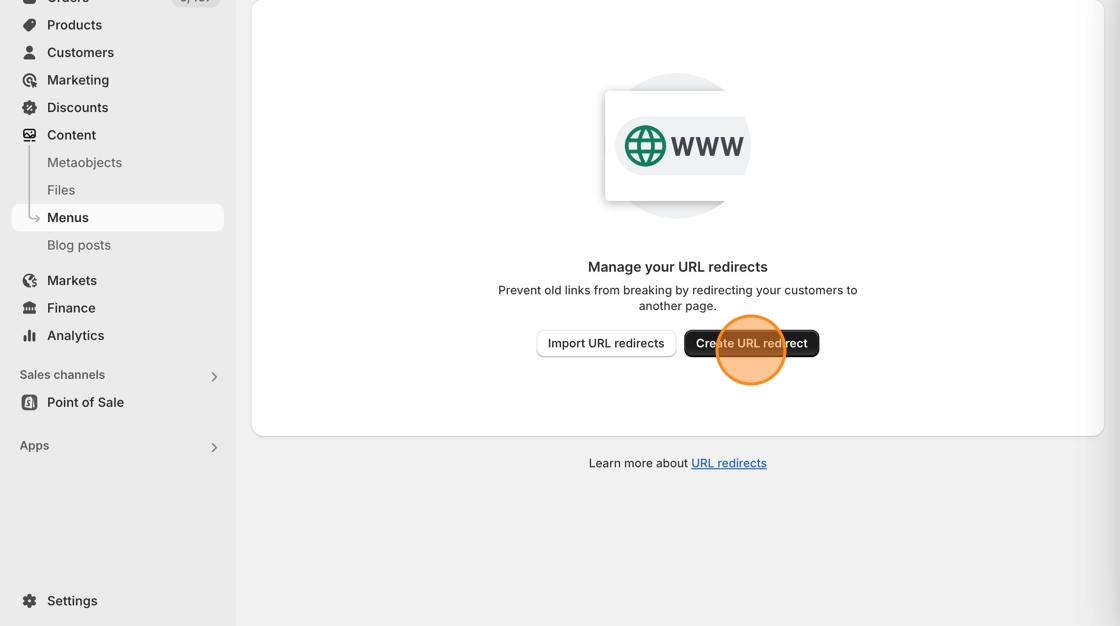
2\. Click on **Create URL redirect**.
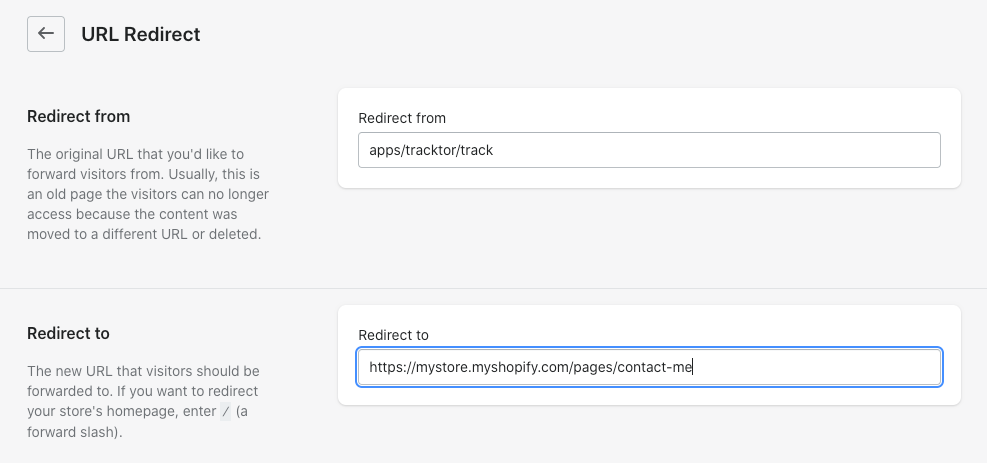
4\. Copy and paste **apps/tracktor/track** into the **Redirect from** field.
5\. Add the desired URL that you want to redirect customers to (e.g. Contact Us page) into the **Redirect to** field.
6\. Save your changes.
This redirect will only work if your Tracktor page is no longer a valid page. You **cannot** redirect from a live tracking page with Tracktor installed.