> For the complete documentation index, see [llms.txt](https://docs.theshoppad.com/tracktor/llms.txt). Markdown versions of documentation pages are available by appending `.md` to page URLs; this page is available as [Markdown](https://docs.theshoppad.com/tracktor/dropshipping-settings/hide-china-from-tracking-details.md).
# Hide China from tracking details
Hide shipping origins like China and carrier details from Tracktor tracking pages, and set up carrier mapping for dropshipping orders.
If you are using dropshipping for orders made on your store, this guide will walk you through all of the features Tracktor has available to support this. Topics that this guide will go over include:
* [A note on last-mile tracking](https://docs.theshoppad.com/tracktor/dropshipping-settings/hide-china-from-tracking-details/#a-note-on-last-mile-tracking)
* [Configuring orders for dropshipping](https://docs.theshoppad.com/tracktor/dropshipping-settings/hide-china-from-tracking-details/#configuring-orders)
* [Hide carrier information for your orders](https://docs.theshoppad.com/tracktor/dropshipping-settings/hide-china-from-tracking-details/#hide-carrier-information)
* [Hide shipping details for your orders](https://docs.theshoppad.com/tracktor/dropshipping-settings/hide-china-from-tracking-details/#hide-shipping-details)
## A note on last-mile tracking
Tracktor shows tracking based on whatever carrier is attached to the fulfillment in your Shopify admin. So if a package ships from China first and then hands off to USPS for the last leg, Tracktor will show the original carrier's tracking, not just the USPS portion.
Right now, there's no way to show only the last-mile carrier in Tracktor. If you want customers to see only USPS tracking (for example), the best option is to fulfill the order in Shopify using the USPS tracking number directly. The features below can help you control what else shows up on the tracking page in the meantime.
## Configuring orders for dropshipping
Tracktor supports carrier mapping for dropshipping fulfillment apps.
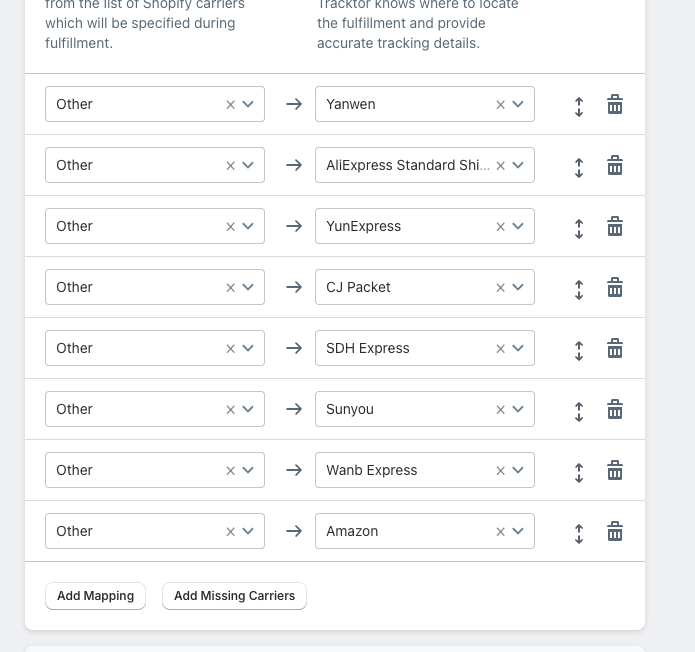
The easiest way to get set up is to click **Add Missing Carriers** in the Carrier Mapping section. This automatically adds the most common carriers used by dropshippers, so you don't have to add them one by one.
If you need to add a carrier that isn't included, you can create a mapping manually by setting the **Shopify Carrier Name** to _Other_ and selecting the **Actual Carrier** from the dropdown. \
\
You can learn more about carrier mapping here: [Carrier Mapping](https://docs.theshoppad.com/tracktor/get-started/setting-up-carrier-mapping/)
## Hide carrier information for your orders
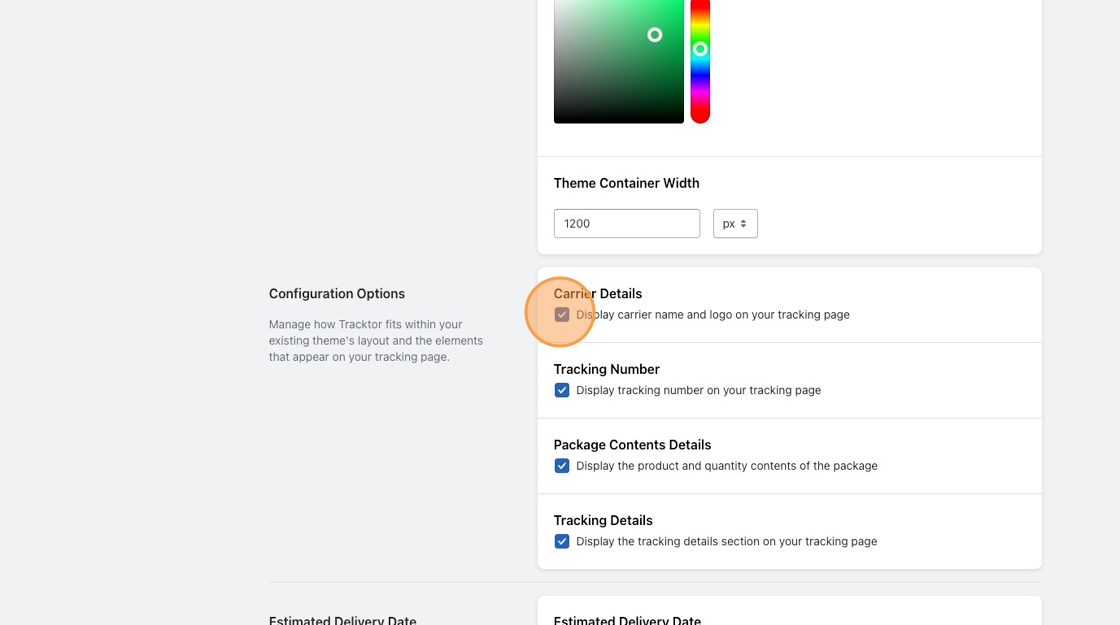
In the Tracktor app, go to the **Tracking Page** section in the left sidebar and find the **Configuration Options** section. \
\
Under **Carrier Details**, uncheck "Display carrier name and logo on your tracking page" to hide which carrier is being used.
\
\
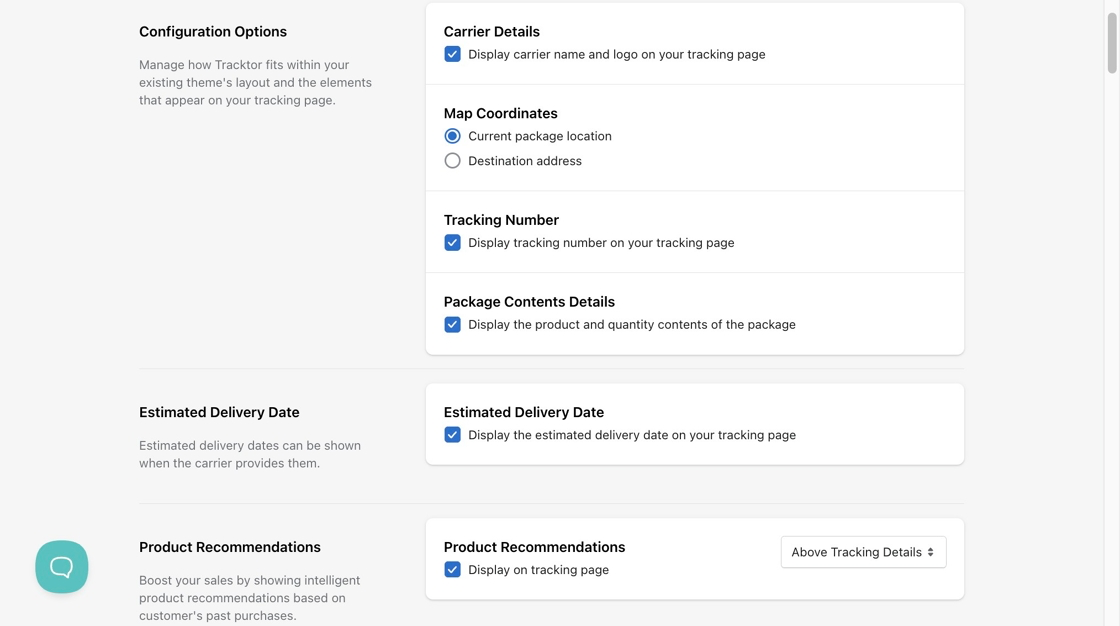
If you are using the Vertical or Horizontal layout, you can also control what shows on the map.
Under **Map Coordinates**, switch from "Current package location" to "Destination address," so customers see their own address instead of the package's current location (which may be in China).
## Hide shipping details for your orders
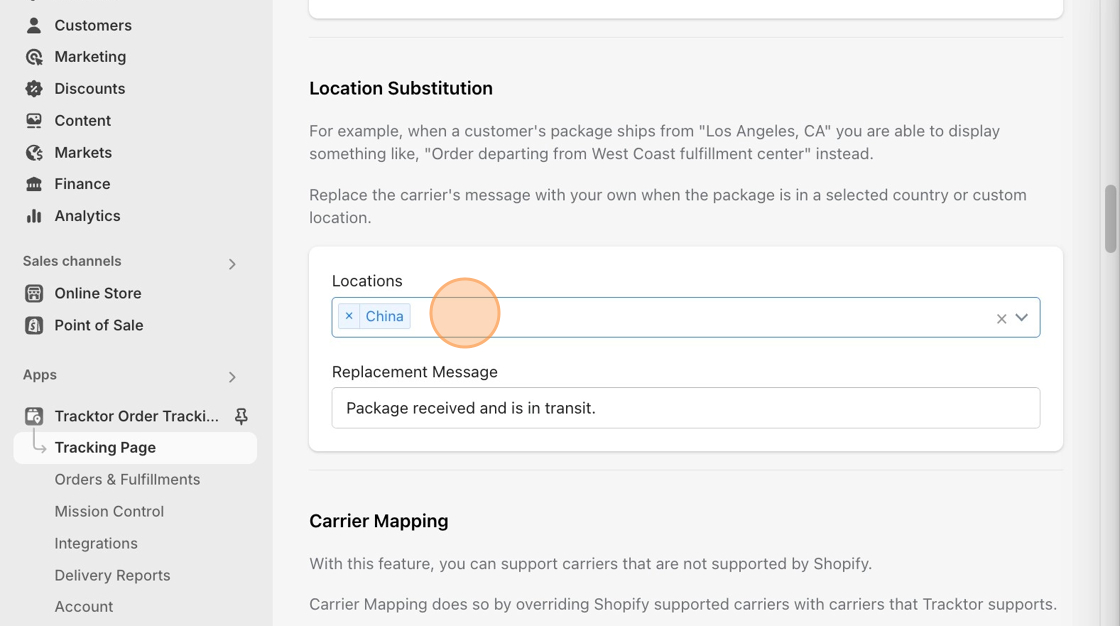
Shipping updates often include location details that reveal where a package has been shipped from. You can use the **Location Substitution** feature in the **Tracking Page** menu, just above the Carrier Mapping section, to replace those references automatically.
For example, enter "China" in the **Locations** field and add a neutral replacement message. Any tracking update that mentions China will display your replacement text instead.
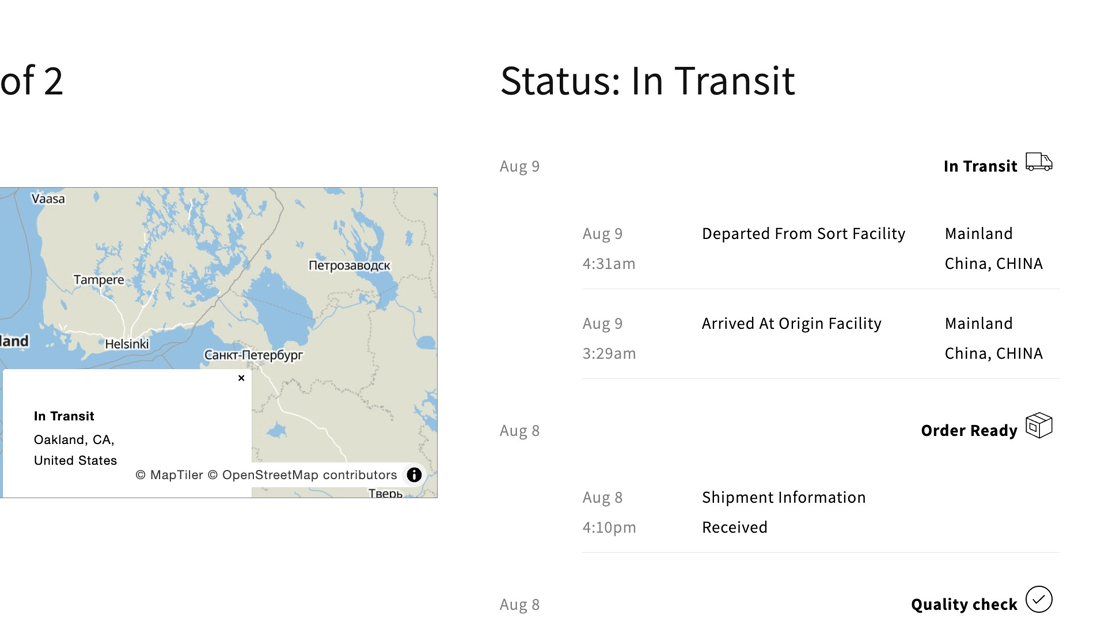
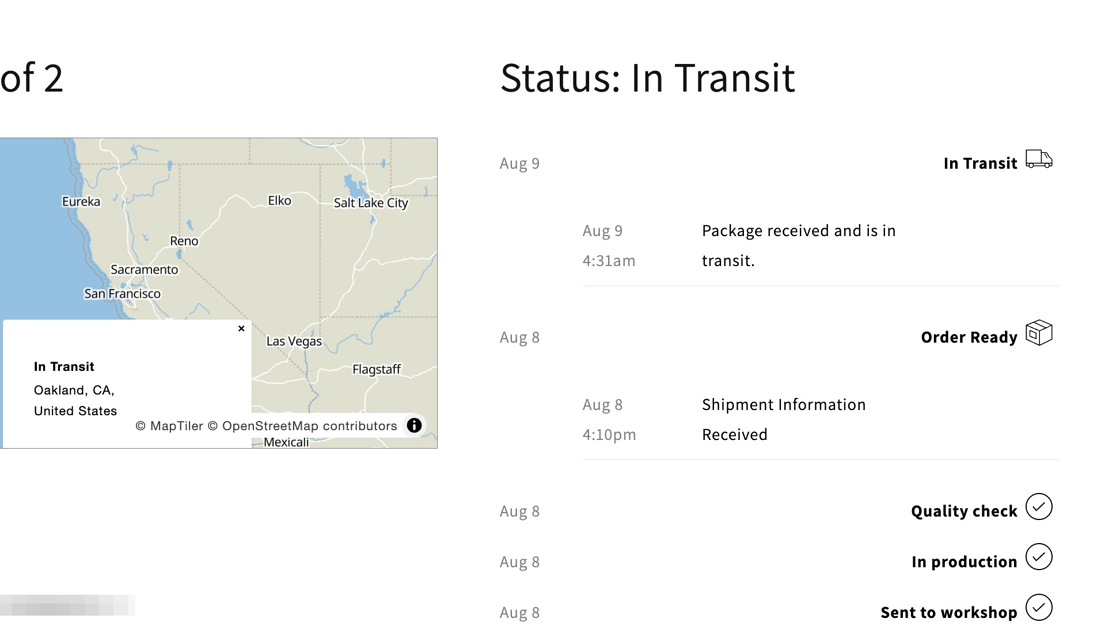
The before and after below show what a customer would see with both location substitution and destination address map pin enabled.
The **before** and **after** below show what a customer would see with both location substitution and destination address map pin enabled.
## Before - Adding China
## After - Adding China