> For the complete documentation index, see [llms.txt](https://docs.theshoppad.com/tracktor/llms.txt). Markdown versions of documentation pages are available by appending `.md` to page URLs; this page is available as [Markdown](https://docs.theshoppad.com/tracktor/developer-tools/tracktor-fulfillment-events.md).
# Tracktor Fulfillment Events
Learn which fulfillment events Tracktor tracks, how it syncs them back to Shopify, and how to email customers when an order status changes.
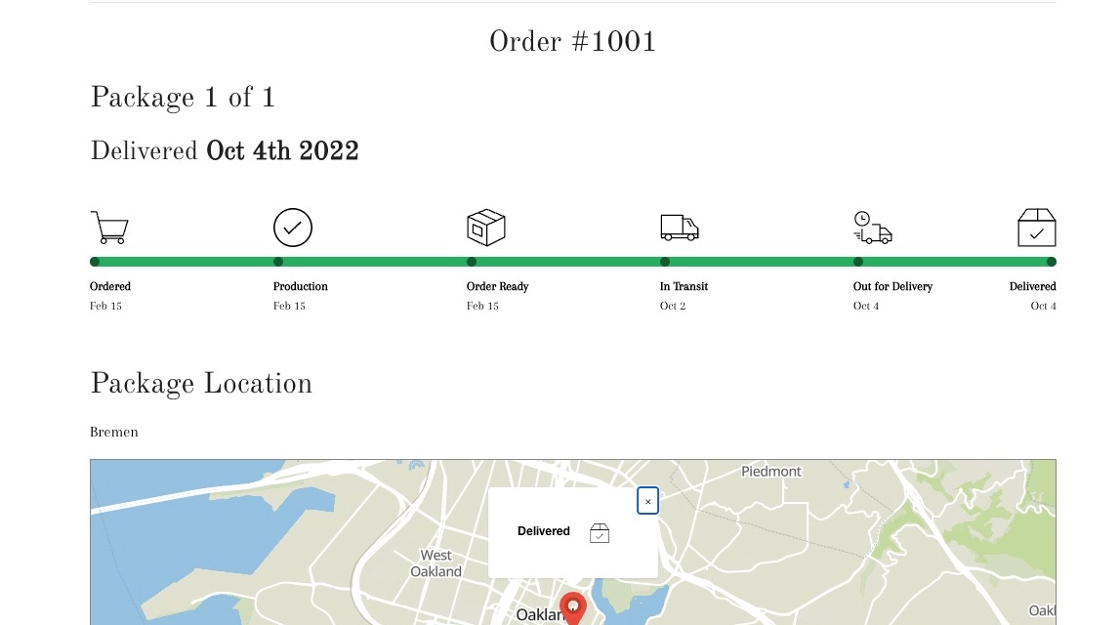
Tracktor tracks specific fulfillment events (also referred to as order statuses) and displays them on your tracking page. When a package’s carrier is recognized or mapped, Tracktor sends these updates back to Shopify, and Shopify updates the order’s fulfillment status.
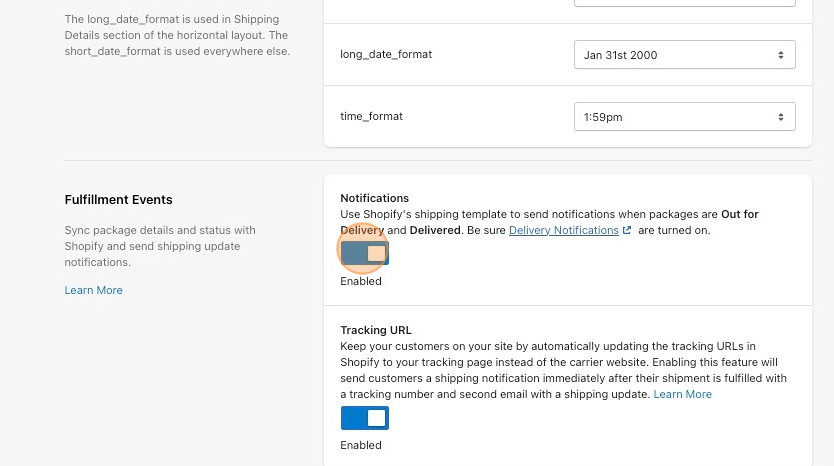
To email your customers when a package is out for delivery or delivered, make sure the **Out for Delivery** and **Delivered** notifications are turned on. Shopify (or the service you use to send emails) sends those emails, not Tracktor.
:::note
**Tip:** For fulfillment events to sync back to Shopify, your carriers need to be recognized by Tracktor. If you’re using a carrier that Shopify doesn’t natively support, or Shopify shows a carrier name with a service level like “FedEx 2 Day” or “Amazon Logistics,” [set up carrier mapping](https://docs.theshoppad.com/tracktor/readme/setting-up-carrier-mapping/) and map it to the main carrier.
:::
**Note:** If you decide to disable email notifications on a third party fulfillment service or application like Oberlo, Tracktor will not send out Out For Delivery or Delivered email notifications.
## Fulfillment Events
* **Ordered:** Triggered when the order is placed.
* When an order is placed, Shopify will send an Order confirmation email. To add a Tracktor tracking link to this email template, follow [these instructions](https://docs.theshoppad.com/tracktor/get-started/help-customers-track-orders/).
* **Order Ready:** Triggered when the order is fulfilled.
* When an order's status is **Ready**, Shopify will send a Shipping confirmation email (if you select this option). To add a Tracktor tracking link to this email template, follow [these instructions](https://docs.theshoppad.com/tracktor/get-started/help-customers-track-orders/).
* **In Transit:** Triggered when the carrier accepts or picks up the shipment from shipper. The shipment is on the way.
* Shopify does not send a notification for the **In Transit** fulfillment event.
* **Out for Delivery:** Triggered when the carrier marks the package as **Out for Delivery**.
* When an order's status is **Out for Delivery**, Shopify will send a **Shipment out for delivery** email. To add a Tracktor tracking link to this email template, follow [these instructions](https://docs.theshoppad.com/tracktor/get-started/help-customers-track-orders/).
* Shopify will only allow one **Out for Delivery** notification to be sent for each fulfillment. If you have another app installed which sends an **Out for Delivery** notification first, Shopify will not allow Tracktor to send a notification.
* **Delivered:** Triggered when the carrier marks the package as **Delivered**.
* When an order's status is **Delivered**, Shopify will send a **Shipment delivered** email. To add a Tracktor tracking link to this email template, follow [these instructions](https://docs.theshoppad.com/tracktor/get-started/help-customers-track-orders/).
* Shopify will only allow one **Delivered** notification to be sent for each fulfillment. If you have another app installed which sends a **Delivered** notification first, Shopify will not allow Tracktor to send a notification.