> For the complete documentation index, see [llms.txt](https://docs.theshoppad.com/tracktor/llms.txt). Markdown versions of documentation pages are available by appending `.md` to page URLs; this page is available as [Markdown](https://docs.theshoppad.com/tracktor/customize-tracktor/tracking-by-phone-number-or-email-address.md).
# Tracking by phone number or email address
See how customers look up an order on the Tracktor page with an email, tracking number or phone number, and when phone lookup is available.
Customers can look up their order using their email address, tracking number, or phone number. Phone number lookup is only available if the customer entered a phone number at checkout.
:::note
Customers arriving from the Tracktor tracking link in Shopify order emails will have this information autopopulated automatically. \
\
For more on setting that up, see [Add a tracking link to Shopify Email Templates](https://docs.theshoppad.com/tracktor/readme/help-customers-track-orders/).
:::
## Step 1: Configure your Shopify checkout settings
This is a Shopify setting, not a Tracktor setting.
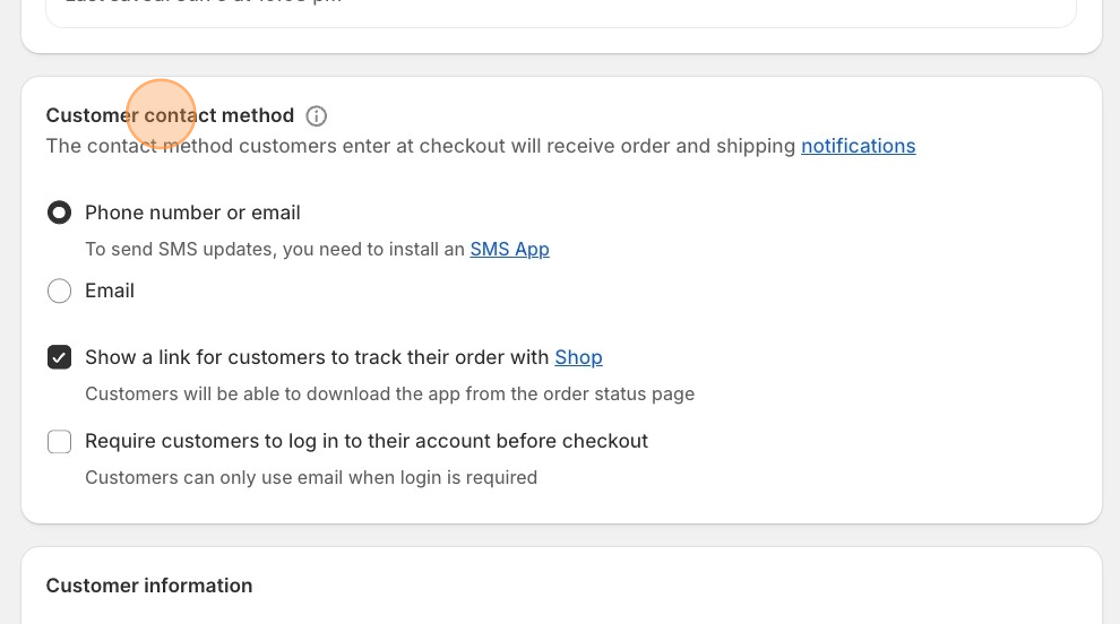
1. From your Shopify admin, go to **Settings > Checkout**.
2. Under **Customer contact method**, select **Phone number or email**.
3. Save your changes.
## Step 2: Update your Tracktor translation strings
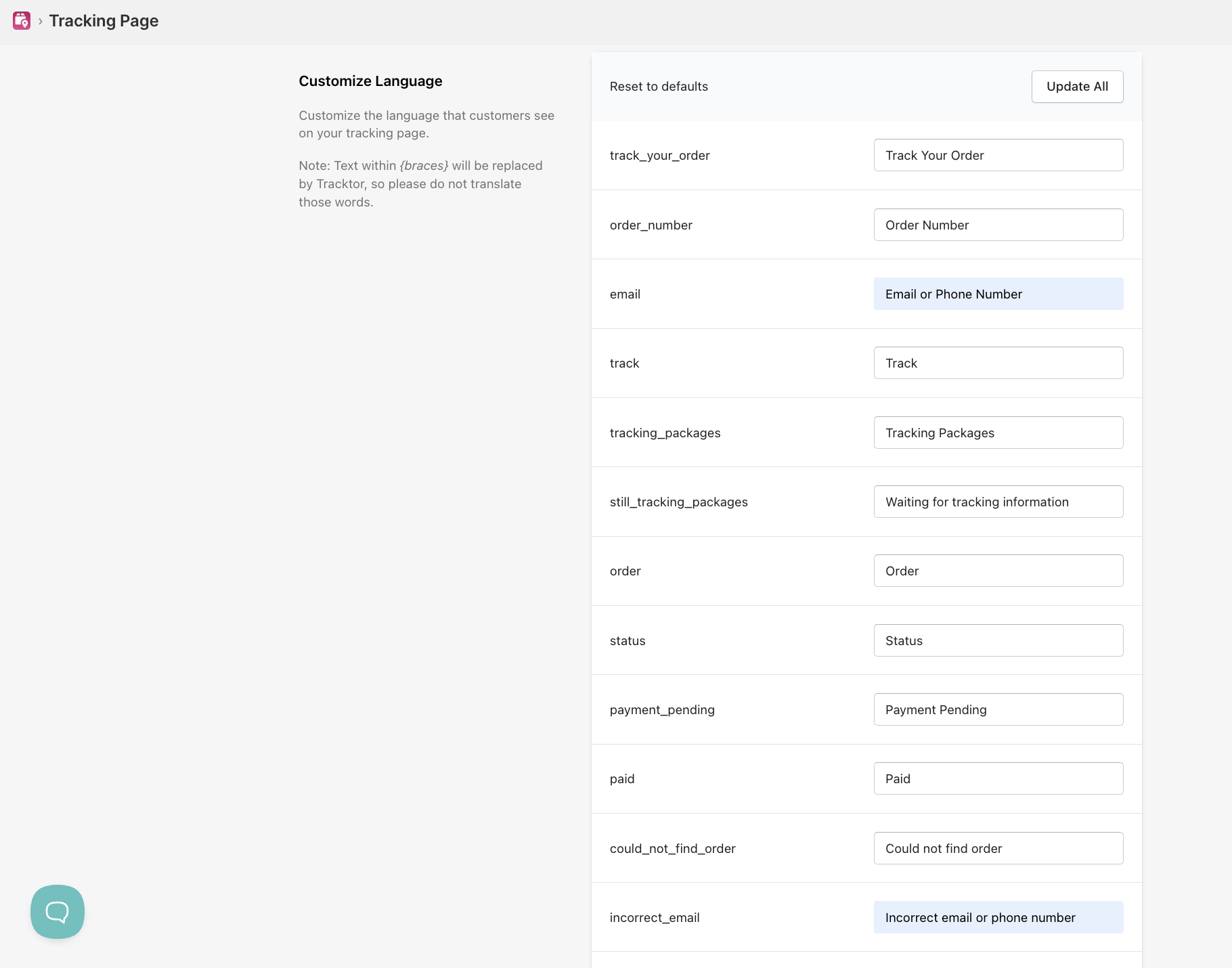
1. From the Tracktor dashboard, go to the **Settings** tab.
2. Scroll down to the **Customize Language** section.
3. Find the **email** field and update it to say **Email or phone number**.
4. Click the blue **Save Changes** button in the top right.
:::note
That's it. Customers will now see "Email or phone number" on the tracking page and can look up their order using whichever they checked out with.
:::