> For the complete documentation index, see [llms.txt](https://docs.theshoppad.com/smile/llms.txt). Markdown versions of documentation pages are available by appending `.md` to page URLs; this page is available as [Markdown](https://docs.theshoppad.com/smile/turn-on-smile-for-your-theme.md).
# Turn on Smile for Your Theme
Turn on the Smile app embed in the Shopify theme editor so emoji reactions can appear on your storefront, once for each theme.
Before your Smile can appear on your storefront, you'll need to turn on the **Smile app embed** in your theme.
This only needs to be completed once for each Shopify theme you use.
Once enabled, Smile will be enabled for your store.
### Enable Smile by Turning on the App Embed
#### Step 1: Open the Theme Editor
From your Shopify admin:
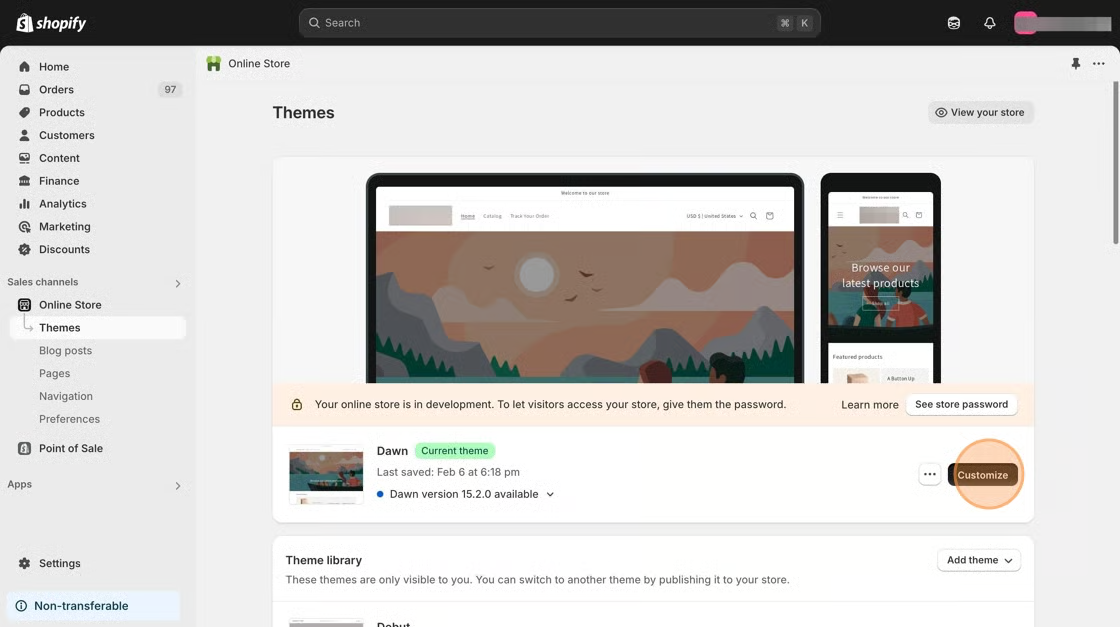
* Go to **Online Store > Themes**.
* Click **Customize** next to your current theme.
#### Step 2: Turn On the Smile App Embed
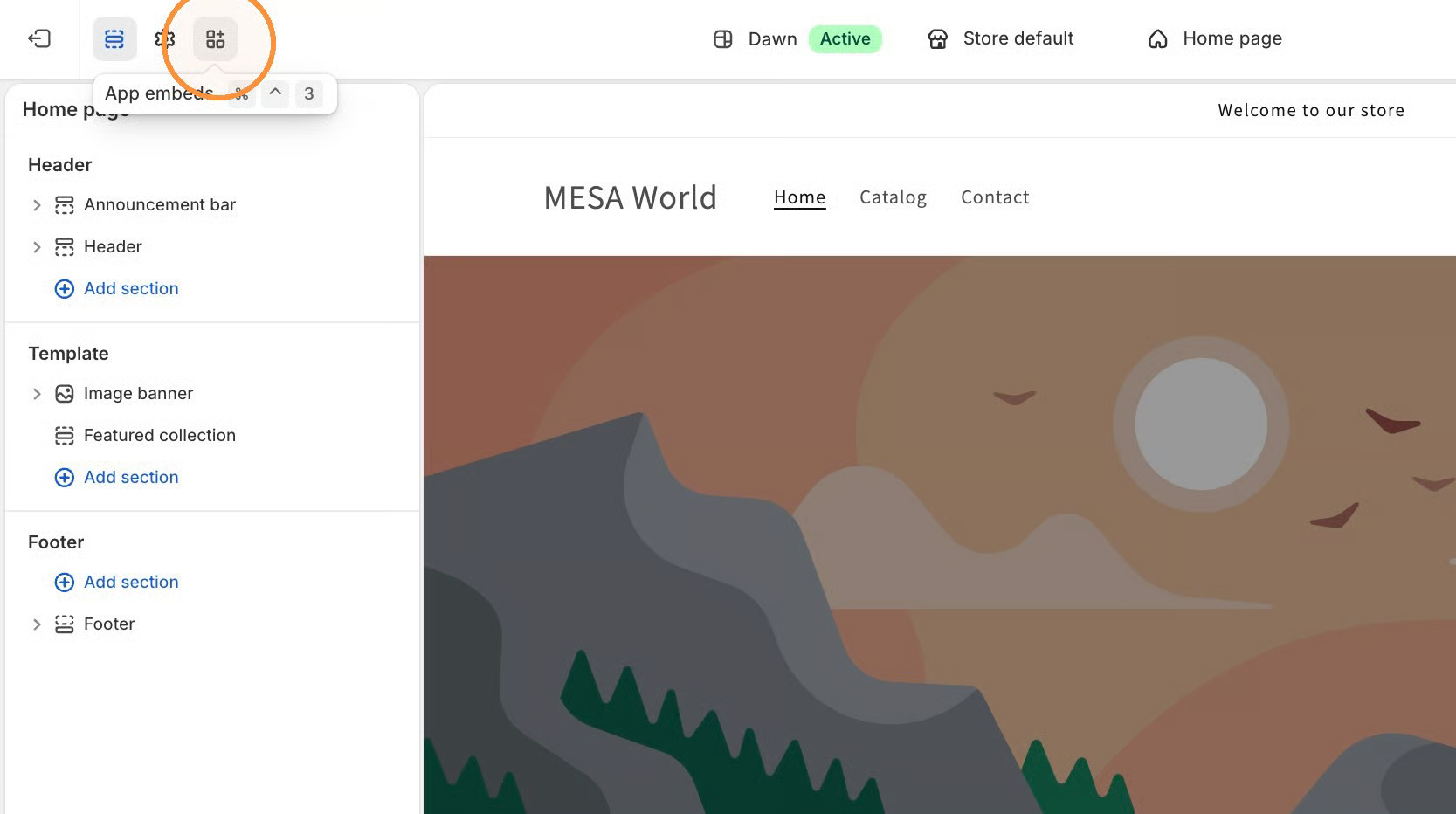
In the header of the theme editor:
* Click the **App embeds** icon.
* Find **Smile** in the list.
* Toggle it on.
#### Step 3: Save Your Changes
Click **Save** in the upper-right corner.
Once saved, Smile will be enabled for your store.