> For the complete documentation index, see [llms.txt](https://docs.theshoppad.com/pagestudio/llms.txt). Markdown versions of documentation pages are available by appending `.md` to page URLs; this page is available as [Markdown](https://docs.theshoppad.com/pagestudio/troubleshooting/hide-pages-from-search-engines.md).
# Hide Pages from Search Engines
Keep a Page Studio page, such as a landing page, out of search engine results.
You may want to hide your page from search engines. This is popular practice for [landing pages](https://docs.theshoppad.com/pagestudio/readme/create-landing-pages/). Follow the steps below on how to set this up for your pages.
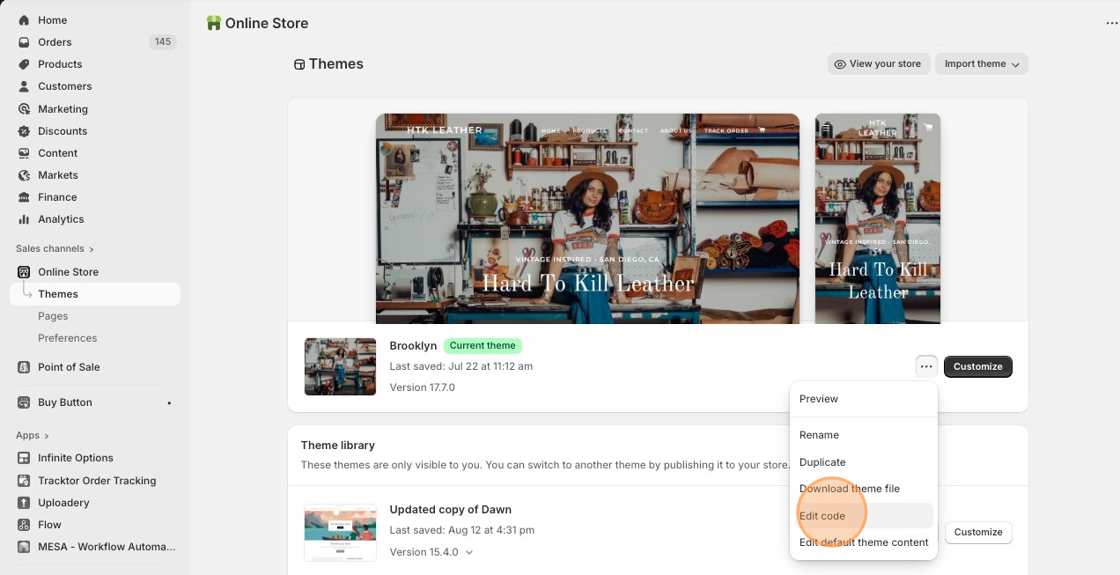
1. Starting from your Shopify admin dashboard, click on **Online Store**, then click on **Themes.**
2. Find the theme you want to edit, click the **...** button, then select **Edit code.**
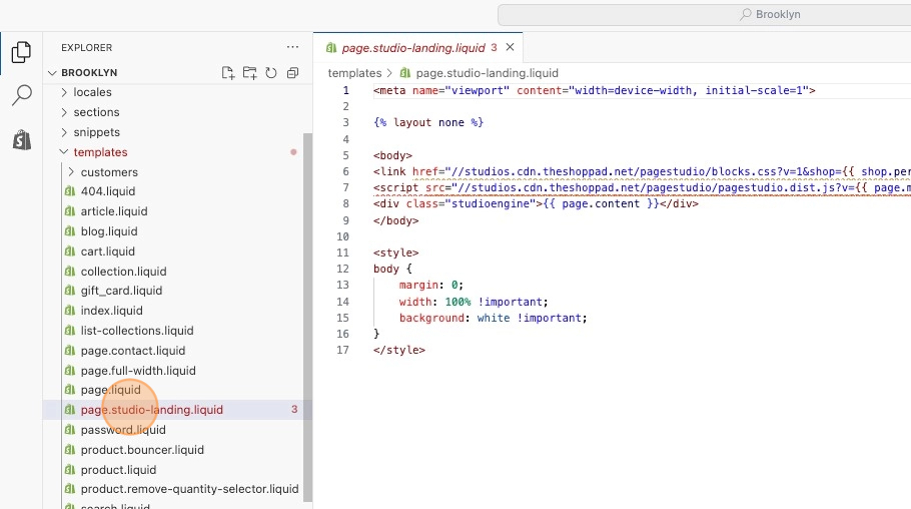
3. Locate the **page.studio-landing.liquid** template (or whatever template you want this change applied under **templates**).
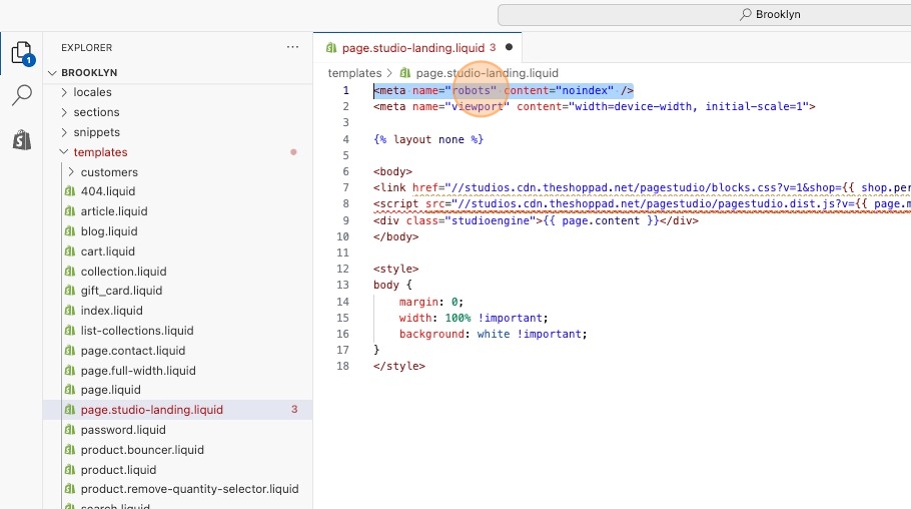
4. Copy the following code.
```html
```
6. Paste that code at the top of the liquid file.
7. **Save** your changes at the top right of the page.