> For the complete documentation index, see [llms.txt](https://docs.theshoppad.com/pagestudio/llms.txt). Markdown versions of documentation pages are available by appending `.md` to page URLs; this page is available as [Markdown](https://docs.theshoppad.com/pagestudio/troubleshooting/enable-full-width-pages.md).

# Enable full-width pages

Add a theme template that lets Page Studio pages stretch across the full width of the browser.

Follow the steps below on how to add a page template that allows Page Studio pages to stretch the entire width of the browser.

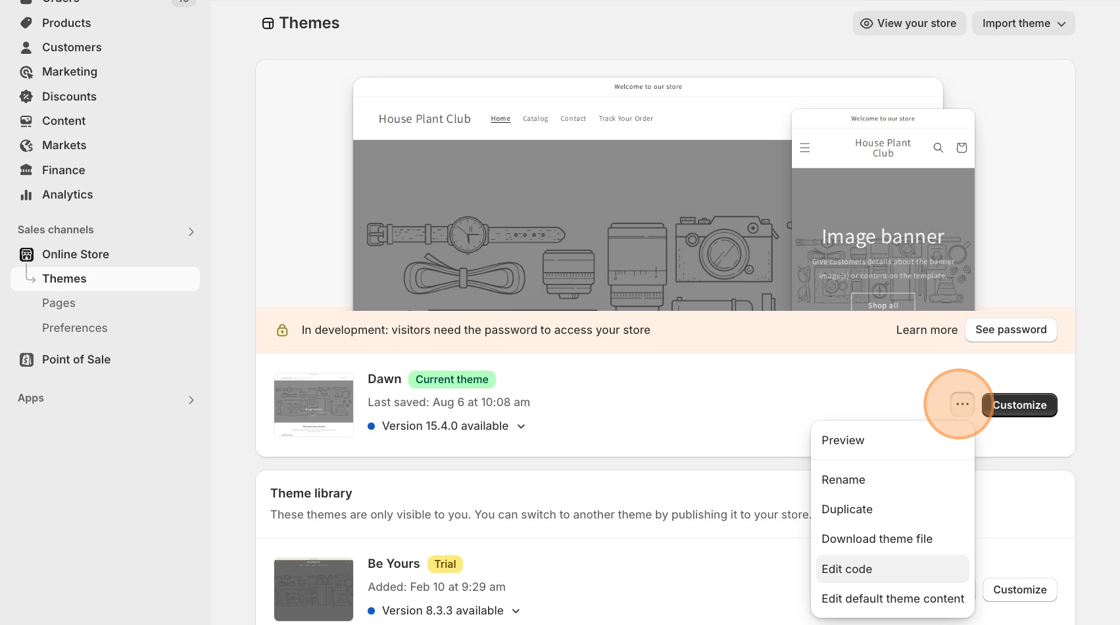
1. Starting from your Shopify dashboard, click on **Online Store**, **Themes**, then **Edit code**.

<figure><img src="https://docs.theshoppad.com/pagestudio/assets/PS-enable-full-width-pages.png%20-%20Step%202.png" alt=""><figcaption></figcaption></figure>

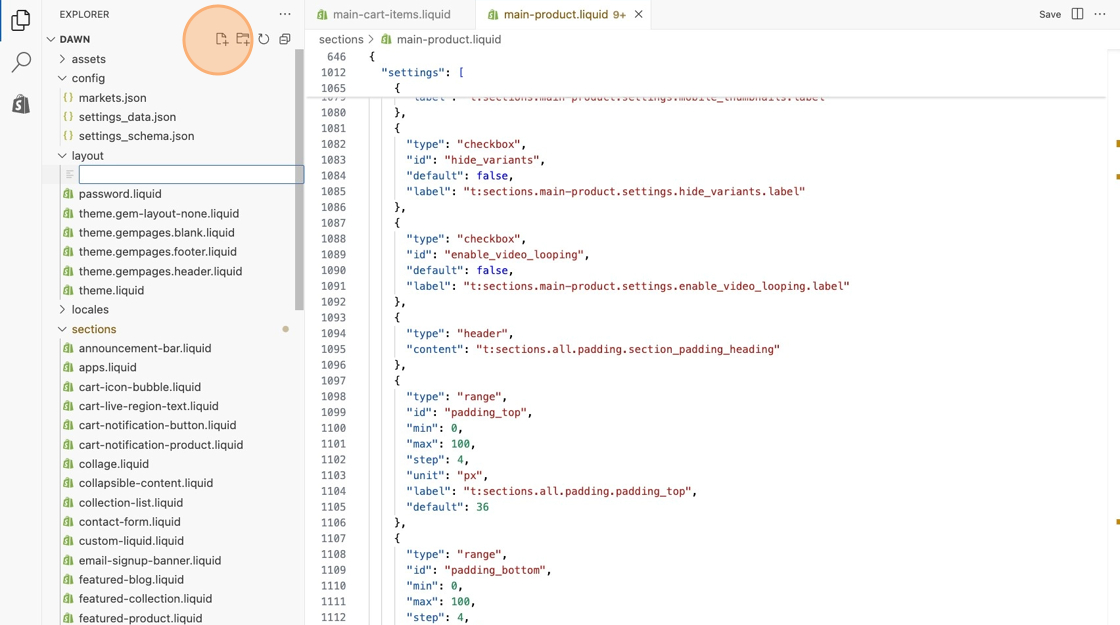
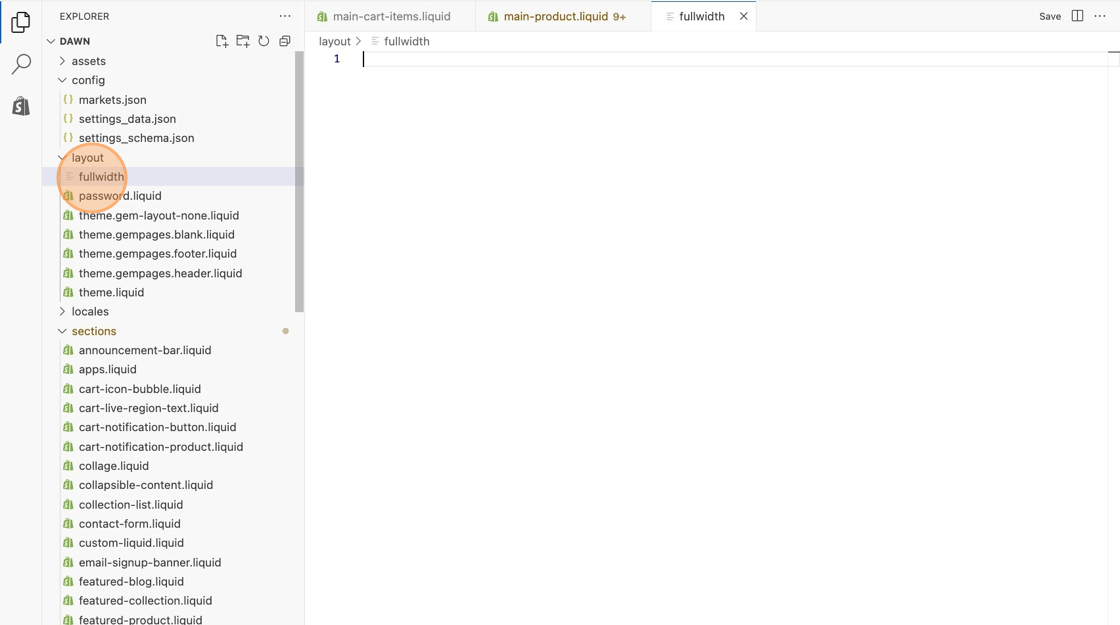
2. Locate the **Layout** folder and click on the folder icon to add a new layout button called _fullwidth_.

<figure><img src="https://docs.theshoppad.com/pagestudio/assets/PS-enable-full-width-pages.png%20-%20Step%206.png" alt=""><figcaption></figcaption></figure>

<figure><img src="https://docs.theshoppad.com/pagestudio/assets/PS-enable-full-width-pages.png%20-%20Step%207.png" alt=""><figcaption></figcaption></figure>

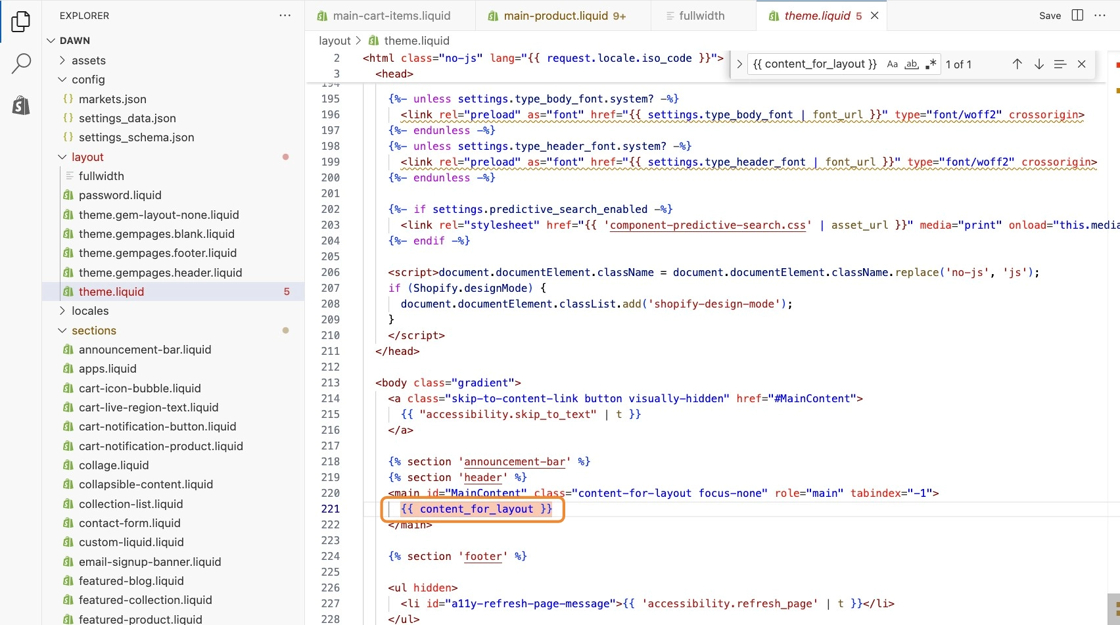
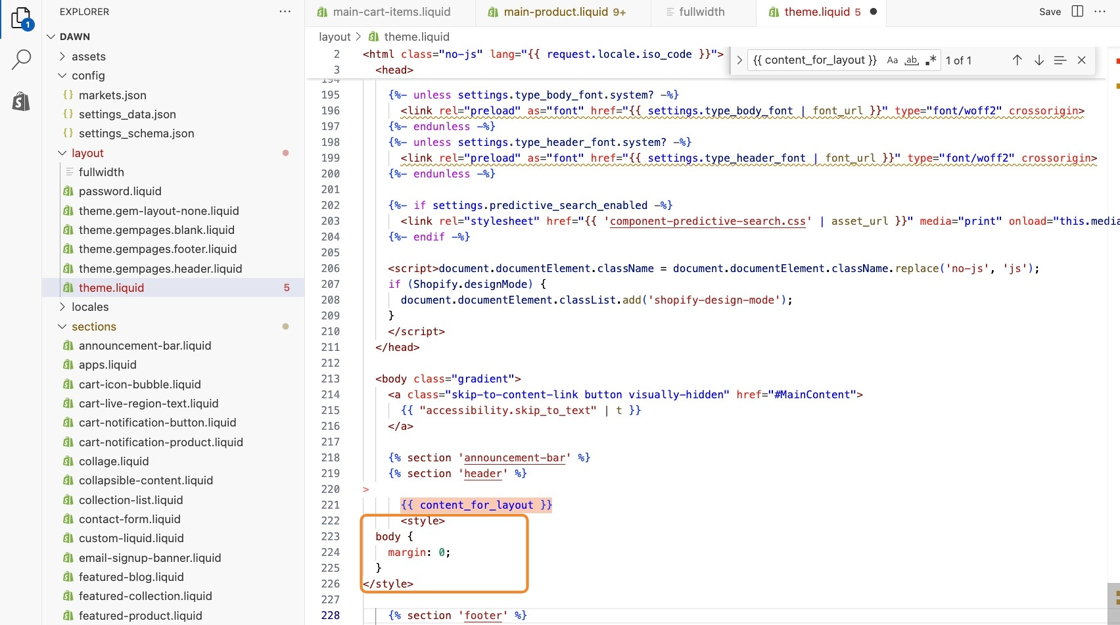
3. Locate the following code snippet below in the **theme.liquid** file.

```html
{{ content_for_layout }}
```

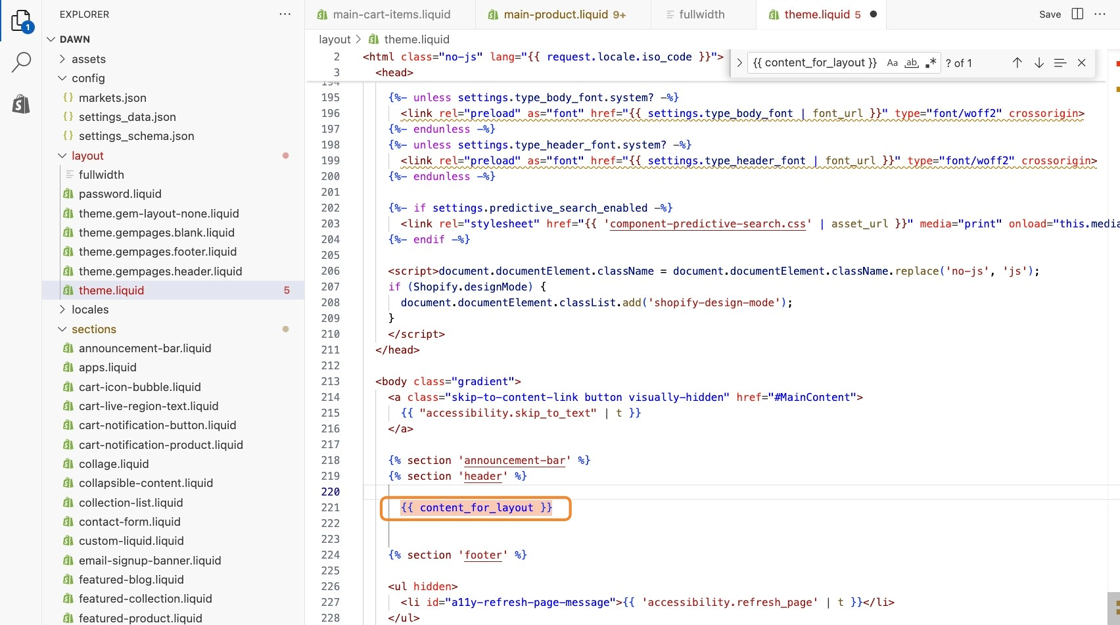
4. Remove any surrounding code that wraps the snippet _(this code usually prevents pages from stretching the full width)_.

_**Before**_

<figure><img src="https://docs.theshoppad.com/pagestudio/assets/PS-enable-full-width-pages.png%20-%20Step%208.png" alt=""><figcaption></figcaption></figure>

_**After**_

<figure><img src="https://docs.theshoppad.com/pagestudio/assets/PS-enable-full-width-pages.png%20-%20Step%209%20%281%29.png" alt=""><figcaption></figcaption></figure>

5. Add the following code snippet below it and save your changes.

```html
<style>
  body {
    margin: 0;
  }
</style>
```

<figure><img src="https://docs.theshoppad.com/pagestudio/assets/PS-enable-full-width-pages.png%20-%20Step%2010.png" alt=""><figcaption></figcaption></figure>

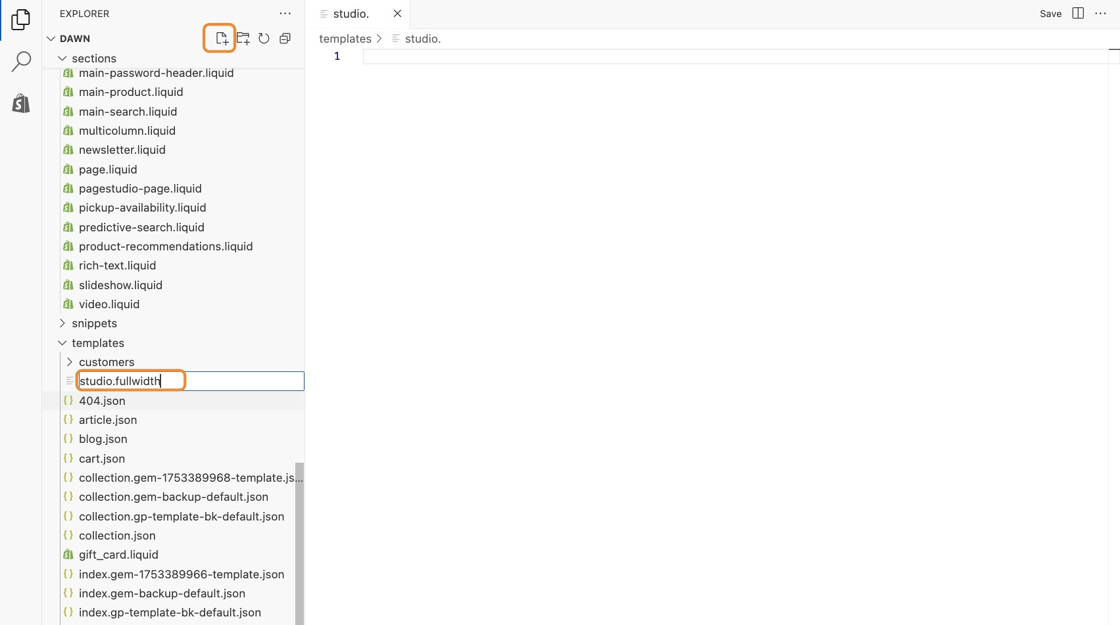
6. Now locate the **Templates** folder, then click on the folder icon to add a new template for a page called _studio.fullwidth_.

<figure><img src="https://docs.theshoppad.com/pagestudio/assets/Enable%20Full%20Width%20Pages%20on%20Shopify%20Theme%20-%20Step%209.png" alt=""><figcaption></figcaption></figure>

10\. Replace all the code within the **page.studio.fullwidth.liquid** file with the following snippet.

```html
{% layout 'theme.fullwidth' %}
<link href="https://docs.theshoppad.com/pagestudio//studios.cdn.theshoppad.net/pagestudio/blocks.css?v={{ page.metafields.global.version | default: 3 }}&shop={{ shop.permanent_domain }}" rel="stylesheet" type="text/css"/>
<script src="https://docs.theshoppad.com/pagestudio//studios.cdn.theshoppad.net/pagestudio/pagestudio.dist.js?v={{ page.metafields.global.version | default: 3 }}"></script>
<div class="studioengine">{{ page.content }}</div>
```

11\. **Save** your changes.

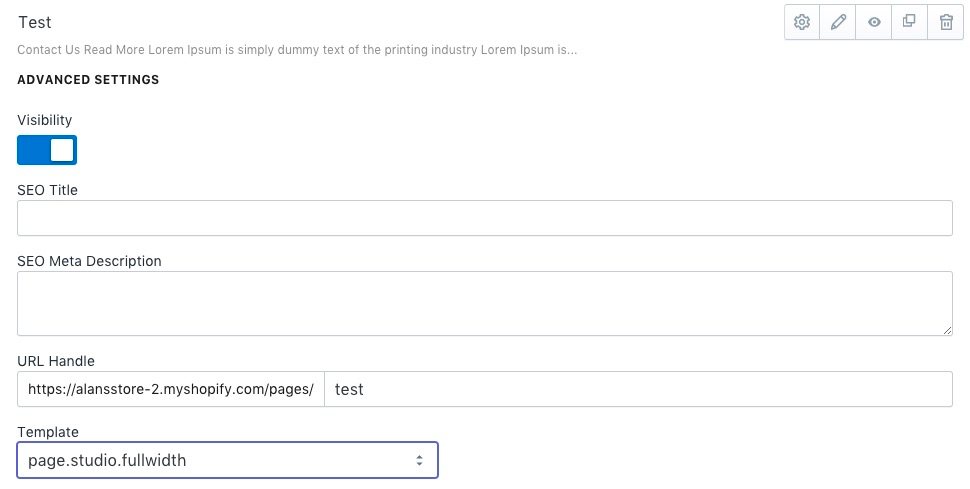
You will now be able to select the **page.studio.fullwidth** template from the Page Studio dashboard, which will allow the page's content to stretch the entire width of the screen.
![](https://docs.theshoppad.com/pagestudio/assets/docsassets555e25e4e4b027e1978e1c9aimages5a7e00f12c7d3a4a4198feb1file-d0jordthnn.png)