> For the complete documentation index, see [llms.txt](https://docs.theshoppad.com/pagestudio/llms.txt). Markdown versions of documentation pages are available by appending `.md` to page URLs; this page is available as [Markdown](https://docs.theshoppad.com/pagestudio/readme/how-to-add-pages-to-the-home-page.md).
# How to add pages to the home page
Show pages you built in Page Studio on your Shopify store's home page.
Follow the steps below to add your customized pages from Page Studio to your home page.
:::note
Here's a helpful guide that will walk you through how to create new pages or edit previous pages: [Click here!](https://docs.theshoppad.com/pagestudio/)
:::
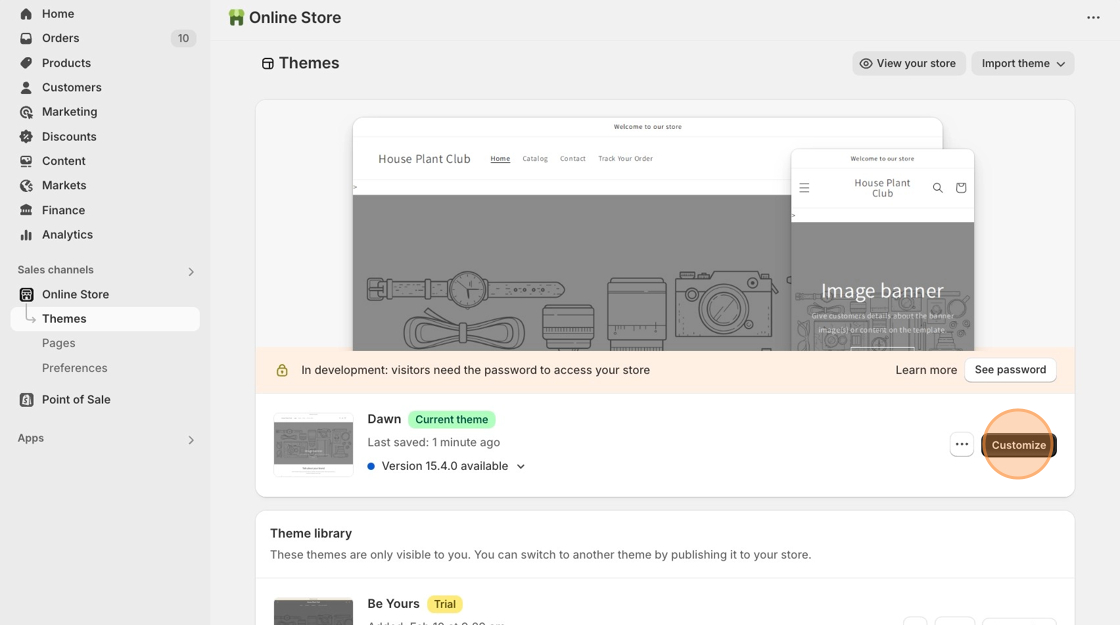
1. Starting from your Shopify dashboard, click on **Online Store**, **Themes**, then **Customize**.
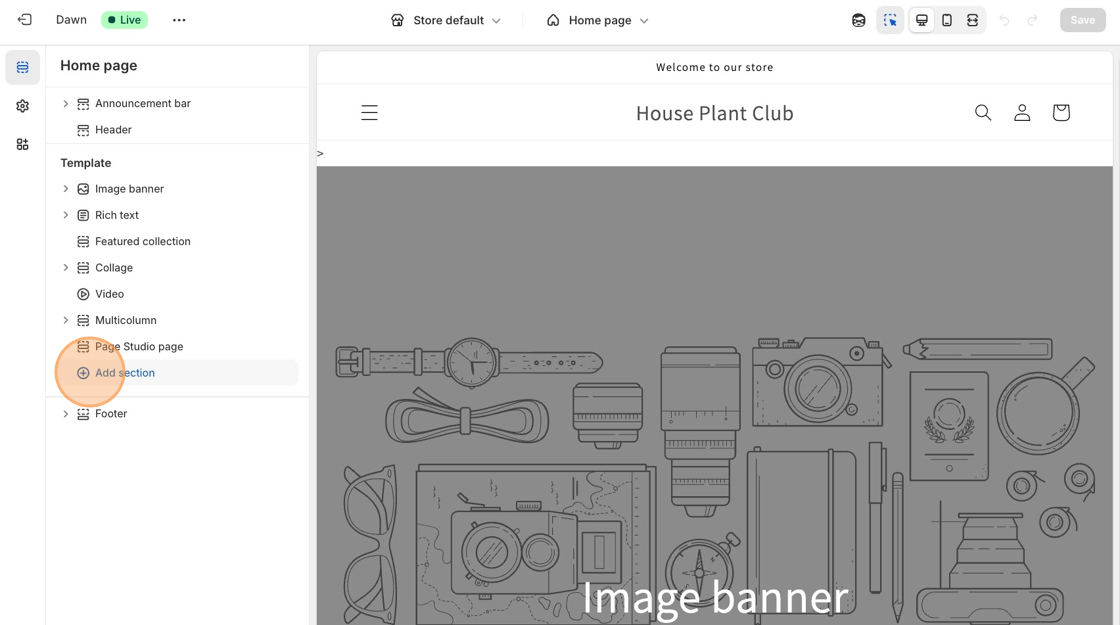
2. From the homepage, click on **Add section** to add a new section.
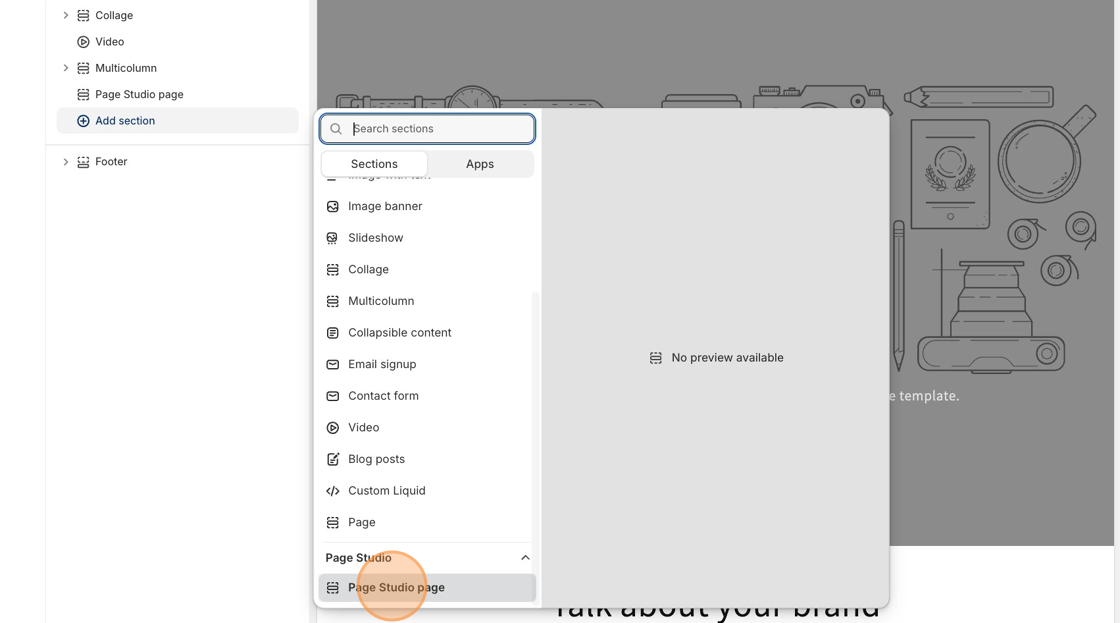
3. Click on the **Page Studio page** option.
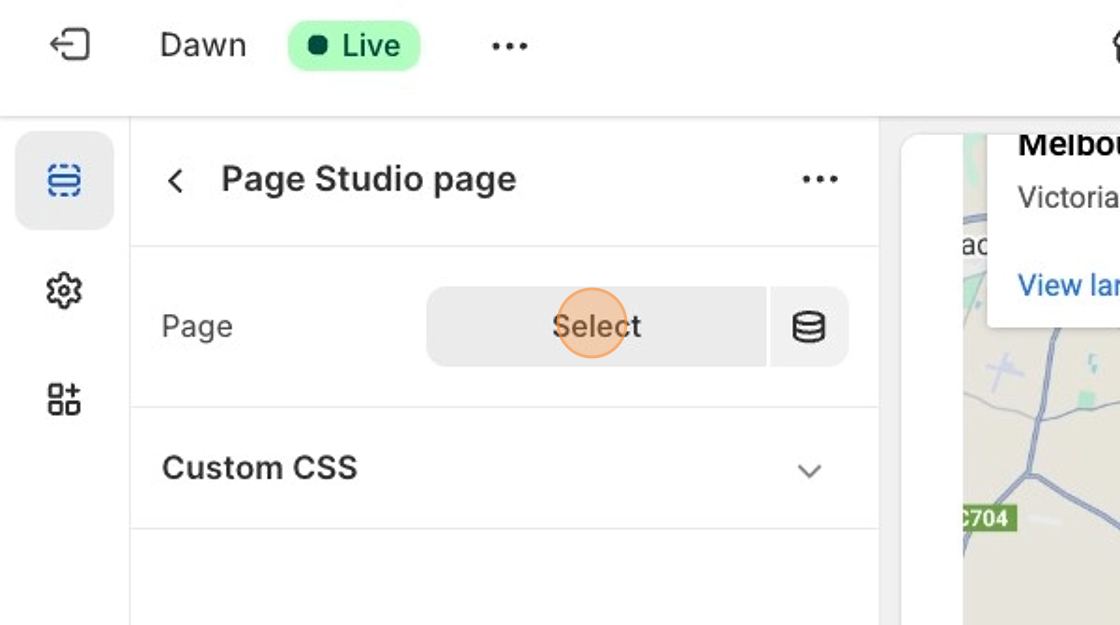
3. Click the **Select** button on the upper left-hand side of the page.
5. Click on the name of the page and click the **Select** button again. _A preview of the page will show on your home page._
6. At the top right of the page, click the **Save** button.