> For the complete documentation index, see [llms.txt](https://docs.theshoppad.com/pagestudio/llms.txt). Markdown versions of documentation pages are available by appending `.md` to page URLs; this page is available as [Markdown](https://docs.theshoppad.com/pagestudio/customize-the-app/add-videos-to-your-page.md).
# Add videos to your page
Embed YouTube videos, or videos from other services, on a Page Studio page.
Follow the steps below on how to add videos to your page. Topics discussed in this document are:
* [Add a YouTube video](https://docs.theshoppad.com/pagestudio/customize-the-app/add-videos-to-your-page/#youtube)
* [Add a video from a different third-party service](https://docs.theshoppad.com/pagestudio/customize-the-app/add-videos-to-your-page/#videos)
* [Upload your own video in the video section](https://docs.theshoppad.com/pagestudio/customize-the-app/add-videos-to-your-page/#video-section)
### Add a YouTube video
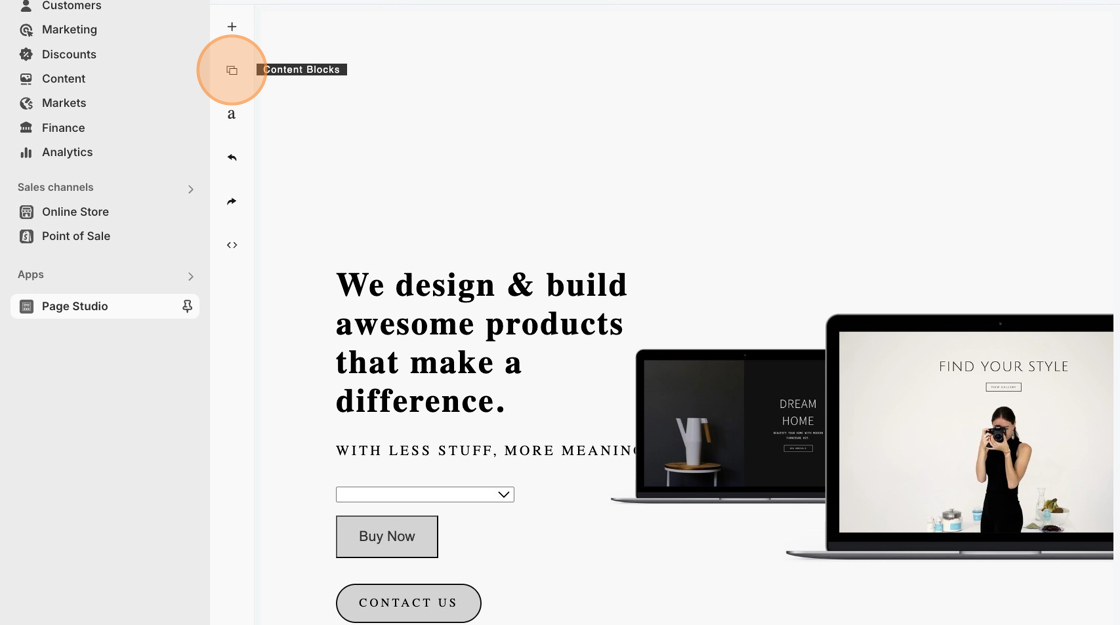
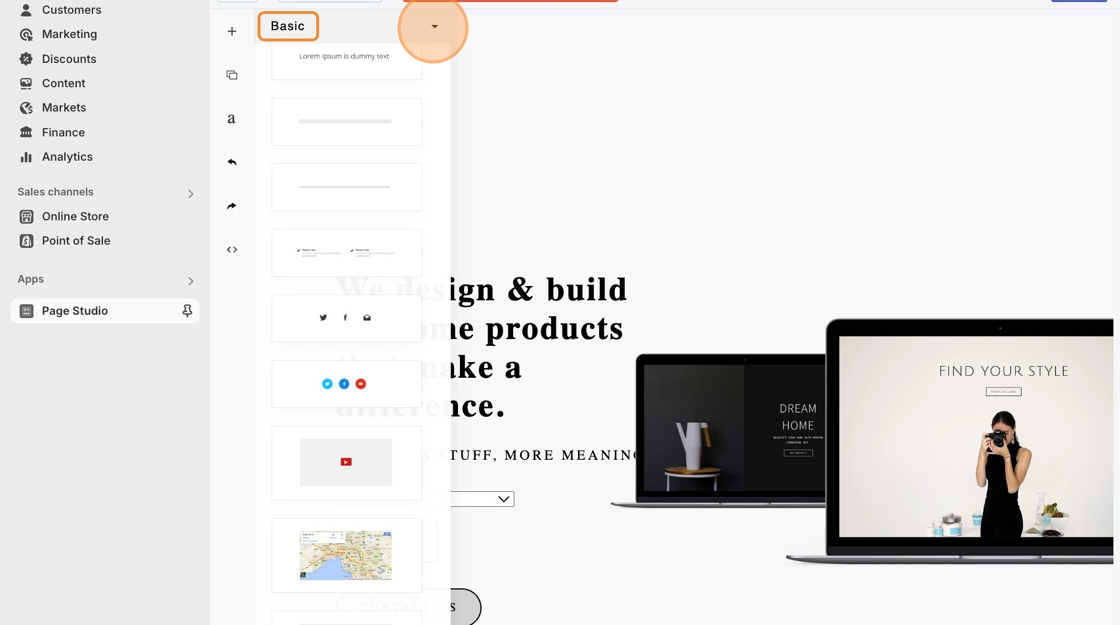
1. To add a YouTube video to your page, you can click on the **Content Blocks** icon. You can select the drop-down menu on top and select **Basic** using the arrow icon.
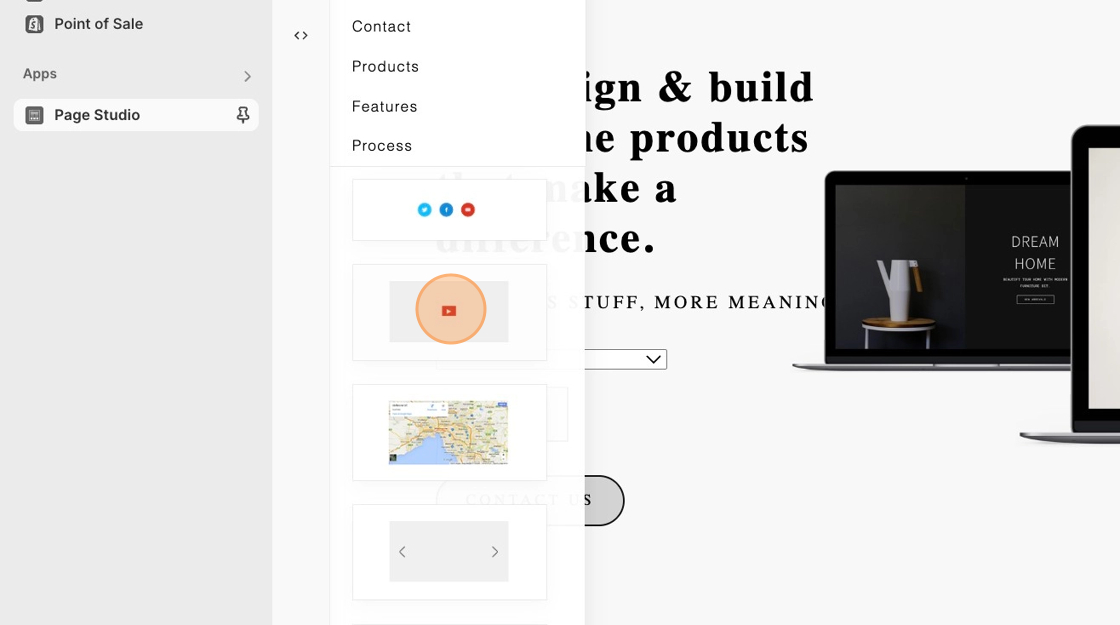
2. Then, locate this content block with the Red play button. You can drag and drop it into your page until you see a gray box. Once you do, release your cursor, and you can see the added content block on your page.
:::note
Please note that this is a content block and will require being placed in an existing or new section. You can read more about dragging and dropping blocks here: [Tips for Drag and Dropping](https://secure.helpscout.net/docs/5785b798903360751e7221c8/article/Tips%20for%20Drag%20and%20Drop)
:::
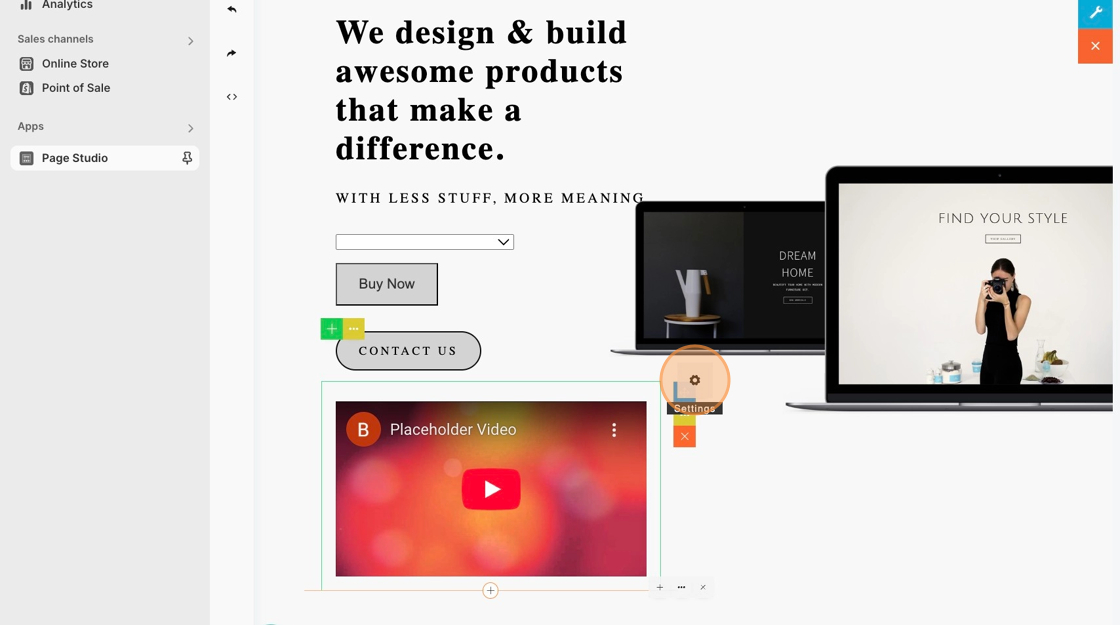
3. Click on the newly dragged content block and click on the **gray gear Settings icon** on the top right-hand corner of the block. Paste in the YouTube embedded link.
###
If you are adding a video from a different third-party service, you can check out this [document for more information.](https://shoppad.gitbook.io/blogstudio/customize-the-app/add-third-party-embed-code-to-your-article)
### Upload your video to the video section
If you are using a **Video** section, you can upload your video as the background by following these steps:
1. From your **Shopify Admin**, go to **Settings** and click on **Files**.
2. Upload the video by clicking on **Upload Files**.
3. Copy the entire URL found next to the uploaded file.
4. Go back to your page in **Page Studio**.
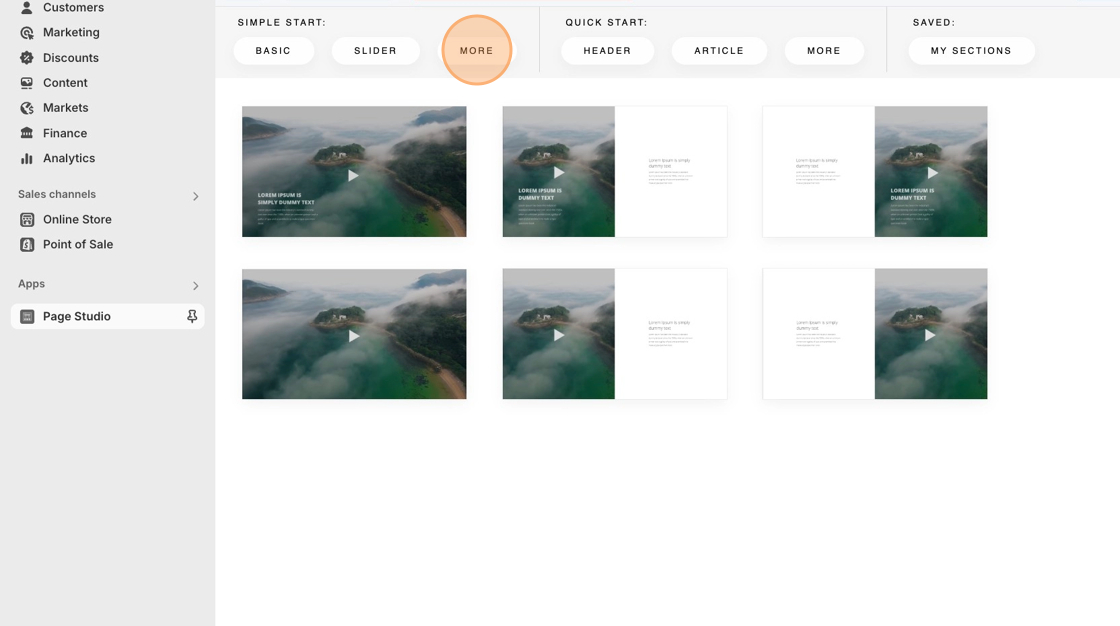
5. Navigate to the **Simple Start** section, select **more,** and then **video**.
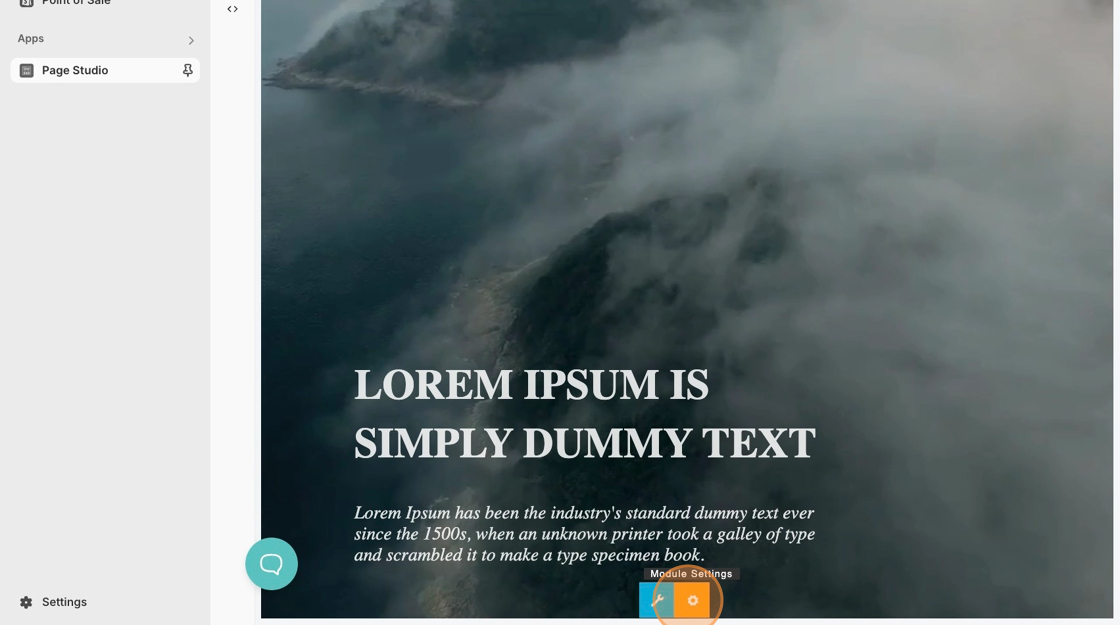
6. Click on the orange **Module Settings**, located at the bottom of the section.
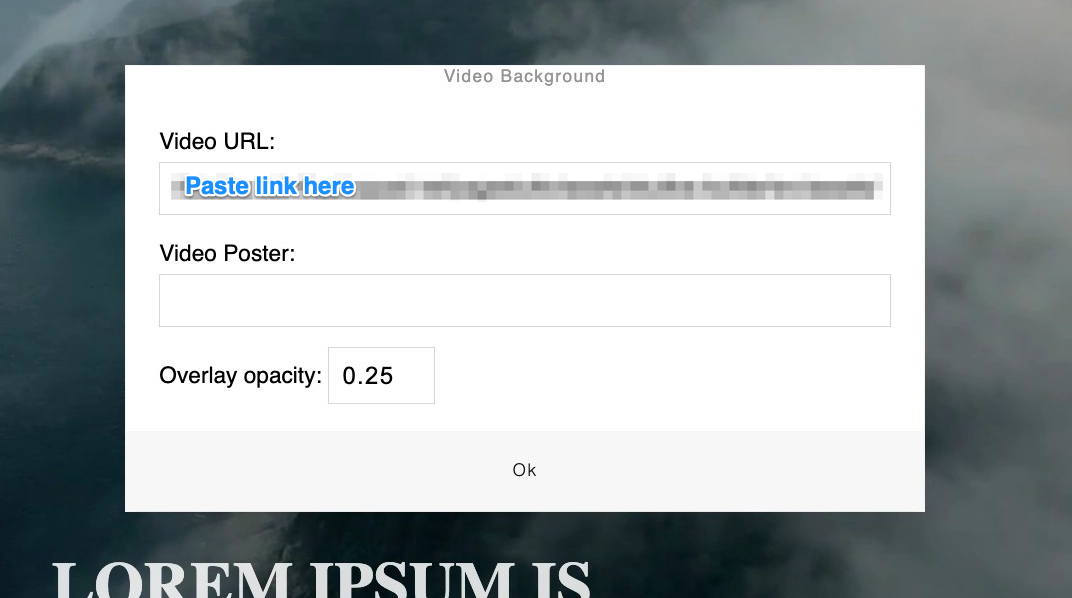
7. Paste the copied URL into the **Video URL** input.
8. It is very important to remove _**https:**_ from the link before saving.
9. Lastly, **save** your changes!