> For the complete documentation index, see [llms.txt](https://docs.theshoppad.com/infinite-options/llms.txt). Markdown versions of documentation pages are available by appending `.md` to page URLs; this page is available as [Markdown](https://docs.theshoppad.com/infinite-options/increase-the-cost-of-an-option/create-or-link-add-on-products.md).
# Create or link add-on products
Connect an Infinite Options add-on to a Shopify product by creating a hidden one or linking an existing one, to track inventory and SKU.
An add-on is normally just an option on your product. If you want to track the add-on's inventory or give it an SKU in Shopify, connect it to a Shopify product.
You can have Infinite Options create a hidden Shopify product for you, or connect the add-on to a Shopify product you already have.
Once connected, Shopify manages the product's SKU and inventory. The Shopify product's title will also appear on the customer's cart, checkout, and order.
## Create a product for me
Use this when you want an SKU or stock count for the add-on but don't want to set up a product yourself. Infinite Options creates the product as a hidden draft, so it never appears on your storefront on its own.
### Step 1
Open the option set and add a price to the option value. See [Add pricing to your options](https://docs.theshoppad.com/infinite-options/~/revisions/VeOecL13ZRMUJG05HZAr/increase-the-cost-of-an-option/native-bundling/).
### Step 2
Choose **Create a product for me**.
### Step 3
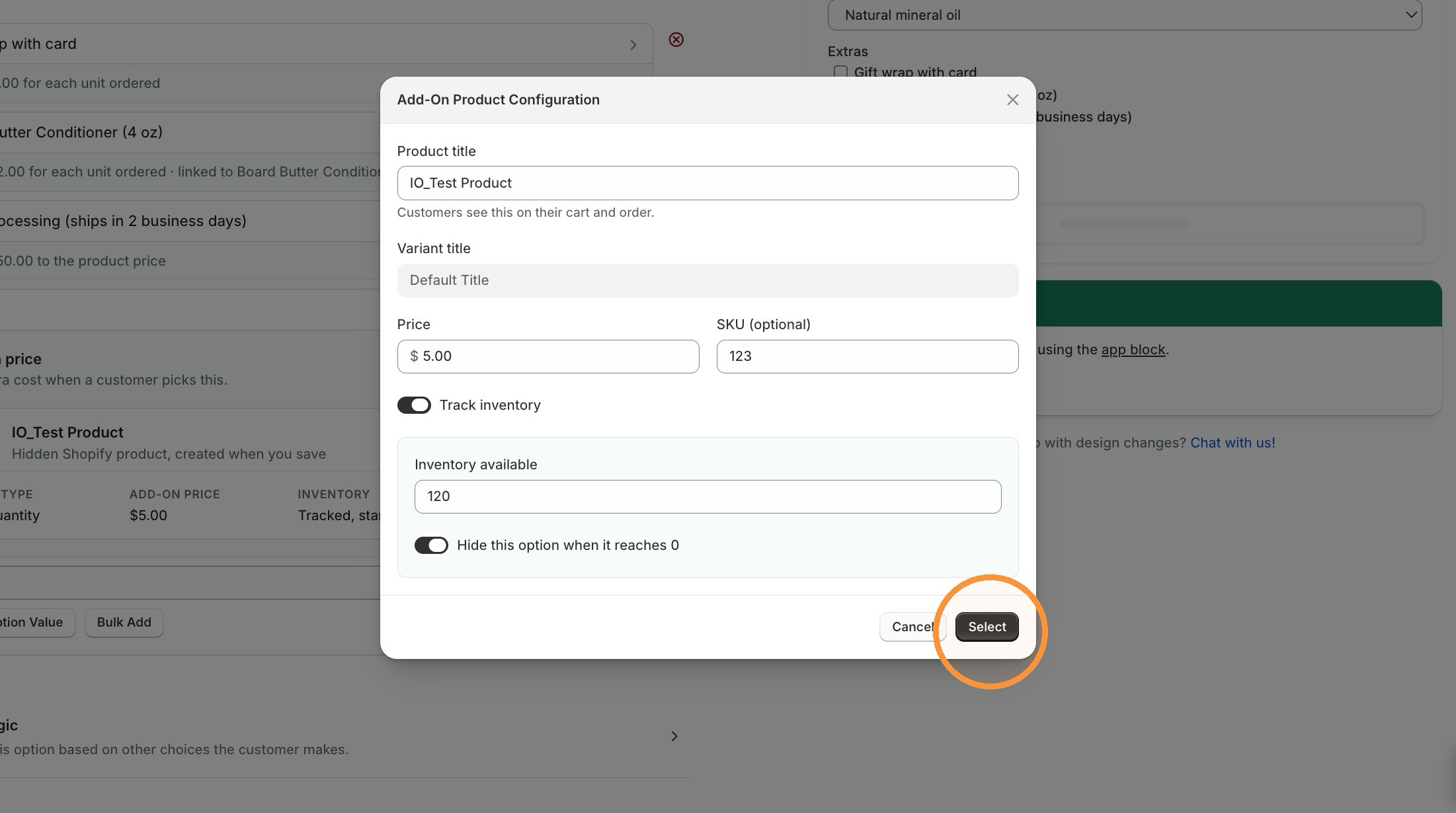
In the **Add-On Product Configuration** modal, check the **Product title**.
It defaults to "IO\_" plus the option's name. Customers see this title on their cart and order, so change it if needed.
### Step 4 (Optional setup)
* Enter a **SKU**.
* Turn on **Track inventory**, then enter the **Inventory available**.
* With inventory tracked, turn on **Hide this option when it reaches 0**.
Click **Select** to finish.
### Step 5
Click **Save** on the option set. Infinite Options creates the product when you save.
### The one-time permission prompt
The first time you save a **Create a product for me** option, Shopify asks you to give Infinite Options permission to create products. You only see this once. We ask at this point, rather than when you install the app, so stores that never use this feature never have to grant it.
## After the product is created
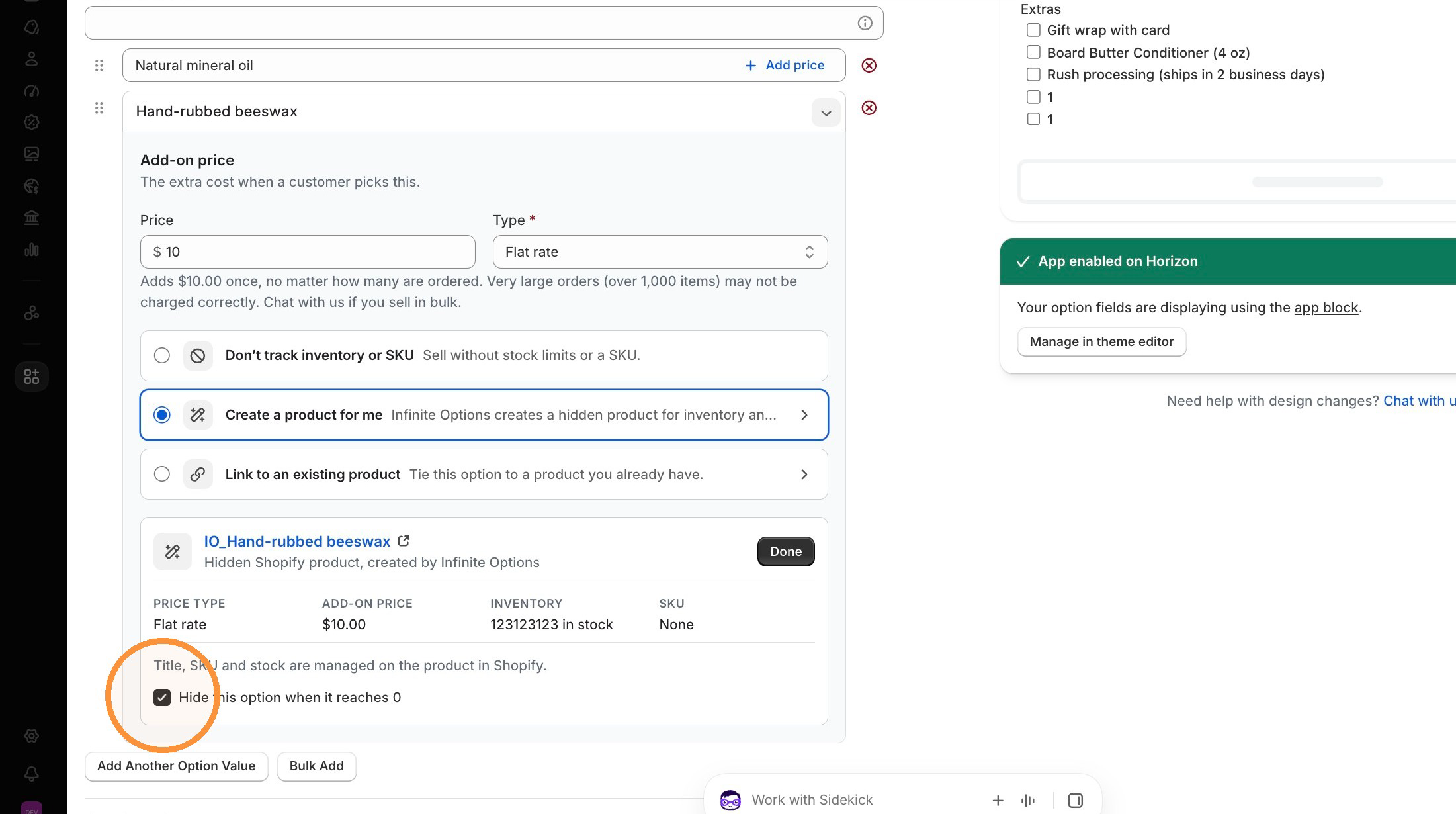
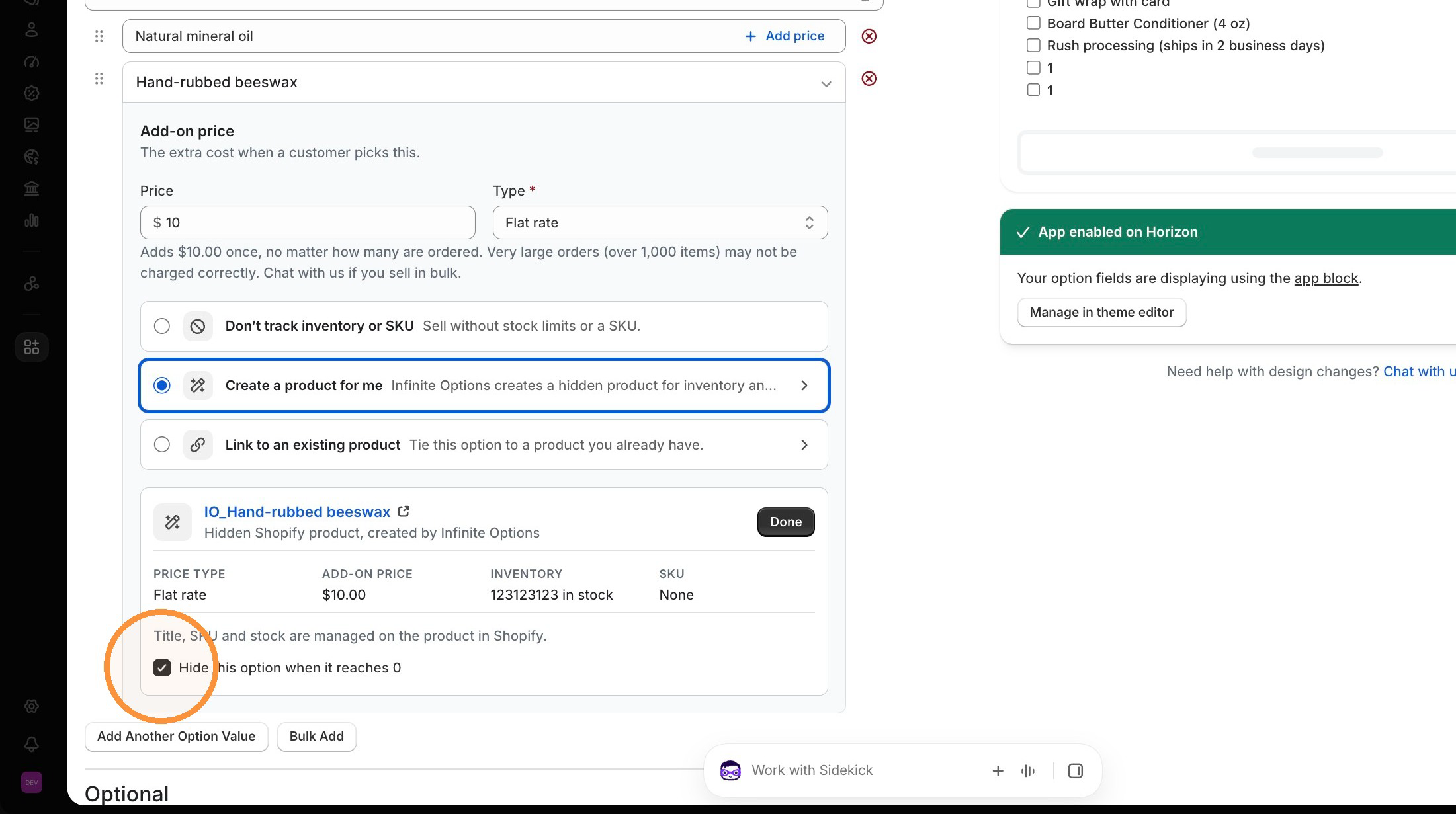
When the product is created through Infinite Options, it will be automatically set to Draft in the Shopify admin.
Once the product exists, you manage it in Shopify, not in Infinite Options. Its title, SKU, stock, and price all live on the product in Shopify, and Infinite Options never changes them. Click the product's title on its card to open it in Shopify.
The stock you enter in the dialog is the starting count only. After that, sales count it down in Shopify, and you restock it there.
## Which price is charged
A created product's add-on charges the price you set in Infinite Options.
To override the Shopify price, enter a price in Infinite Options.
## Link to an existing product
Use this when the add-on is already a product in your store, such as a gift box or a replacement part you also sell on its own.
### Step 1
Open the option set and add a price to the option value.
### Step 2
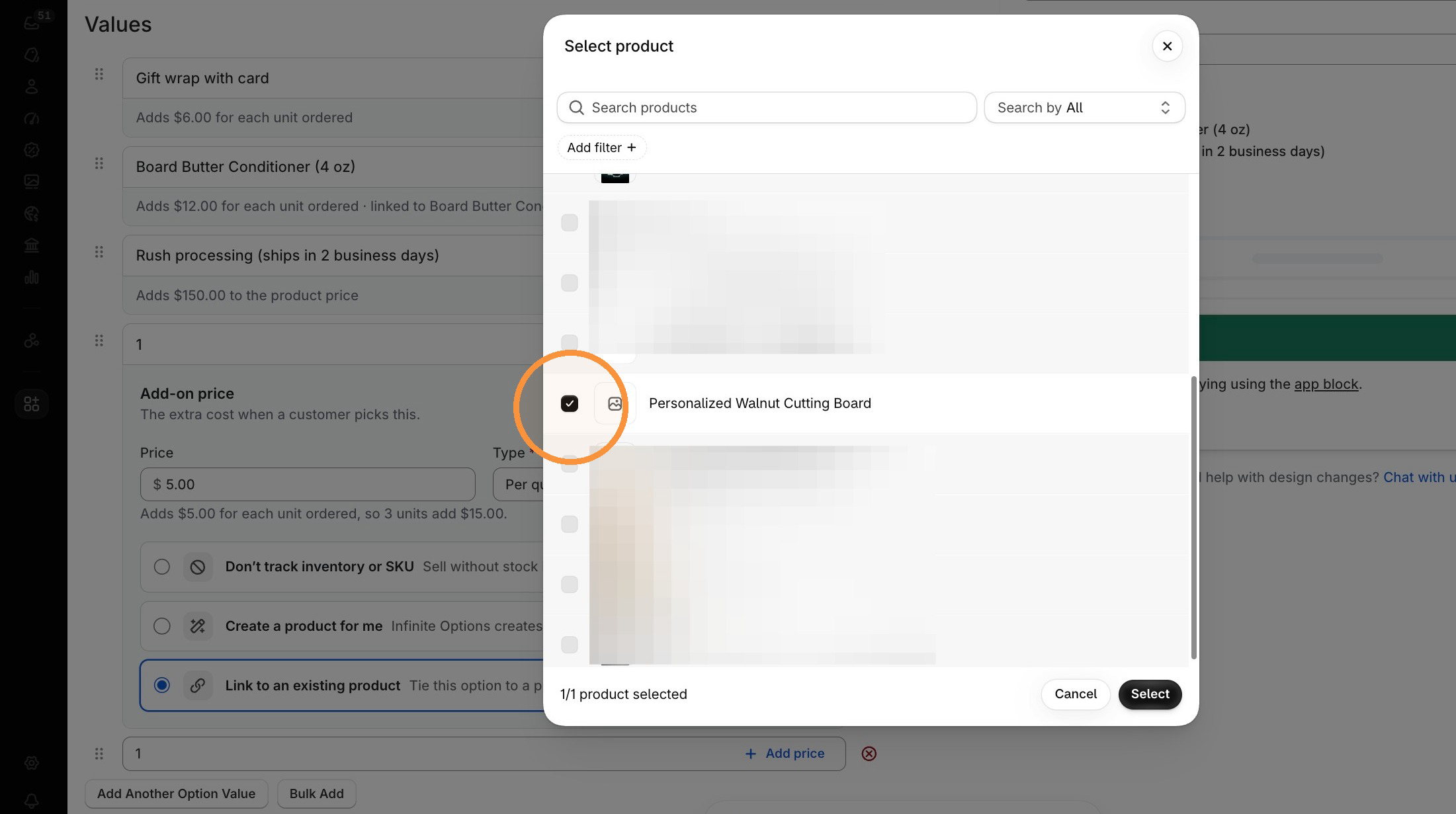
Choose **Link to an existing product**.
### Step 3
Pick the product in the product picker.
### Step 4
Click **Save**.
A linked product's add-on charges the product's Shopify price by default and follows it when it changes. To charge a different amount, type your own price in the option.
## Hide an add-on when it sells out
You can hide an option from customers once its product is out of stock. For a created product, turn on **Hide this option when it reaches 0** (available when inventory is tracked).
For a linked product, turn on **Hide this option when the product is sold out** on the product card. This only works if Shopify tracks inventory for that product.
A linked product is checked each time the product page loads. A created product can take up to about 2 minutes to disappear after it sells out.
## Removing an add-on product
Infinite Options never deletes products. If you remove a created product from its option, or delete the option set it belongs to, the product stays in Shopify as a hidden draft with its SKU and stock.
To get rid of it, delete it in Shopify. Removing a linked product from an option never affects the product itself.
## Technical Notes
* Linked products through add-on pricing will still work if they are set as Draft products in the Shopify admin.
* Created products need Native Bundling turned on in the Settings menu of Infinite Options. A linked product charged per quantity works with Native Bundling on or off.
* For variants that Shopify doesn't track, the product card shows "Not tracked" instead of a stock count.
* Duplicating an option set doesn't create new products. The copy uses the same created products as the original, including their SKU and stock.