> For the complete documentation index, see [llms.txt](https://docs.theshoppad.com/infinite-options/llms.txt). Markdown versions of documentation pages are available by appending `.md` to page URLs; this page is available as [Markdown](https://docs.theshoppad.com/infinite-options/faqs-and-how-tos/why-is-my-swatch-pre-selected.md).
# Why is my swatch pre-selected?
Learn why the first Infinite Options swatch is pre-selected on page load, since swatches act like radio buttons, and what your alternatives are.
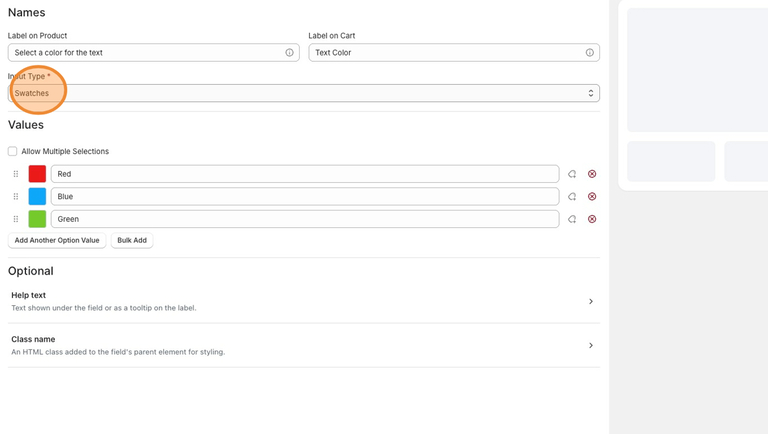
Swatches in Infinite Options behave like **radio buttons**. By design, radio buttons always have one value selected, so the first swatch is automatically selected when the product page loads.
This is expected behavior and can't be changed for the **Swatches** input type.
## Can a swatch start with nothing selected?
Not when using the **Swatches** input type.
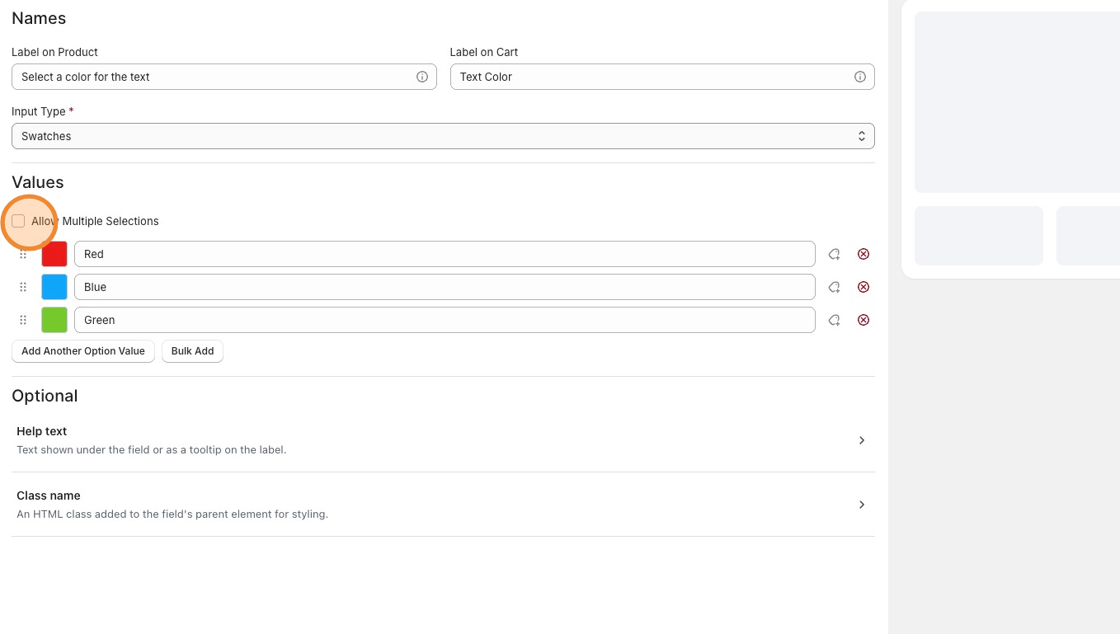
If you need customers to start with no option selected or be able to clear their selection, the available workaround is to use the **Multiple** input type instead.
## How does the Multiple input type work?
Unlike Swatches, the **Multiple** input type allows customers to:
* Start with no value selected.
* Select a value by clicking it.
* Deselect the value by clicking it again.
The tradeoff is that it behaves differently from a traditional swatch, so the interaction may feel less familiar depending on your storefront.
## How to change the input type
1. Open the option field in the Infinite Options dashboard.
2. Locate the **Input Type** setting.
3. Change the input type from **Swatches** to **Multiple**.
4. Save your changes.
## Good to know
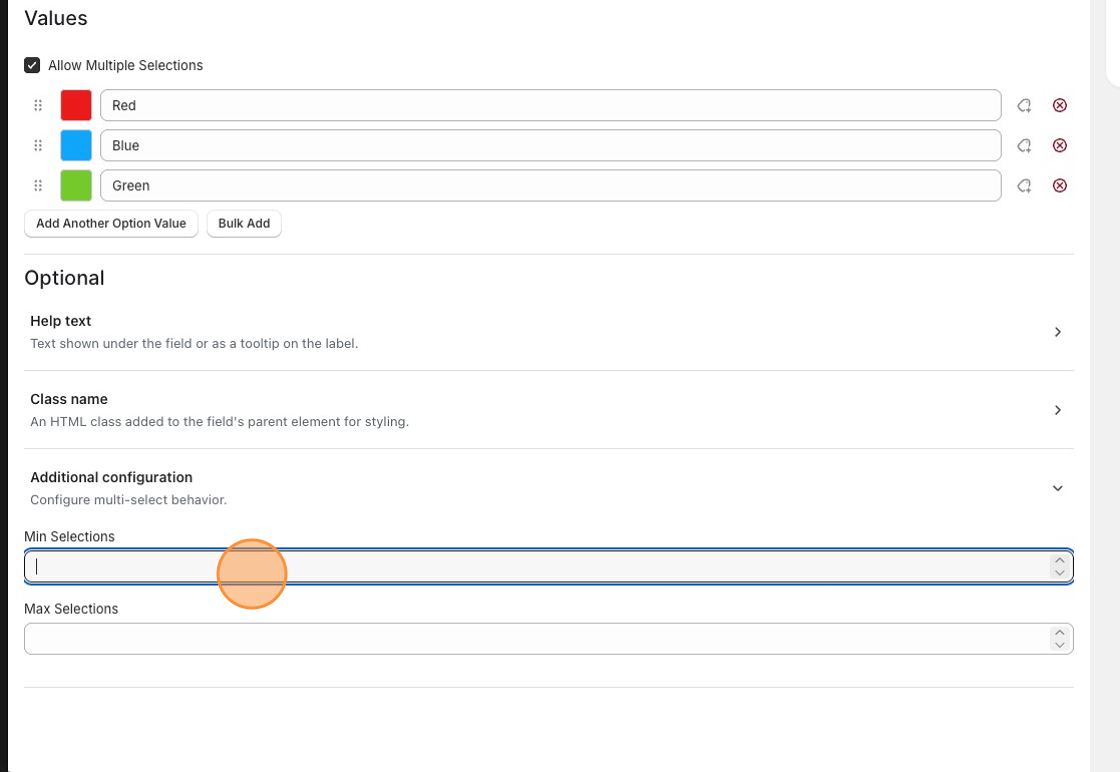
If you're using the **Multiple** input type and want customers to select at least one value before adding the product to their cart, you can enforce this by configuring **minimum and maximum selections** for the option.