> For the complete documentation index, see [llms.txt](https://docs.theshoppad.com/infinite-options/llms.txt). Markdown versions of documentation pages are available by appending `.md` to page URLs; this page is available as [Markdown](https://docs.theshoppad.com/infinite-options/conditional-logic/shopify-variants.md).
# Shopify Variants
Make an Infinite Options field appear or hide when a shopper switches Shopify variants like size or color, using the Shopify Variant condition type.
Conditional Logic can react to the Shopify variant a shopper has selected, not just to your Infinite Options fields. Choose a variant in the condition, and the option shows or hides as the shopper switches size, color, or any other variant on the product page.
## How it works
A shopper has exactly one variant selected at a time.
Select Shopify Variant as the Type for the condition's field, then **Is** or **Is not** as the operator, and pick the specific variant from Shopify's product picker.
The option shows or hides to match.
## Setting it up
#### Step 1: Add the conditional rule
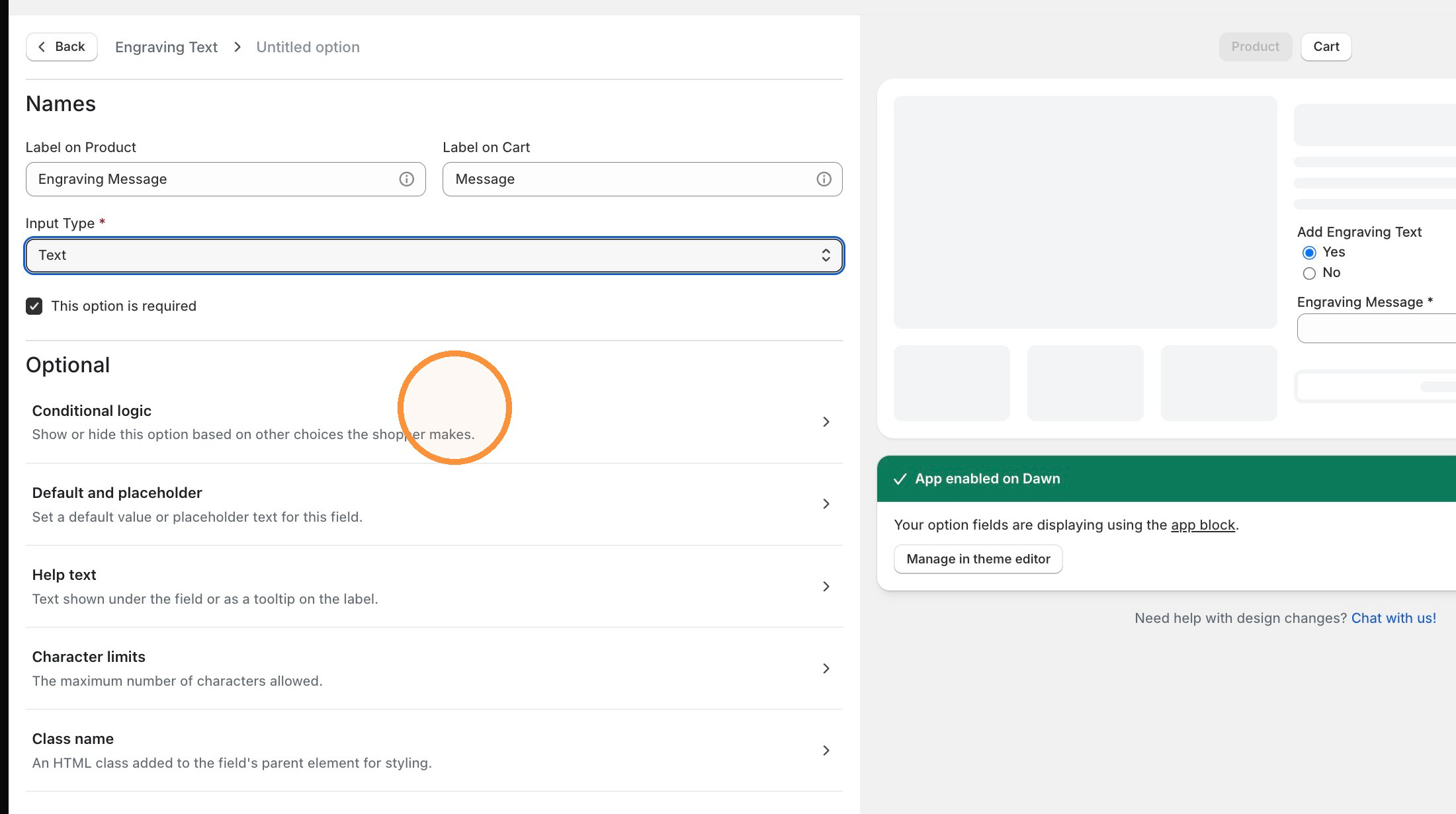
Open the option you want to show or hide, then scroll to the Optional section and click **Conditional logic**.
#### Step 2: Set the rule
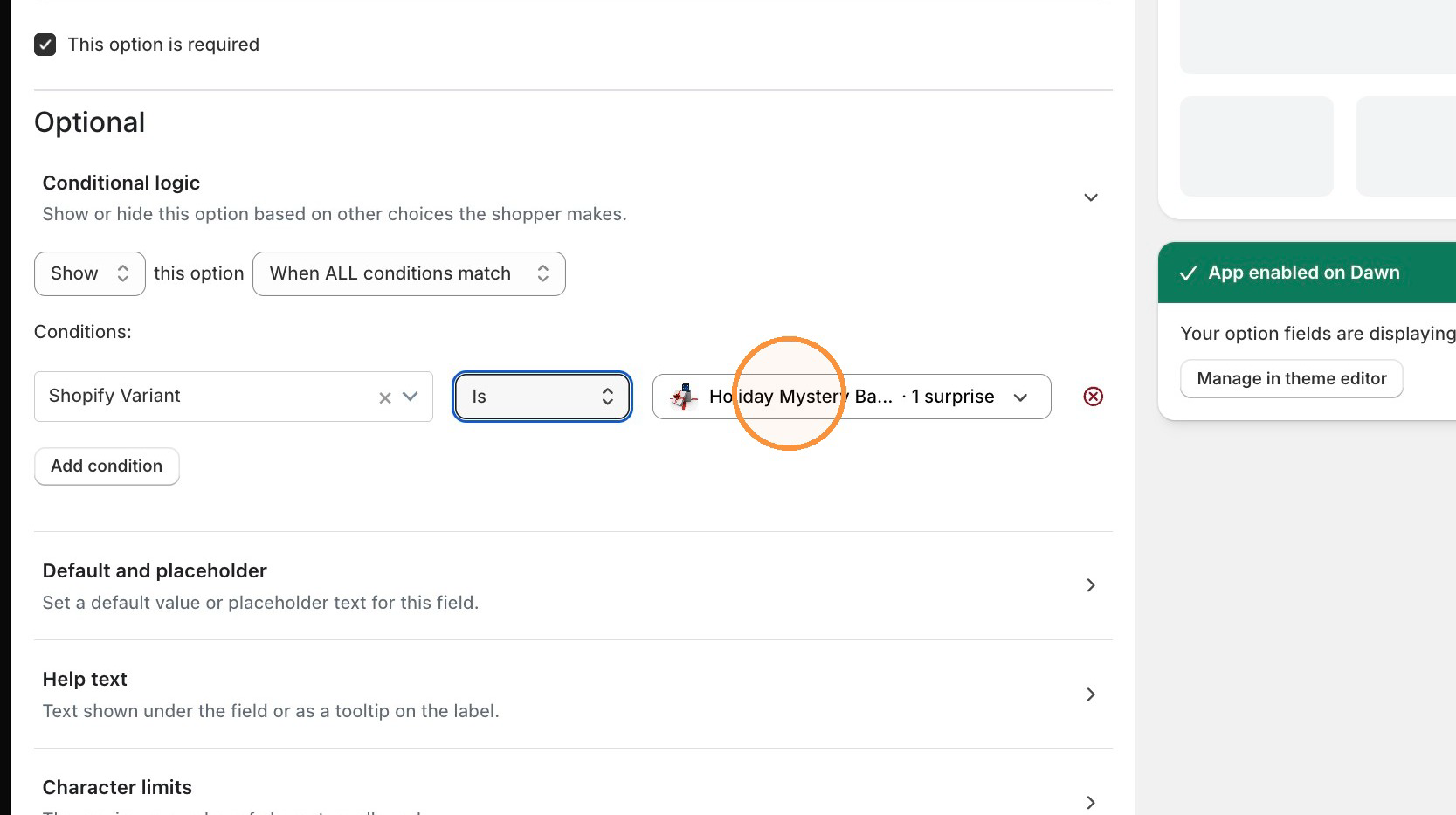
Change the conditions to Show this option When ALL or When ANY conditions match. Then, setup your conditions:
* **Select Type** — select Shopify Variant
* **Operator** — choose **Is** or **Is not**
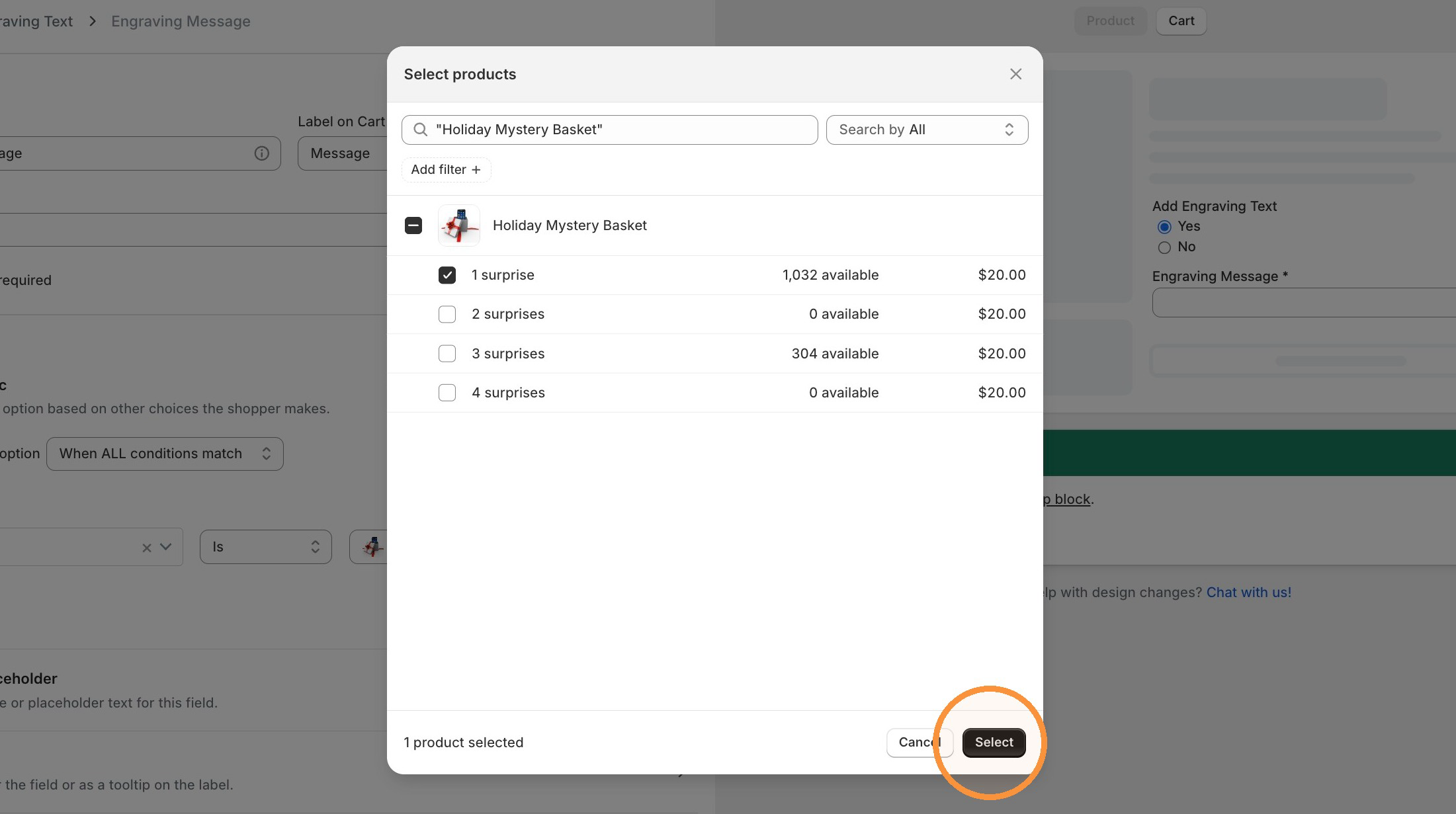
* **Select Variant** — select the Shopify Variant that should cause this option to display. Search for the product in the product picker, expand it if necessary, and select the variant. It should be a variant that's available on the product you'll be assigning the option set to.
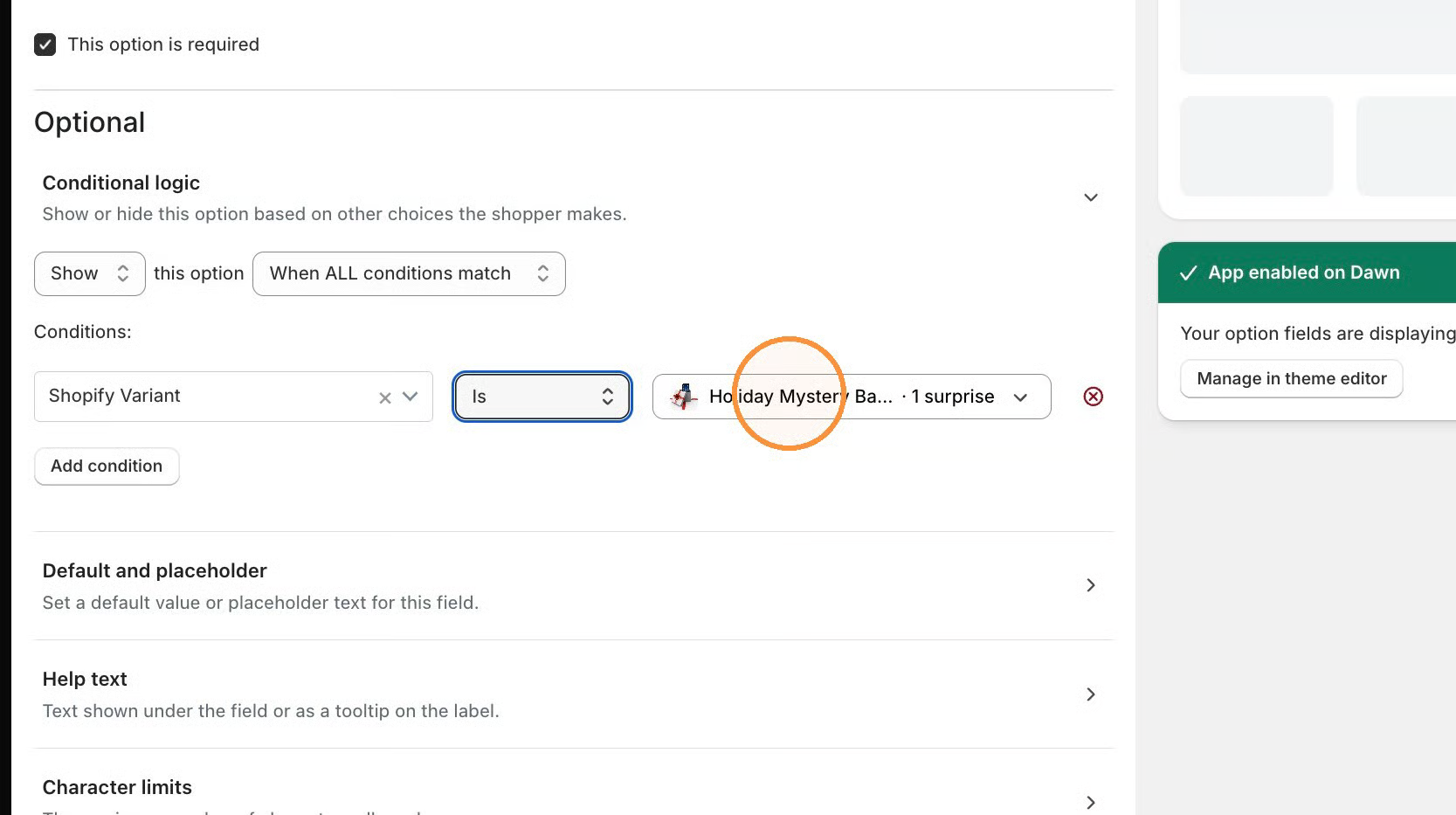
Once selected, the condition shows the variant as a badge with its thumbnail, product title, and variant title.
#### Step 3: Save
Click Save Changes, then test it on your live product page by switching variants.
## Things to know
* The option editor's preview panel doesn't showcase variant conditions; test on your live product page to confirm the setup is working properly.
* If the selected variant is later deleted in Shopify, the condition shows a warning and never matches on the storefront. The condition stays editable so you can choose a different variant or remove it.