> For the complete documentation index, see [llms.txt](https://docs.theshoppad.com/coin/llms.txt). Markdown versions of documentation pages are available by appending `.md` to page URLs; this page is available as [Markdown](https://docs.theshoppad.com/coin/readme/update-currency-selector-formatting.md).
# Update currency selector formatting
Fix a Coin currency selector that looks offset or too wide in your theme by editing the theme's asset files in Shopify admin.
In some cases, themes cause the currency selector to be offset and/or too wide. Follow the steps below to help normalize the formatting.
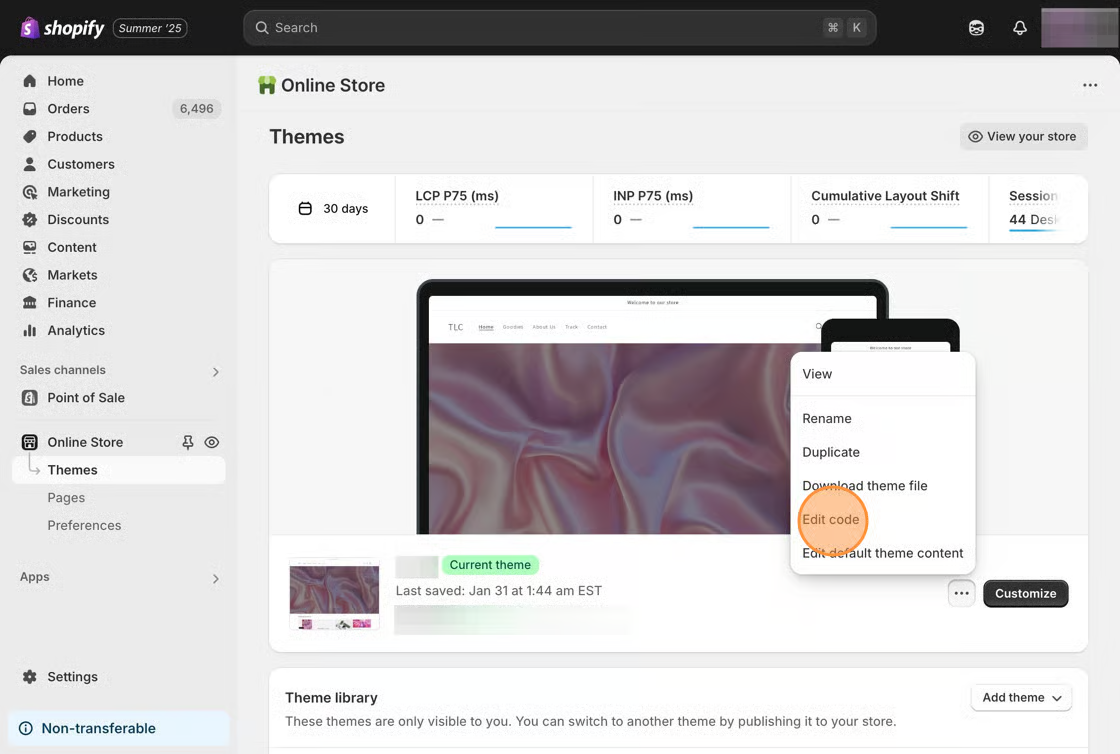
1\. From your Shopify admin, click **Online Store**, then click **Themes**.
2\. Find the theme you want to edit, click the **...** button, then click **Edit code**.
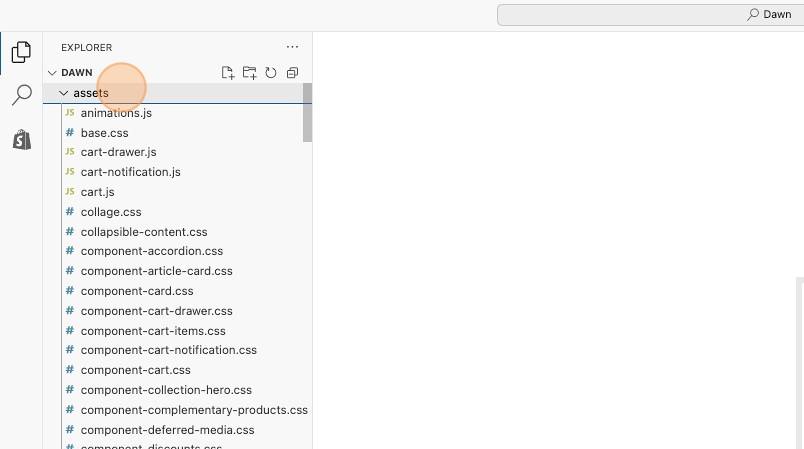
3\. On the left side, click on the **Assets** heading to reveal the folder's content.
4\. Your theme's main stylesheet will be located within this folder. Some common names for this file are:
* timber.scss.liquid
* theme.scss.liquid
* stylesheet.scss.liquid
* style(s).scss.liquid
* theme.css
* base.css
5\. Once you've found it, navigate to the bottom of the document.
6\. Add the following code snippet to the bottom of the file.
```css
#coin-container {
display: inline-block;
}
#coin-container select {
width: auto;
margin: 0;
}
```
7\. Save your changes.