> For the complete documentation index, see [llms.txt](https://docs.theshoppad.com/blogstudio/llms.txt). Markdown versions of documentation pages are available by appending `.md` to page URLs; this page is available as [Markdown](https://docs.theshoppad.com/blogstudio/customize-the-app/add-alt-text-to-images.md).
# Add Alt Text to Images
Set alt text on an image in the Blog Studio editor by opening the link dialog and filling in the Title field, then save your changes.
Follow the steps below on how to add alt text to images.
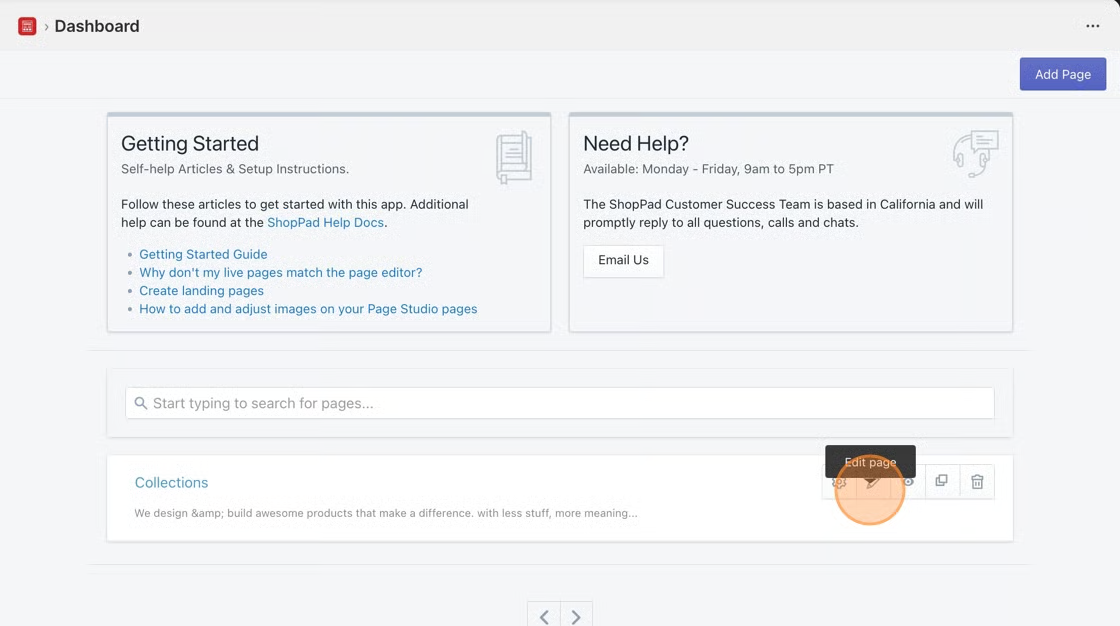
1\. Starting from your Page Studio dashboard, click the **Pencil icon** to edit a page.
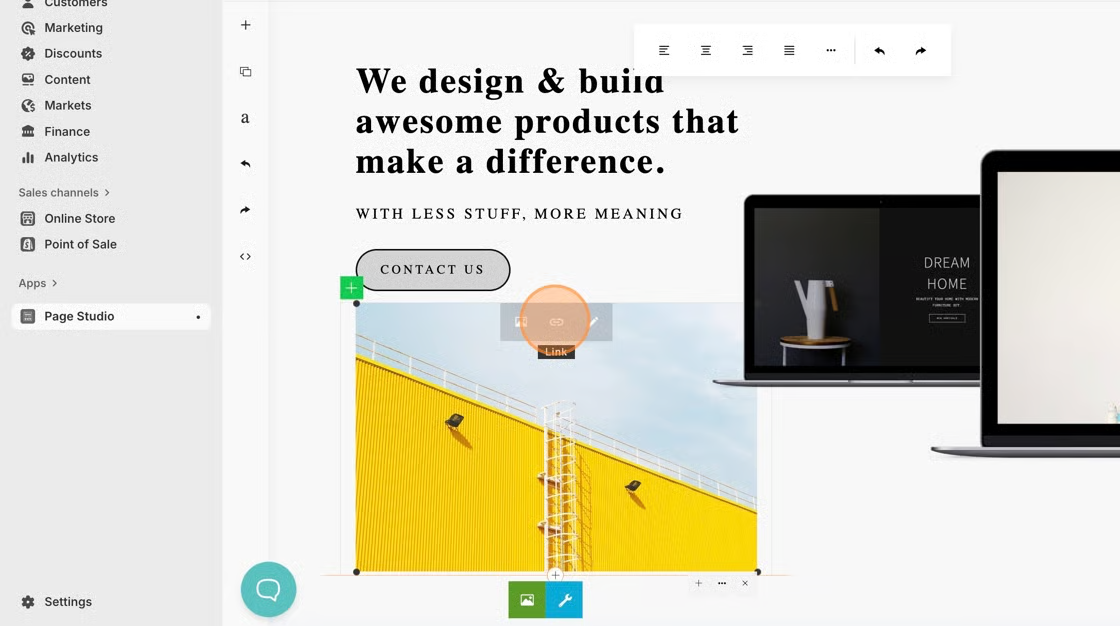
2\. Locate your image to add the alt text.
3\. Click the image, then hit the **Link icon**.
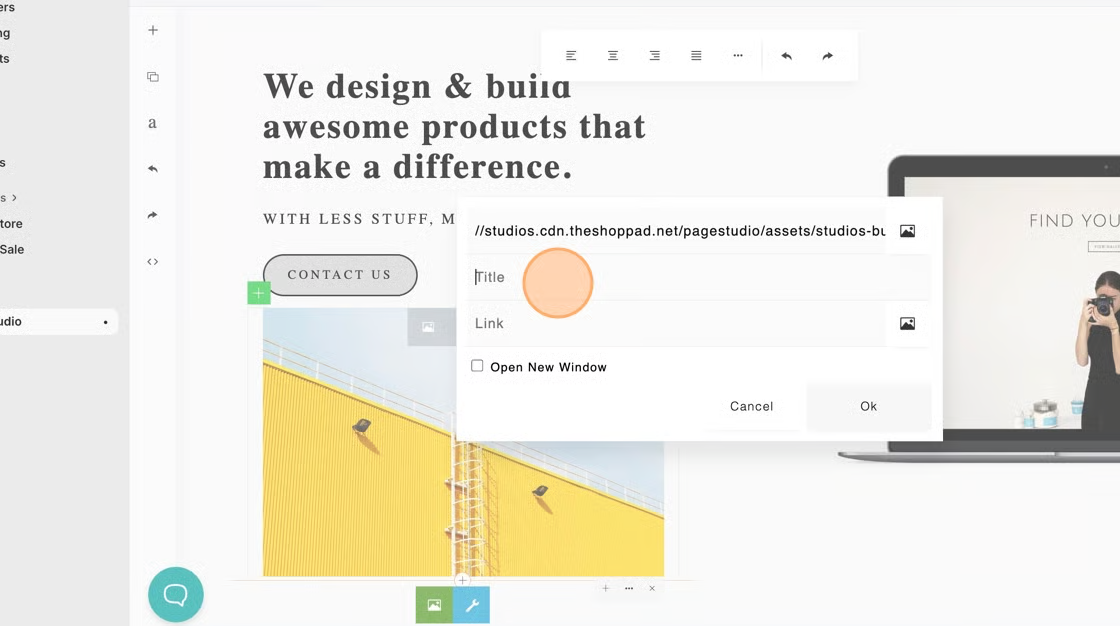
4\. Add the alt text to the **Title field**.
5\. Click **Ok**.
6\. Save your changes.